
Published Oct 15, 2026
How to Configure GA4 Audiences and Google Ads for European Traffic
A step-by-step European setup for linking GA4 and Google Ads, publishing Analytics audiences, configuring consent defaults and tag controls, testing audience eligibility, and diagnosing lists that do not populate.
Category: Online advertising · By metricfixer AI Studio
A GA4 property can be linked correctly to Google Ads and still fail to produce usable European audiences. The product link is only one gate. The website must collect a valid choice, Consent Mode must send the right signals, GA4 must allow advertising use, Google Ads must import the audiences, and the resulting list must contain enough eligible users to serve. This step-by-step guide configures the complete chain for a business that actively measures and advertises in Europe.
Practical default: use a consent-first CMP such as Cookiebot; establish denied defaults before Google tags; link the intended GA4 property and Google Ads account; keep Enable Personalized Advertising on when the goal is to use consented European audiences; turn on Import Google Analytics audiences; leave account-level website and uploaded-data consent defaults set not to presume consent; and validate the complete reject, statistics-only, marketing-consent, and withdrawal paths in Tag Assistant before waiting for platform diagnostics.
Executive summary
A working GA4-to-Google Ads audience pipeline for European traffic has at least six independent gates:
- The website obtains and records a valid choice. A CMP, CMS module, or custom consent layer presents the purposes and supports refusal, granular selection, acceptance, and withdrawal.
- The Google consent states are established before tags process data. The implementation sets
ad_storage,analytics_storage,ad_user_data, andad_personalizationand later updates them from the visitor's choice. - GA4 and Google Ads are linked. The active link must connect the intended property and the account that will own or receive the audience.
- Audience sharing is enabled. The link and Google Ads Data Manager must allow GA4 audiences to publish.
- The user is eligible for advertising use. A person can qualify for a GA4 audience definition but remain excluded from the Google Ads advertising segment because consent, regional personalization controls, identifiers, or product policy make the person ineligible.
- The list reaches the serving threshold. Google Ads currently requires at least 100 active users in the last 30 days for Search, Display, and YouTube audience use. A small European audience can therefore be configured correctly and still be too small to serve.
These gates live on different screens. A green Linked label proves only that the account connection exists. It does not prove that the audience-import toggle is on, that the user's consent is suitable for personalized advertising, or that a GA4 audience has enough advertising-eligible members.
The recommended European setup is not to disable all advertising functionality at property level and then try to restore it with a banner. Instead:
- keep the GA4-to-Google Ads advertising link available for the intended business purpose;
- use visit-level consent signals to separate consenting and non-consenting users;
- avoid globally labeling missing signals as consent granted;
- use GA4 regional ads-personalization exclusions only when the business wants all data from a region to be unavailable for personalized advertising, including data from users who consented.
The companion Consent Management article, How European Websites Should Configure Cookiebot and Google Consent Mode, covers the banner, Cookiebot domain groups, Basic versus Advanced Consent Mode, tag ordering, consent records, and withdrawal. Complete that website architecture before using the account-level settings below.

The target architecture
European audience activation flow: visitor opens the site → Cookiebot or another consent layer establishes denied defaults → the visitor chooses purposes → Consent Mode sends the update → GA4 receives the events permitted by that choice → the user qualifies for a GA4 audience → the active GA4-Google Ads link publishes the audience → Google Ads applies personalization eligibility, identifier, policy, and minimum-size rules → the audience becomes available for campaign use.
Every arrow can fail independently. The guide therefore starts with the site and moves outward through GA4, Google Ads Data Manager, Google tag controls, and Audience Manager.
Before you start
Prepare a small implementation worksheet with:
- the GA4 property ID and web stream;
- the Google tag ID and, where used, the Google Tag Manager container ID;
- the Google Ads customer ID that should receive the audiences;
- the Google Ads manager account, if an MCC structure is involved;
- the Cookiebot domain-group ID or the custom CMP integration specification;
- the approved European region list;
- the selected Basic or Advanced Consent Mode architecture;
- the GA4 audience definitions that will be exported;
- the source and consent status of any CRM, offline conversion, Customer Match, or enhanced-conversion data;
- a non-production QA audience and test page or event.
To create the product link, Google currently requires sufficient administrative access in both products. In practice, use a GA4 account with Editor or Administrator access and a Google Ads user with administrative access. After the link exists, removing one person's direct Analytics permission does not normally delete the account-to-property connection or stop existing audience synchronization. It can remove that person's ability to manage the link, create Analytics audiences from Google Ads, or use Analytics features exposed inside Ads.
Also identify every delivery path. A site may have:
- GA4 delivered by GTM;
- a separate Google Ads tag installed by a CMS plugin;
- a Google tag combined with several destinations;
- server-side GTM forwarding events;
- backend Measurement Protocol events;
- offline conversions uploaded through Data Manager or the Ads API.
A browser banner controls only the data flows connected to it. Server and upload paths require their own consent and governance logic.
Step 1: choose the website consent path
| Path | Before the user chooses | Audience consequence | Use case |
|---|---|---|---|
| Cookiebot + Advanced Consent Mode | Google tags can load with denied defaults and send consent-aware cookieless pings. | Only users with the required granted advertising states are eligible for personalized audiences; denied-state data may support modeling. | Recommended for many advertisers after the pre-consent data flow has been reviewed and disclosed. |
| Cookiebot + Basic Consent Mode | The relevant Google tags remain blocked until consent. | No audience membership is created before the tags are allowed; consenting users can become eligible afterward. | Best when the approved design requires no Google request before the relevant consent. |
| Custom CMP or CMS consent module | Depends on the custom implementation. | Can support the same audience result if it sends complete, timely signals and records the choice. | Appropriate for organizations with a maintained internal consent platform. |
| No commercial CMP, with Google services hard-suppressed | The Google advertising and analytics stack is not delivered. | No GA4 event or Google Ads audience membership from that visit through the suppressed implementation. | Reasonable only when the business does not need those European measurement or activation capabilities. |
| No banner and Google tags load normally | Google receives data without the required consent workflow. | The list may populate technically, but the setup creates Google policy and legal exposure. | Not a recommended European path. |
Path A: Cookiebot through Google Tag Manager
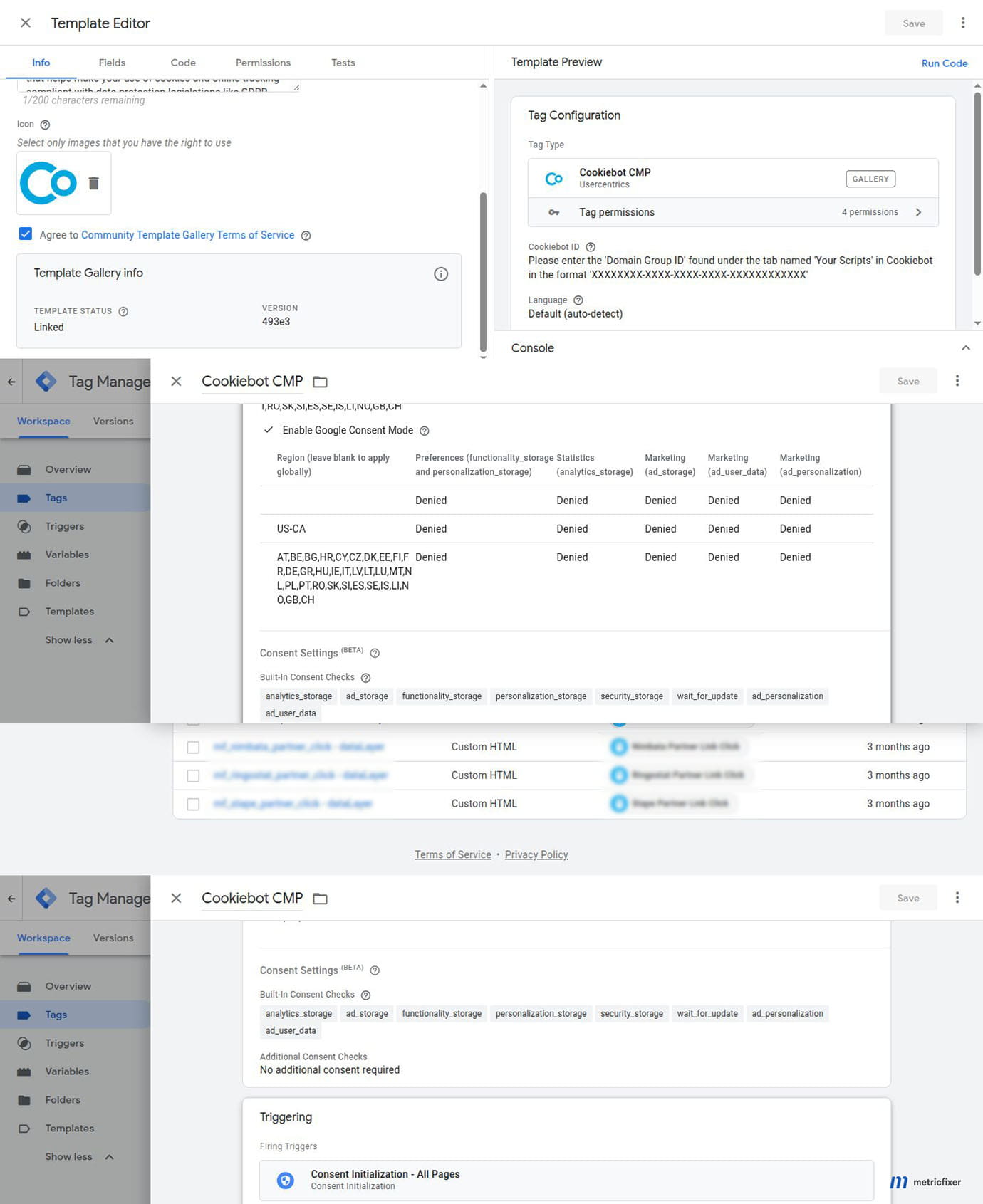
- Use the current Cookiebot CMP template from the GTM Community Template Gallery.
- Fire the CMP tag on
Consent Initialization - All Pages. - Enable Google Consent Mode in the Cookiebot tag.
- Set the European default for
ad_storage,analytics_storage,ad_user_data, andad_personalizationtodenied. - Choose the Basic or Advanced tag pattern intentionally.
- Do not add a second custom consent default unless its precedence is documented.
- Publish the CMP change before publishing tags that depend on it.
Path B: inline Cookiebot
Place the consent-default script and Cookiebot embed before the Google tag or GTM snippet. Cookiebot sends the update after the visitor chooses. This path can be easier to reason about than a GTM-delivered CMP because the consent layer is not dependent on the same container it must control.
Do not place the Cookiebot script through a deferred marketing bundle that runs after GTM. The visual banner may still appear, but the default can arrive too late.
Path C: custom consent implementation
A custom solution must call the Google consent API or use another supported framework with the same four states. It must also control non-Google tags, retain the consent evidence, manage withdrawal, and survive SPA navigation and component re-rendering. An account-level "consent granted" label in Google Ads is not a substitute for that website work.
Step 2: link the intended GA4 property and Google Ads account
The connection can be created from GA4 or from Google Ads Data Manager. From GA4:
- Open Admin.
- Under Product links, open Google Ads links.
- Select Link.
- Choose the exact Google Ads account or manager account.
- Review the personalized advertising option.
- Enable auto-tagging unless the account has a documented alternative attribution design.
- Submit the link and record the date and person responsible.
For a European advertiser that wants to use GA4 audiences in Google Ads, keep Enable Personalized Advertising on. This setting permits the linked product to receive eligible data. It does not declare that every visitor consented. Visit-level Consent Mode and regional controls still determine whether a specific user can be used for personalized advertising.
The link belongs to the GA4 property and Google Ads account, not to the human user who clicked Link. Revoking that person's Analytics access later should not by itself stop audience transfer while the link remains active. When a previously working feed stops, verify the link, audience-import toggle, personalization controls, and consent signals before attributing the problem to a role change.
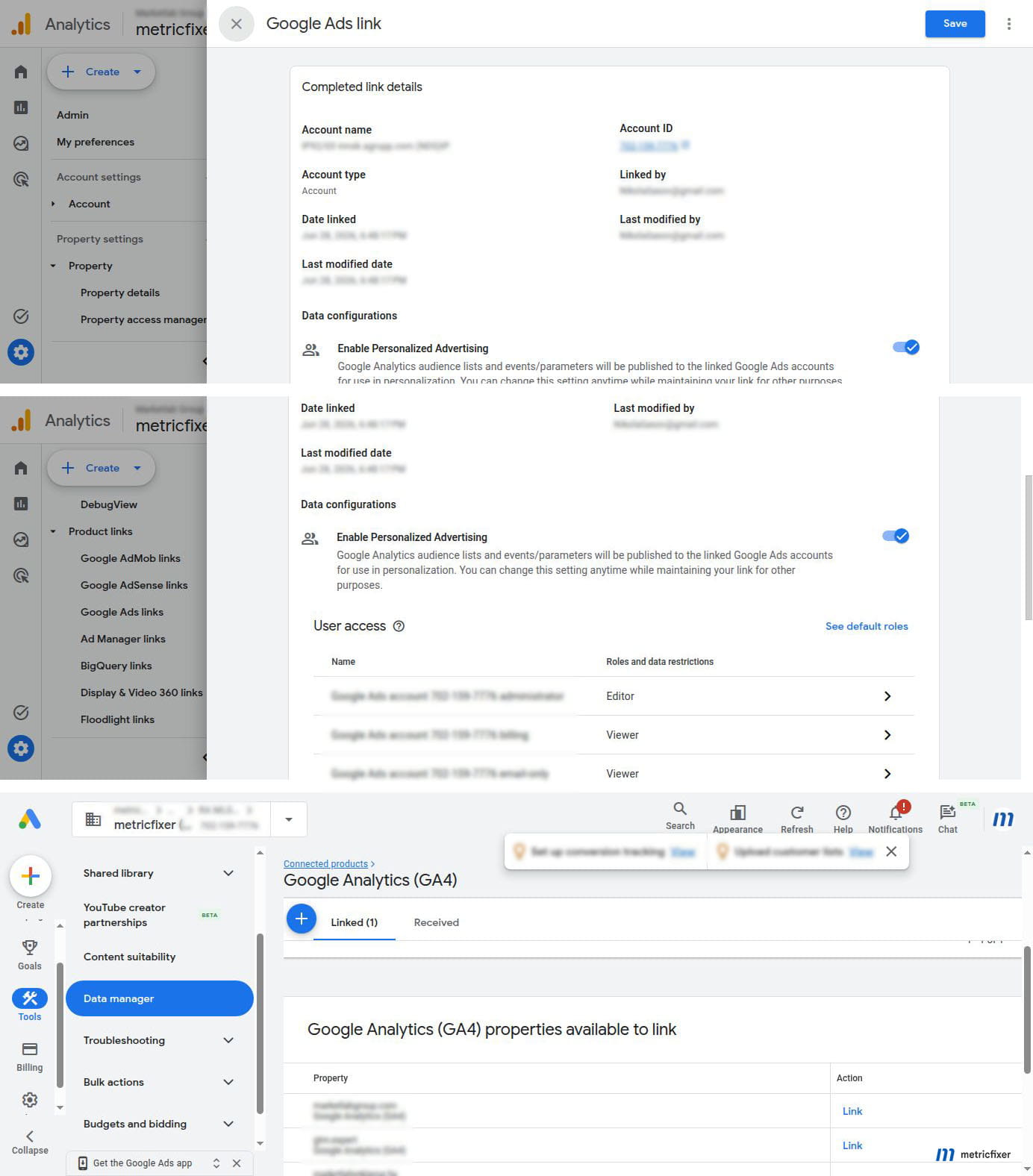
Unlinking is different. Google states that when Analytics and Google Ads are unlinked, ad groups using Analytics remarketing lists stop running, and the account no longer receives the same Analytics audience and key-event flow.
Step 3: verify the linked property in Google Ads Data Manager
In Google Ads:
- Open Tools.
- Select Data manager.
- Open Connected products.
- Select the linked GA4 property.
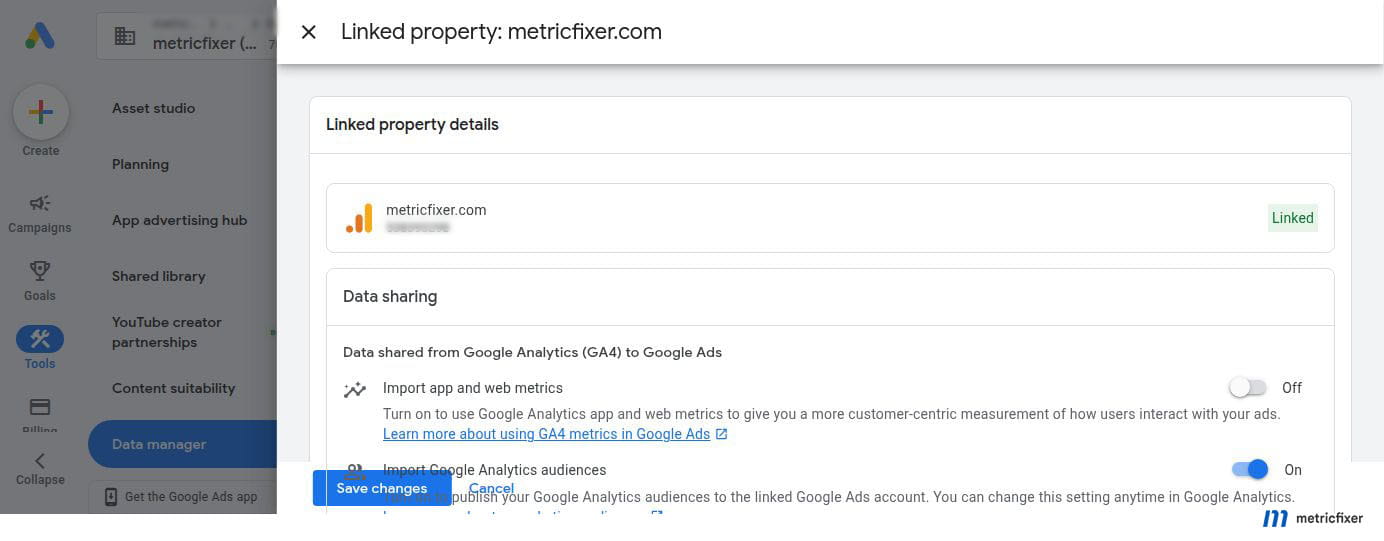
- Turn on
Import Google Analytics audiences. - Turn on
Import app and web metricsonly if the account needs GA4 engagement columns in Google Ads reports. - Save the changes.
| Data-sharing control | What it does | Required for audience export? |
|---|---|---|
Import Google Analytics audiences |
Publishes eligible GA4 audiences to the linked Google Ads account. | Yes |
Import app and web metrics |
Adds GA4 engagement metrics as reporting columns in Google Ads. | No |
An advertiser can therefore keep app and web metrics off while importing audiences. The two toggles should not be treated as a single privacy or linking switch.
Step 4: review GA4 data-collection prerequisites
Google's audience troubleshooting checklist currently asks advertisers to verify:
- the GA4 property and Google Ads account are linked;
- personalized advertising audience sharing is enabled;
- the user-data collection acknowledgment is completed;
- Google Signals or user-provided data collection is enabled where required for the property;
- the manager account is configured as audience manager where an MCC hierarchy is used.
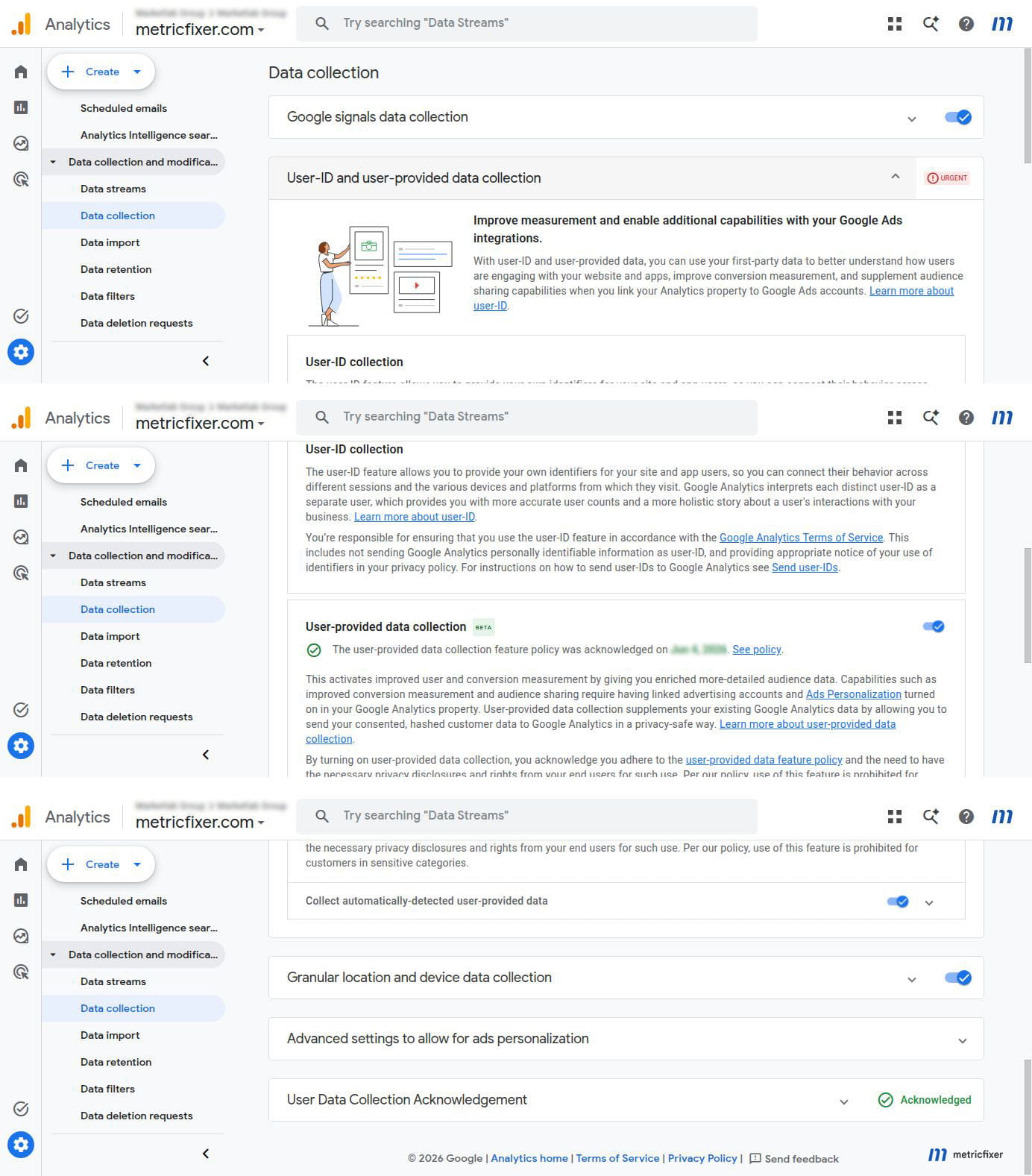
Open GA4 Admin → Data collection and modification → Data collection and document the current status of:
- the user-data collection acknowledgment;
- Google Signals;
- user-provided data collection;
- regional Google Signals controls;
- the actual implementation of user-provided data, if enabled.
Google Signals and user-provided data are product capabilities, not consent. Enabling them does not create the visitor's choice. Disabling them also does not reliably replace Consent Mode as the Google Ads control. From 15 June 2026, Google states that ad_storage is the exclusive Google Ads control for Google Ads cookies and identifiers collected through the Analytics tag or SDK for linked use, while Google Signals continues to control relevant data use inside Analytics.
User-provided data requires a separate implementation review. A banner may permit marketing cookies, but the team still needs to confirm whether email addresses, phone numbers, or other first-party identifiers are collected, normalized, hashed, uploaded, and used under the approved purpose and Google customer-data policies.
Step 5: separate per-user consent from GA4 regional ads-personalization controls
GA4 includes an advanced setting that can disable ads personalization for an entire country or region. When that setting is off for a region, Google marks the affected events as not eligible for ads personalization, and users from that region are not added to exported remarketing lists.
This is useful when the business has decided that no user in the region should be used for personalized advertising. It is not the preferred substitute for a CMP when the business wants to include European users who actively consent.
| Control | Scope | Recommended role in a European audience setup |
|---|---|---|
GA4-Google Ads link: Enable Personalized Advertising |
Linked account or property relationship | Keep on when consented GA4 audiences should be exported. |
| GA4 advanced regional ads-personalization setting | All affected events from the selected region | Keep available for the European region when consented users should qualify; turn off only for a blanket regional exclusion. |
ad_personalization |
Individual visitor and consent state | Use as the visit-level personalization decision. |
ad_user_data |
Individual visitor and advertising-data use | Use for advertising measurement and user-data use cases that require the signal. |
ad_storage |
Individual visitor and advertising storage/identifiers | Use as the visit-level advertising storage control; it is especially important after the June 2026 linked-data change. |
| Audience-import toggle in Google Ads | Connected product | Keep on for the account that should receive GA4 audiences. |
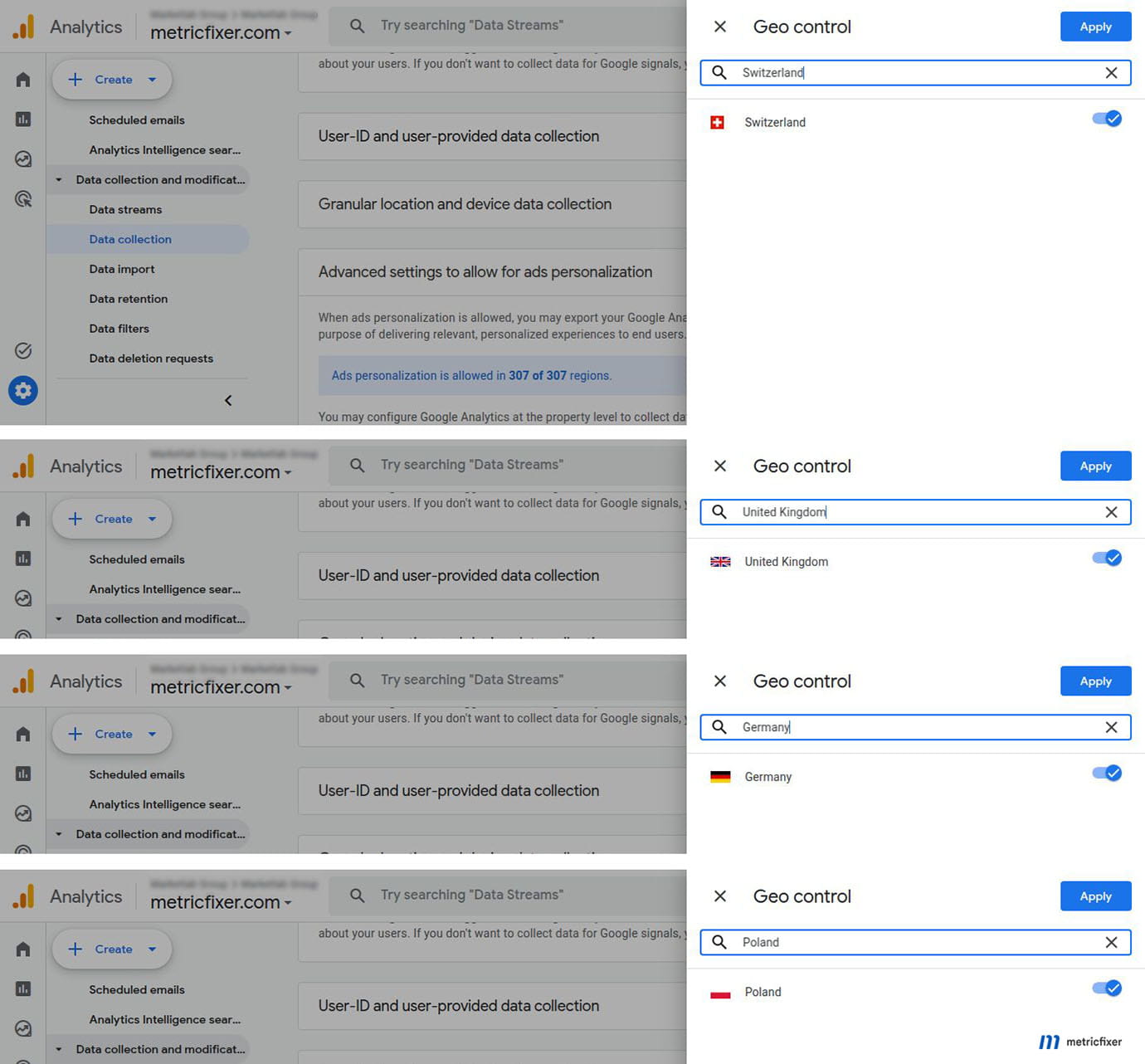
A common misconfiguration is to disable ads personalization for every EEA country because the site has a banner. The banner then grants marketing consent correctly, but the property-level regional switch still marks every EEA event as unavailable for personalized advertising. GA4 audience counts may continue to grow while Google Ads list size remains low or zero.
Step 6: configure Google Ads Data Manager consent defaults
Google Ads Data Manager has account-level default consent controls for:
- Website data received through the Google tag;
- Imported and uploaded data received through data connections, the Google Ads interface, or the Ads API.
Google describes these settings as defaults. More specific values supplied by the website, connection, import, or upload override them. The default should therefore be a defensible fallback, not a shortcut around collecting the real signal.
Website data default
| Website architecture | Recommended starting default | Reason |
|---|---|---|
| Cookiebot + Advanced Consent Mode | No: do not automatically mark website data as consented | The page sends explicit granted or denied values. A missing signal should not be converted into consent. |
| Cookiebot + Basic Consent Mode | No remains the conservative audit position. Yes is supportable only if every Google tag is physically blocked until the visitor grants consent. | Google explicitly describes the Yes option for businesses that block the Google tag until after consent. The business should be able to prove that condition across every template and tag path. |
| Custom CMP | No | The custom solution should send event-level or visit-level consent. The account default should not conceal missing implementation. |
| No CMP and no Google tags for European traffic | No | No European website data should arrive through that path. A granted default provides no benefit and creates ambiguity for unknown-location or accidental tag traffic. |
Imported and uploaded data default
For European projects, the safer baseline is No: do not automatically mark imported and uploaded data as consented. Pass the consent status with the individual connection, record, event, or API request where supported. This is especially important for:
- offline conversion import;
- enhanced conversions for leads;
- call conversion imports;
- store sales and store calls;
- Customer Match;
- Campaign Manager 360 and Search Ads 360 conversion APIs.
A website's cookie choice does not automatically prove that every CRM row or historical customer record can be used for advertising personalization. Imported data needs its own provenance, purpose, consent, and revocation workflow. Google specifically requires the relevant consent signals for EEA user data in applicable Customer Match and store-sales use cases.
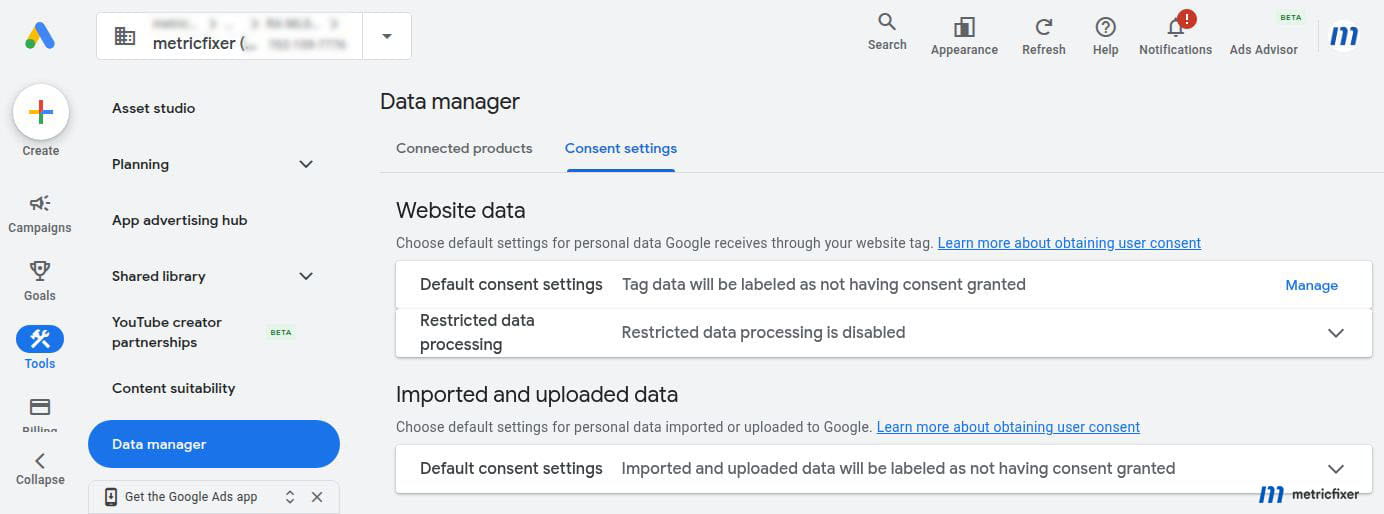
The account page may display a statement such as "Tag data will be labeled as having consent granted." That is a configuration declaration, not evidence that the website obtained consent. Before selecting it, verify the architecture with a clean browser session and Tag Assistant.
Step 7: review Google tag consent controls
The Google tag settings can expose several controls whose names overlap with CMP concepts. Treat them as fail-safes and transmission rules, not as the primary consent interface.
Set Consent Mode override
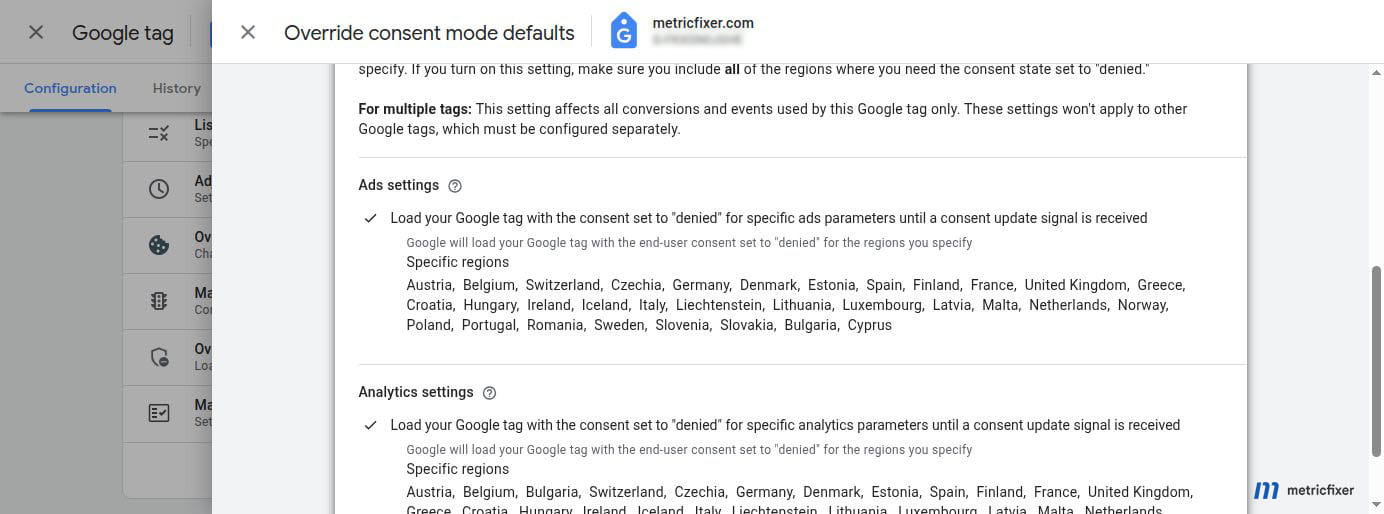
An override can force the Google tag or destination to load with a selected default state for specified regions. For a European project, a denied regional override can be a useful fail-safe when the site's own default is missing. It should not contradict Cookiebot or reset a user's later update.
Before enabling an override:
- confirm which Google tag and destinations it affects;
- confirm whether GTM or inline code already sets defaults;
- use the same EEA, UK, and Swiss region list as the CMP where appropriate;
- test whether the visitor's later update takes precedence;
- avoid a global override that suppresses the site's non-European markets unintentionally.
Manage default consent settings for data collection
This Google tag screen can add a default consent label to data received through the tag. It is not a Cookiebot configuration and does not show what a visitor selected. For an Advanced Consent Mode implementation, avoid using it to turn missing signals into granted consent. For a Basic implementation, a granted label is only defensible when the tag cannot load until after consent.
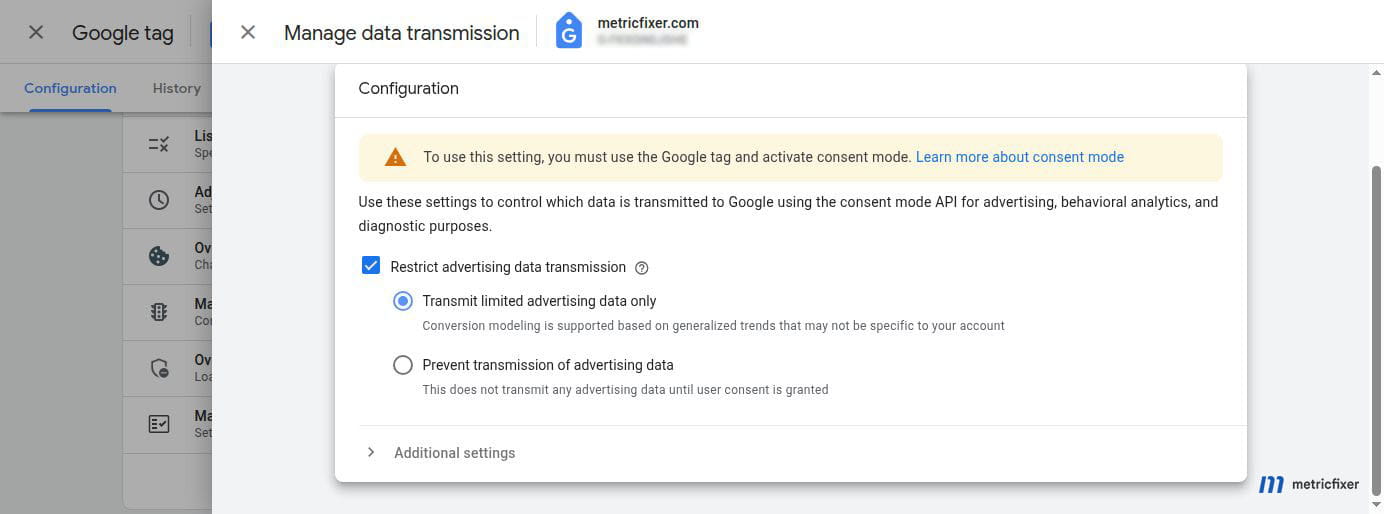
Data-transmission controls
Data-transmission controls determine how much advertising or diagnostic data Google receives when consent is denied. Current interfaces can offer a limited-advertising-data path and a stricter no-advertising-data path. The choice should match the site's approved Basic or Advanced design:
- Advanced, modeling-oriented implementation: limited advertising transmission may be appropriate when the business has reviewed cookieless pings and disclosures.
- Strict no-advertising-request implementation: choose the stricter transmission or Basic blocking path.
- Server-side GTM: configure equivalent redaction or blocking in the server container; the web-interface control does not automatically sanitize every server request.
Step 8: review GA4 Consent settings without treating diagnostics as proof
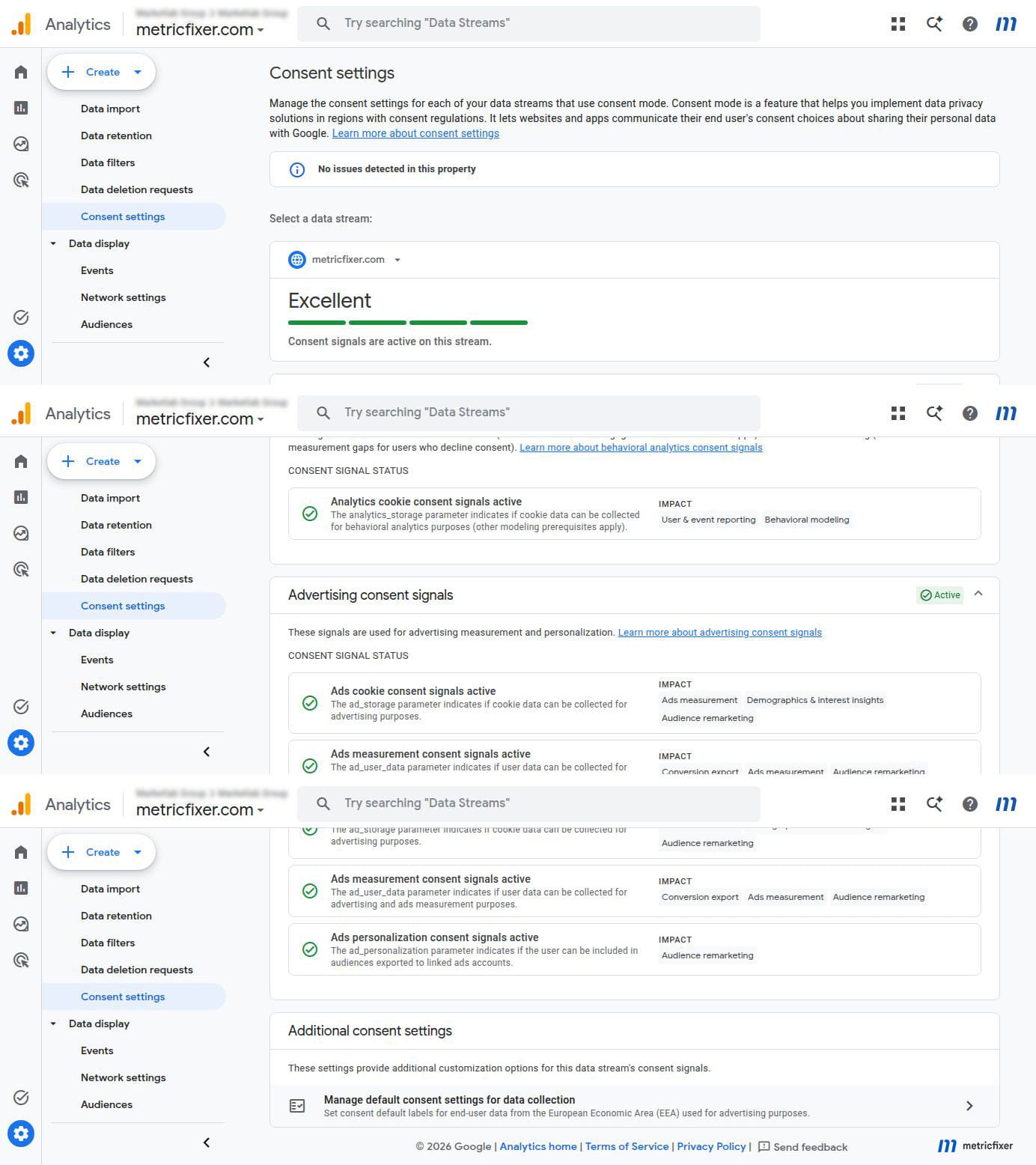
In GA4, open Admin → Data collection and modification → Consent settings and select the relevant web stream. Review:
- whether
analytics_storageis detected; - whether
ad_storageis detected; - whether
ad_user_datais detected; - whether
ad_personalizationis detected; - whether behavioral analytics consent and advertising consent are reported as active;
- whether the stream shows warnings for missing or inactive signals.
A status such as Good or "no problems detected" is not a complete compliance verdict. It may mean that GA4 has observed the expected signal shape. It does not prove:
- the banner is shown in every intended country;
- the first layer provides an adequate refusal route;
- the default arrived before every tag;
- non-Google tags respect the same choice;
- server-side events carry the correct consent;
- the consent record and withdrawal path are adequate;
- the signal is correct for every choice rather than only one test visit.
Google Ads and GA4 diagnostics can take time to update. Consent Mode impact results also require sufficient data and a full observation period. Use Tag Assistant and network inspection for immediate implementation truth; use platform diagnostics as a later confirmation.
Step 9: create a temporary QA audience
Do not diagnose with the production All users audience alone. Create a short-lived audience that can be triggered deliberately by an internal test.
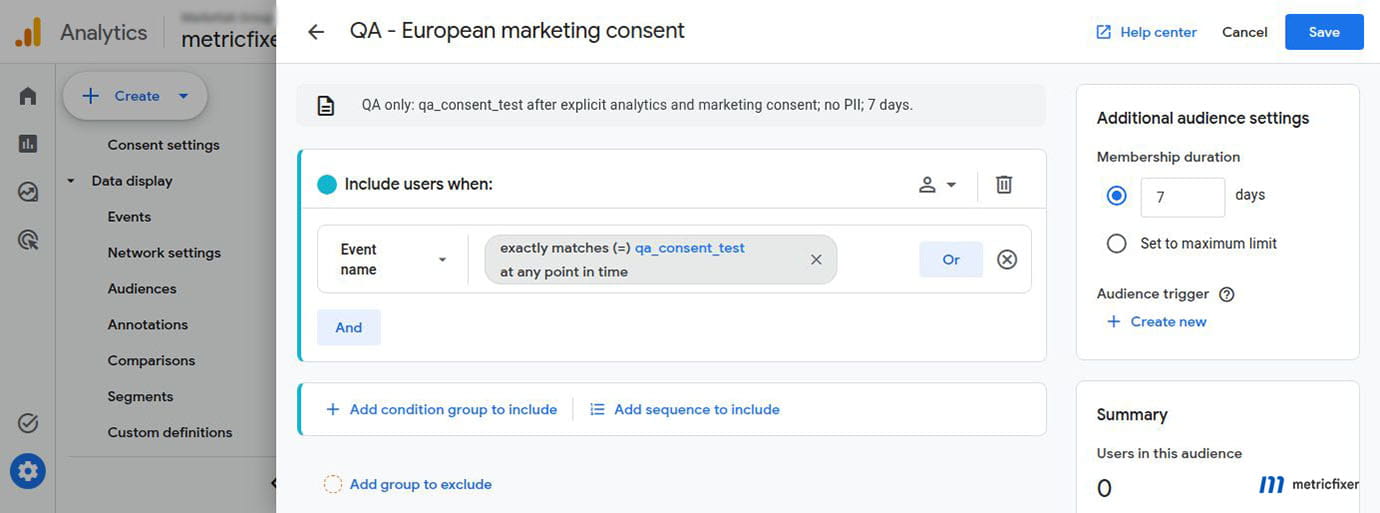
A practical QA design is:
- name:
QA - European marketing consent; - membership duration: 7 days;
- condition: a dedicated event such as
qa_consent_testor a visit to a restricted test path; - trigger: fire only after the visitor grants the marketing purpose;
- exclusion: internal test users can be removed or the audience archived after validation.
Do not send personal data in the event name or parameters. The goal is to create a traceable technical marker, not to upload a tester's identity.
Run the audience test in this order:
- Use a clean browser profile and an EEA location.
- Confirm all four defaults are denied.
- Reject marketing and verify that the QA event does not create an advertising-eligible member.
- Clear the profile or withdraw consent.
- Repeat, grant marketing consent, and trigger the QA event.
- Verify the GA4 event and audience qualification.
- Allow time for the audience to appear in Google Ads.
- Compare the GA4 audience, the GA4 advertising segment, and the Google Ads list.
Google states that GA4 audiences can become available in Google Ads in about one day on average and recommends allowing up to two days. The connection itself can also take several hours to propagate. Do not repeatedly unlink and relink during that window; doing so resets the investigation.
Step 10: test the full European choice matrix
| Visit state | Expected Consent Mode values | Expected audience result |
|---|---|---|
| Fresh EEA visit, no action | All four core values denied. | No personalized audience eligibility before affirmative consent. |
| Reject all | Advertising and analytics values remain denied. | No personalized GA4-to-Ads list membership from the denied visit. |
| Statistics only | analytics_storage granted; ad_storage, ad_user_data, and ad_personalization denied. |
Analytics reporting may improve, but the user remains unavailable for personalized advertising. |
| Marketing accepted | The approved advertising states update to granted. | The user can become eligible if the other GA4 and Ads gates are satisfied. |
| Consent withdrawn | The affected states return to denied. | Future advertising use stops or adapts; existing list behavior follows Google's membership and policy rules. |
| UK or Swiss visit | Behavior follows the business's approved UK or Swiss path. | Google does not currently require the same verified-signal enforcement for advertiser traffic as in the EEA, but the policy and local consent configuration still apply. |
Test at least one EU member state, Norway, the UK, and Switzerland. A banner shown in Germany but missing in Norway is not a complete EEA implementation.
Why the GA4 audience and Google Ads list do not match
A GA4 audience is a behavioral definition. A Google Ads advertising segment is the subset that can be synchronized and used for advertising. The counts can differ for legitimate reasons:
- the user qualified behaviorally but did not grant
ad_personalization; ad_user_dataorad_storageremained denied;- GA4 regional ads personalization was disabled;
- Google Signals or user-provided data prerequisites were not satisfied;
- the user was not active or identifiable for the relevant Google advertising surface;
- the audience was newly created and still propagating;
- the membership duration or lookback differs;
- data thresholds or privacy protections affect the visible estimate;
- the Ads account receives the audience through a manager-account structure with the wrong audience-manager setting.
Use the Advertising segments view in GA4 when available. Google describes it as the ads-personalization-eligible list size and says it is designed to align more closely with Google Ads Audience Manager than the general GA4 audience count.
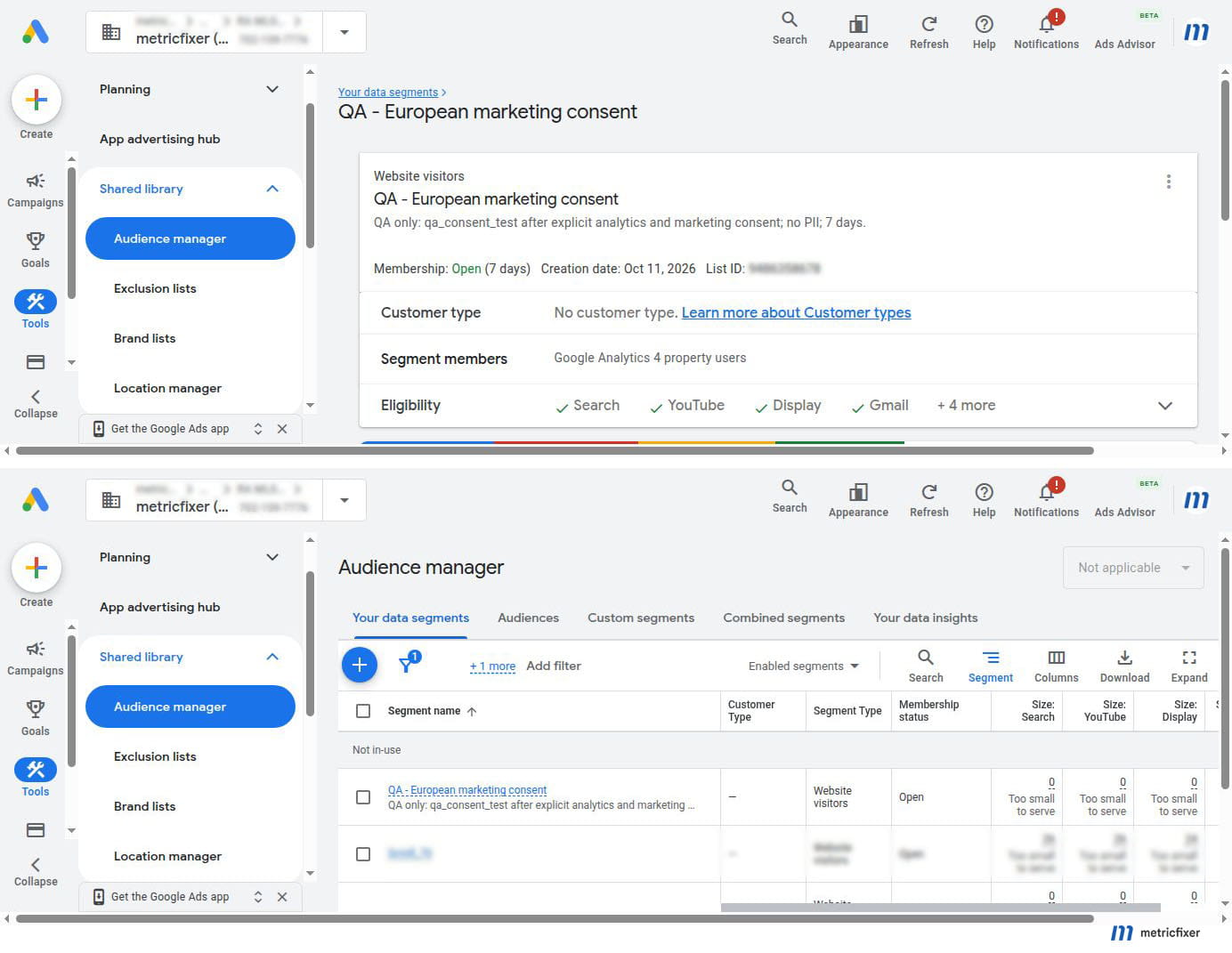
Google Ads currently requires at least 100 active users within the last 30 days for Search, Display, and YouTube list use. A niche B2B site can therefore have a technically correct list that remains unusable for targeting. Increasing the membership duration can help only if the underlying users remain eligible and the audience definition still makes business sense.
The 2026 linked-data control model
Google's June 2026 change makes the four consent states more important, not less:
ad_storagecontrols the use of Google Ads cookies and identifiers collected through the Analytics tag or SDK for Google Ads and the Analytics advertising section.ad_user_datacontrols whether user data can be sent to Google for advertising measurement use cases such as enhanced conversions and tag-based conversion tracking.ad_personalizationcontrols personalized advertising and remarketing use.analytics_storagecontrols analytics-related storage such as cookies used for visit duration and behavioral measurement.
Google has also announced continued consolidation of linked-product controls so that settings are applied based on where data is used. The implementation team should treat the site's Consent Mode values as the durable source of user choice and treat product-level switches as destination permissions and fallbacks.
This distinction matters when Google Signals is off. After the June 2026 change, turning Google Signals off does not by itself prevent Google Ads from using advertising cookies and identifiers when ad_storage is granted. A business that wants no Google Ads identifier use must set the consent and destination controls accordingly.
Audiences, conversions, metrics, and uploads are different paths
| Data path | Primary control | Common misunderstanding |
|---|---|---|
| GA4 audiences to Google Ads | Product link, personalized advertising, audience import, consent eligibility, audience size | A linked account automatically means every GA4 user enters a remarketing list. |
| GA4 key events imported as Google Ads conversions | Product link, conversion creation/import, consent and attribution data, conversion settings | Turning on audience import also imports every key event as a conversion. |
| GA4 app and web metrics in Ads reports | Import app and web metrics |
This toggle controls audience publishing. |
| Google Ads tag-based conversions | Google tag destination, ad_storage, ad_user_data, tag configuration |
The GA4 audience link controls the direct Ads conversion tag. |
| Customer Match and imported customer data | Data Manager connection, record-level consent, customer-data policy, matching and list thresholds | Website cookie consent automatically covers every CRM record. |
| Enhanced conversions or enhanced conversions for leads | User-data collection, hashing and mapping, ad_user_data, conversion configuration |
A green Consent Mode diagnostic proves enhanced-conversion consent and data quality. |
For more contractual and processor-role context around uploads, Customer Match, and enhanced conversions, see metricfixer's Google Ads Data Processing Terms guide.
Recommended settings matrix for a European advertiser
| Screen or control | Recommended baseline | When to choose differently |
|---|---|---|
| Cookiebot / CMP default | All four Google advertising and analytics states denied before choice | Only where a documented jurisdictional or strictly necessary-purpose analysis supports another value. |
| Basic vs Advanced | Advanced for modeling-oriented advertisers after review; Basic for no-pre-consent Google requests | Choose from data-flow requirements, not from the desired dashboard volume alone. |
| GA4-Google Ads link | Linked to the intended account | Use a manager account only when the audience-sharing model is documented. |
Enable Personalized Advertising |
On when consented European audiences should be exported | Off when the business does not want Analytics data used for Ads personalization at all. |
Import Google Analytics audiences |
On | Off only when the account should not receive GA4 audiences. |
Import app and web metrics |
Optional | On when GA4 engagement columns are useful in Ads reporting. |
| GA4 regional ads personalization | Allowed for the intended European markets so consented users can qualify | Disable for a region only when all users from that region should be excluded. |
| Data Manager website default | No automatic consent label | Yes only for a proven Basic setup where the Google tag cannot transmit until after consent. |
| Data Manager imported/uploaded default | No automatic consent label | Yes only when every imported record is covered by a documented, maintainable consent process. |
| Google tag Consent Mode override | No conflicting override; a denied European fail-safe only if needed | Use when the website default cannot be guaranteed, then test precedence carefully. |
| Data-transmission controls | Match the approved Basic or Advanced design | Use stricter no-advertising transmission where the business rejects cookieless advertising pings. |
| Restricted Data Processing | Not used as a GDPR or EEA consent switch | Review separately for applicable U.S. state privacy programs. |
Troubleshooting by symptom
The property is linked, but no GA4 audience appears in Google Ads
- Check
Import Google Analytics audiencesin Data Manager. - Check
Enable Personalized Advertisingon the link. - Confirm the audience was created after or is eligible for the linked destination.
- Allow several hours and up to two days for propagation.
- Check whether the property is linked to a manager account and whether that manager is the audience manager for the child account.
The audience exists, but the Google Ads size is zero or very small
- Compare the general GA4 audience with the GA4 advertising segment.
- Check whether European regional ads personalization is disabled.
- Check
ad_personalization,ad_user_data, andad_storageon consented visits. - Verify Google Signals or user-provided data prerequisites.
- Check the audience condition and membership duration.
- Confirm the site has at least 100 eligible active users in the last 30 days for the intended surface.
GA4 shows many audience members, but Google Ads shows far fewer
This is often expected. GA4 can count behavioral members who are not eligible for advertising use. Consent status, regional personalization exclusions, identifier availability, activity on Google services, and privacy rules reduce the Ads subset. Use the Advertising segments view for a closer comparison.
GA4 says consent setup is good, but the list does not grow
- Inspect a real marketing-consent visit in Tag Assistant.
- Confirm the update occurs before the audience-triggering event.
- Check that a later SPA route does not reset the consent state.
- Check the GA4 regional ads-personalization switch.
- Check the Google Ads audience-import toggle.
- Do not use a Data Manager granted default as a substitute for a missing website update.
The user who created the link lost GA4 access
Check whether the product link still appears in both GA4 and Google Ads. A change to one human user's Analytics role does not normally remove the property-account link. It may change who can administer the connection or use Analytics functionality from Ads. If the link remains active, investigate the data and consent gates instead.
Marketing consent is granted, but the user never enters the list
- Confirm the audience condition actually occurred after the update.
- Confirm the event reached the same GA4 property linked to Ads.
- Check duplicate measurement IDs and combined Google tag destinations.
- Check event exclusions from ads personalization.
- Check region-level ads-personalization exclusions.
- Allow processing time and verify the user in the GA4 advertising segment, not only Realtime.
A Customer Match or uploaded audience is rejected or unavailable
- Review the imported/uploaded consent default.
- Pass
ad_user_dataandad_personalizationwith EEA records where required. - Verify data provenance, hashing, formatting, and customer-data policy eligibility.
- Do not infer CRM marketing consent from the website's analytics cookie.
- Check the 100-active-user threshold and match rate.
Final implementation checklist
- [ ] The CMP loads before Google Tag Manager and the Google tag.
- [ ] All four core consent states default to
deniedfor the European path. - [ ] The user choice sends a visible Consent Mode update.
- [ ] Basic or Advanced Consent Mode is documented and matches actual requests.
- [ ] The intended GA4 property is linked to the intended Google Ads account.
- [ ]
Enable Personalized Advertisingis on when consented audiences are required. - [ ] Auto-tagging or the approved attribution alternative is configured.
- [ ]
Import Google Analytics audiencesis on. - [ ]
Import app and web metricsis treated as optional. - [ ] The GA4 user-data collection acknowledgment is complete.
- [ ] Google Signals and user-provided data settings have been reviewed separately from consent.
- [ ] GA4 regional ads personalization is not accidentally disabled for the target European markets.
- [ ] Website data is not automatically labeled consented unless every tag is proven to be post-consent.
- [ ] Imported and uploaded data is not automatically labeled consented without record-level evidence.
- [ ] Google tag overrides do not contradict or reset Cookiebot.
- [ ] Data-transmission controls match the approved Basic or Advanced architecture.
- [ ] GA4 Consent settings show all four signals after processing.
- [ ] A temporary QA audience has been tested from an EEA visit.
- [ ] Reject, statistics-only, marketing-accept, and withdrawal paths have been tested.
- [ ] Norway, the UK, and Switzerland have been tested explicitly.
- [ ] GA4 audience size is compared with the advertising-eligible segment and Google Ads list.
- [ ] The 100-active-user threshold is considered before declaring the implementation broken.
- [ ] MCC audience-manager settings are correct where a manager account is used.
- [ ] Browser, server-side, Measurement Protocol, and offline-upload paths have separate consent controls.
Methodology and sources
This guide was prepared from a review of Google's current GA4-Google Ads linking, audience export, audience troubleshooting, consent-signal, Consent Mode, Google tag, Data Manager consent-default, advertising-segment, minimum-size, and 2026 Analytics data-control documentation, together with Cookiebot's Consent Mode implementation guidance and Google's EU User Consent Policy. The review was completed on 6 August 2026. The recommendation to use conservative "do not automatically mark as consented" defaults is an operational risk-control position based on Google's documented override behavior, not a quotation that every advertiser must choose the same setting.
- Google Analytics: Connect Google Ads to Google Analytics
- Google Ads: Manage the linked GA4 property and imported metrics
- Google Analytics: Enable remarketing with Analytics data
- Google Analytics: Troubleshoot GA4 audiences in Google Ads
- Google Analytics: Why audiences may not populate in Google Ads
- Google Analytics advertising segments
- Google Analytics advanced ads-personalization settings
- Google Analytics: Verify and update consent settings
- Google Consent Mode reference
- Google: Verify Consent Mode implementation
- Google Analytics: About Consent Mode
- Google tag data-transmission controls
- Google Ads Data Manager: Manage connections and consent defaults
- Google Analytics data-control changes for 2026
- Google Ads audience-segment size requirements
- Google: Obtain and send consent for uploaded EEA data
- Google EU User Consent Policy
- Google: Help with the EU User Consent Policy
- Cookiebot: Implementing Google Consent Mode
- Cookiebot: About Google Consent Mode
This article provides technical and operational information and is not legal advice. Consent, advertising-personalization, measurement, and customer-data requirements depend on user location, the advertiser's data practices, applicable law, and the exact Google product configuration. metricfixer is an official Cookiebot reseller and is not affiliated with Google or Usercentrics. Google Ads, Google Analytics, Google Tag Manager, Cookiebot, audience thresholds, interfaces, and policies may change after publication.