
Published Oct 12, 2026
How to Link GA4 to Google Ads and Configure Audiences and Consent for a U.S.-Focused Website
A linked GA4 property is only the start. This guide separates audience publishing, visitor consent, U.S. privacy controls, uploaded data, and the diagnostics that prove the whole chain works.
Category: Online advertising · By metricfixer AI Studio
This guide connects a U.S.-focused website, GA4, and Google Ads without confusing the product link, audience publishing, European consent, U.S. privacy controls, and imported customer data. It includes a CMP path and the narrower no-banner path where the relevant Google services are not delivered to EEA, UK, or Swiss visitors.
Practical default: keep the GA4–Google Ads link active, enable the specific audience-import control, use visitor-level consent as the source of truth, keep account defaults conservative, and test a temporary QA audience before relying on production lists.
Executive summary
A GA4 property can be correctly linked to Google Ads while audiences still fail to populate or remain ineligible. The link only opens the data path. Separate controls decide whether Analytics audiences are published, whether a visitor can be used for advertising, whether a region is excluded from personalization, whether uploaded records carry consent, and whether a list is large enough for a particular network.
Removing one user’s personal access to GA4 does not normally delete the product link or stop an existing audience export. The connection is between the GA4 property and the Google Ads account. Permissions matter for who can edit the link or create audiences, but the troubleshooting sequence should first check the link status and data-sharing controls rather than assume the original user owns the pipeline.
Google’s 2026 data-control update is important for current implementations. From 15 June 2026, Consent Mode becomes the single Google Ads control for the collection and use of advertising cookies and identifiers obtained through the Analytics tag or SDK, while Google Signals retains a narrower role for signed-in association in Analytics behavioral reporting. Google also announced a later-2026 simplification in which ad_personalization will exclusively control whether linked Analytics data is used for Ads personalization.
Account-level settings in Google Ads Data Manager are fallback declarations. Google documents that more specific website, connection, import, or record-level values take precedence. A setting that labels all incoming data as consented is therefore appropriate only when the upstream process truly blocks collection until consent or otherwise supports that declaration.

The control layers are independent
| Layer | What it does | What it does not prove |
|---|---|---|
| CMP / website | Collects or respects the visitor choice and establishes the live consent state | That GA4 audiences are published to Ads |
| Consent Mode | Communicates advertising and analytics consent states to Google tags | That the banner itself is valid or that CRM uploads carry consent |
| GA4–Google Ads link | Allows data to flow between the property and account | That every user is eligible for personalization |
| Import Google Analytics audiences | Publishes eligible GA4 audiences to the linked Ads account | That a list is large enough to serve |
| GA4 regional ads personalization | Excludes or allows entire regions for Ads personalization use | The choice of an individual visitor |
| Google Ads Data Manager defaults | Fallback consent labels for website and uploaded data | Evidence of an individual choice |
| Restricted Data Processing | Limits certain U.S. data uses in applicable contexts | European consent or a global CMP |
| Audience Manager status and sizes | Shows list source, state, and network-specific population | That every GA4 audience member remains Ads-eligible |
Step 1: confirm the website consent path
Use one of two approved paths. Path A uses Cookiebot or another CMP to apply an EEA/UK/Swiss branch while preserving the U.S. path. Path B does not show a European banner because the site does not load the affected Google services for visitors in those regions. Path B is not “ignore Europe”; it is complete technical suppression for that branch. Read the companion EU Consent for U.S.-Focused Websites: Cookiebot, Consent Mode, and Google Ads Audiences first.
When Cookiebot is deployed through GTM, use the current Cookiebot CMP template, enable Google Consent Mode, configure explicit defaults, and trigger it with Consent Initialization - All Pages. This places the consent decision before ordinary GTM triggers.
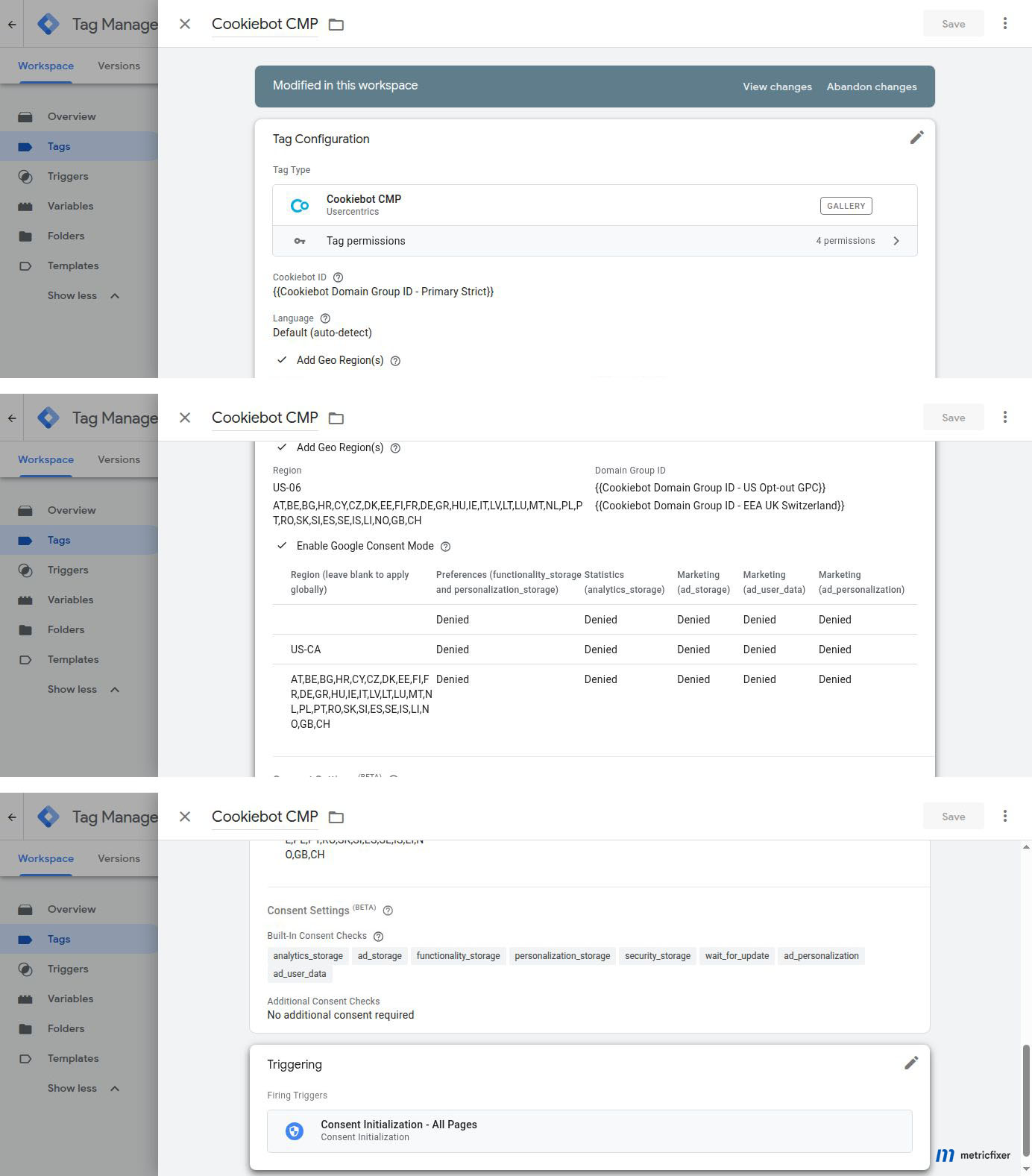
Step 2: establish the regional CMP and Consent Mode state
Confirm the live website sends analytics_storage, ad_storage, ad_user_data, and ad_personalization. A banner that changes cookies without updating these values is not a complete Google consent integration.
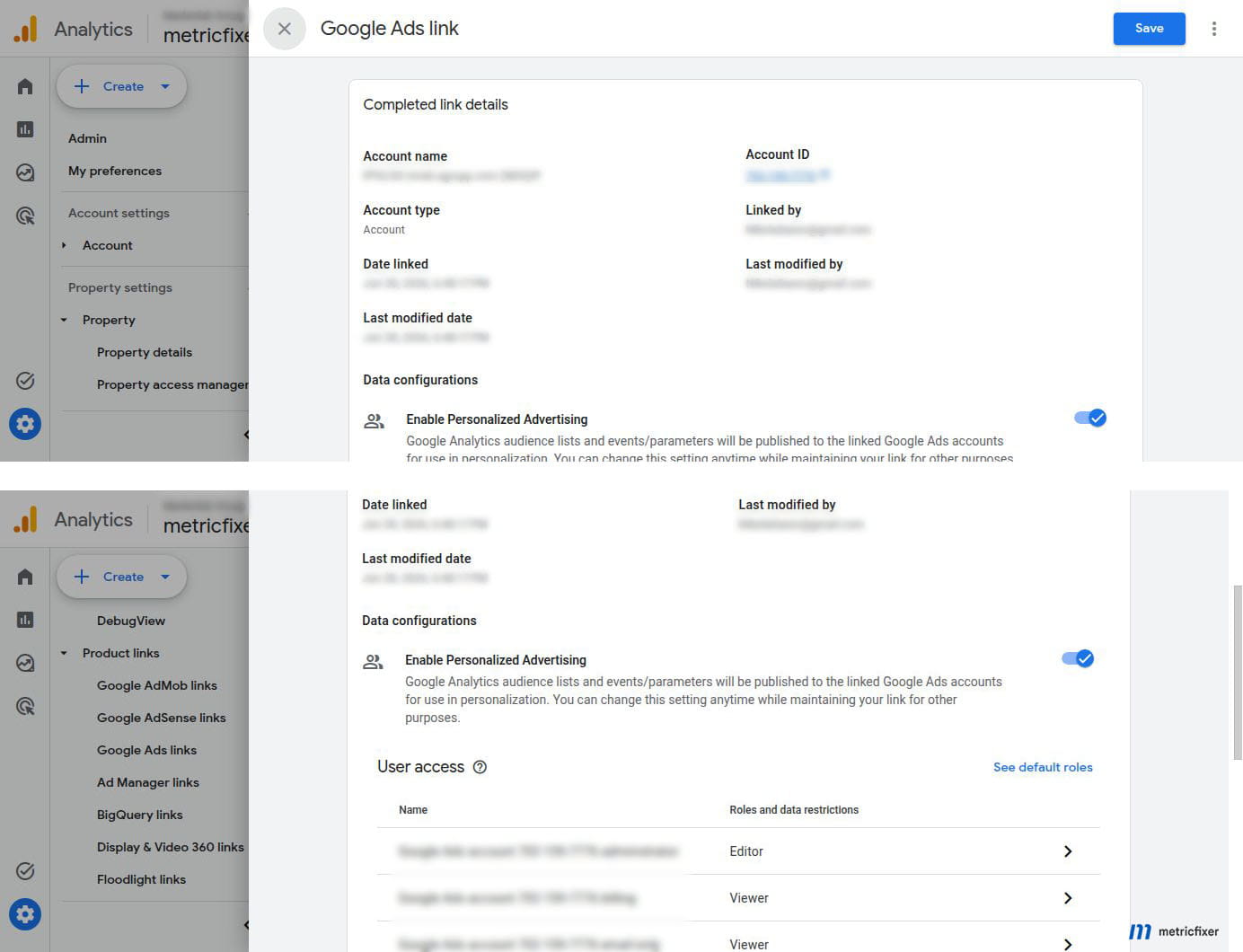
Step 2: create or review the GA4–Google Ads link
- In GA4, open
Admin → Product links → Google Ads links. - Choose the intended Google Ads account or approved manager/regional account.
- Keep
Enable Personalized Advertisingon where consented audience activation is intended. - Enable auto-tagging or confirm the approved account setting.
- Review and submit the link. Record the property, account, owner, and date in the change log.
Turning personalized advertising on at the product link keeps the route available. It does not override a visitor’s ad_personalization=denied choice, a regional GA4 exclusion, or a U.S. opt-out state.
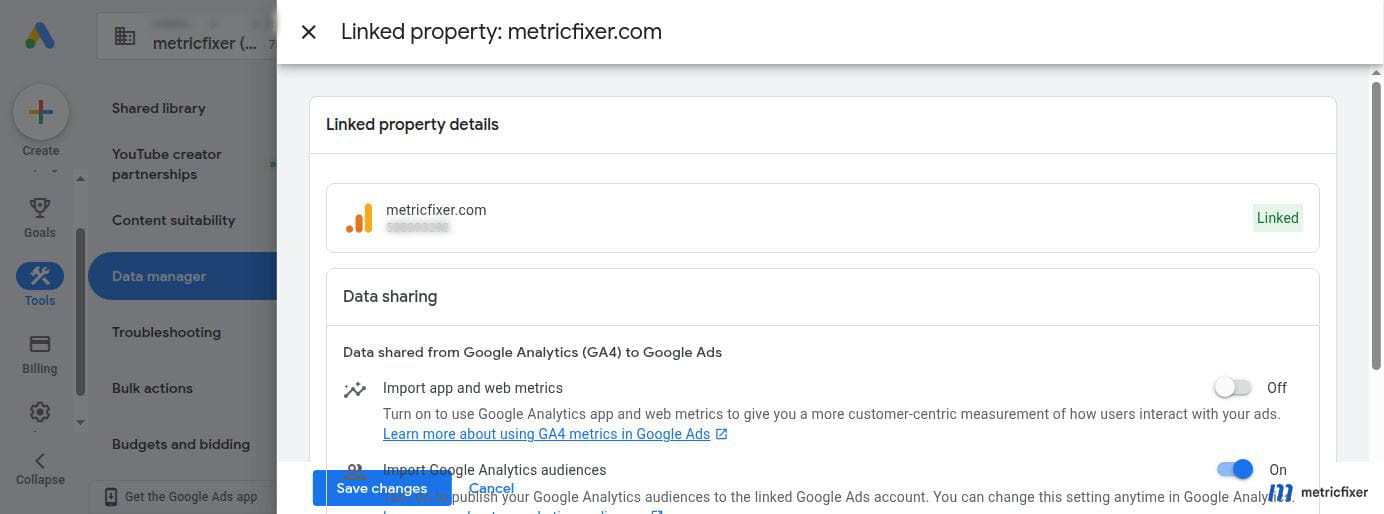
Step 3: enable Analytics audience publishing in Google Ads
Open Google Ads → Tools → Data manager → Connected products, open the linked GA4 property, and turn on Import Google Analytics audiences. The nearby Import app and web metrics control is optional and adds GA4 engagement columns to Google Ads reporting; it is not the audience-publishing switch.
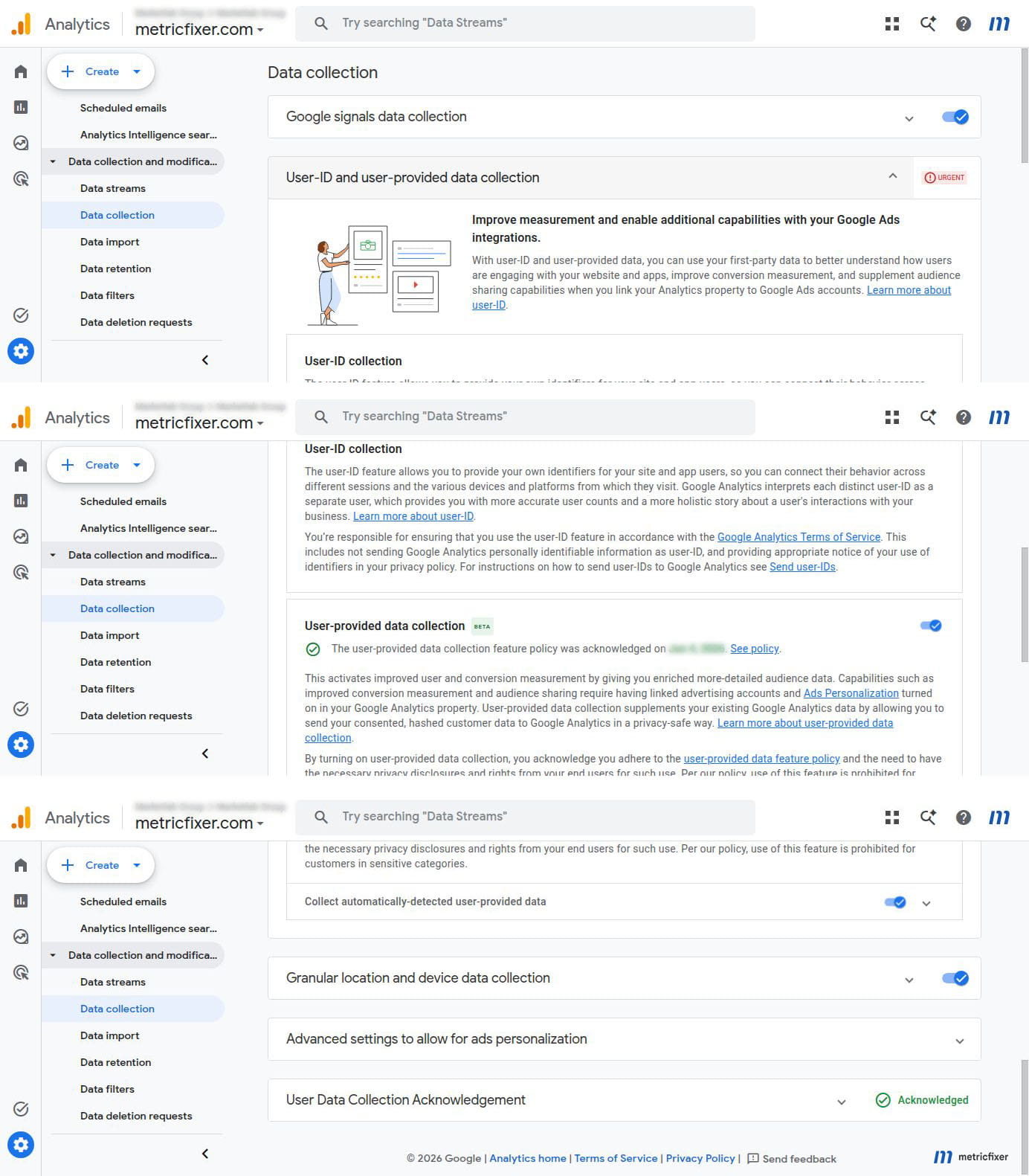
Step 4: review GA4 data collection prerequisites
In GA4 Admin → Data collection, review the user-data collection acknowledgment, Google Signals, user-provided data collection, and the link to regional ads-personalization controls. These settings support advertising use cases but do not replace Consent Mode. After the June 2026 change, do not treat Google Signals as the primary Ads-cookie consent switch.
Step 5: review regional ads-personalization controls
In GA4, open Data collection → Advanced Settings to Allow for Ads Personalization. Disabling a country or U.S. state marks new events from that location as ineligible for ads personalization and prevents users from that location from joining lists exported to linked advertising accounts. This applies even when an individual user gave marketing consent.
Review whether any U.S. state or non-target region is intentionally excluded. Do not disable the EEA merely to avoid consent work if the architecture is supposed to support consented European users; that removes even consented users from exported advertising audiences.
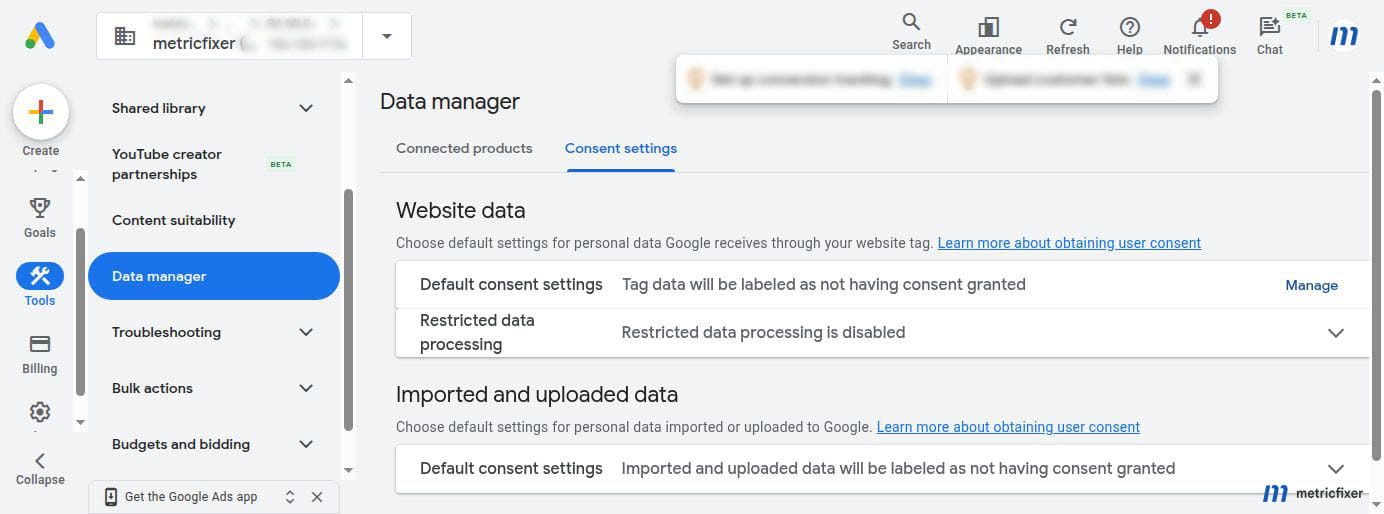
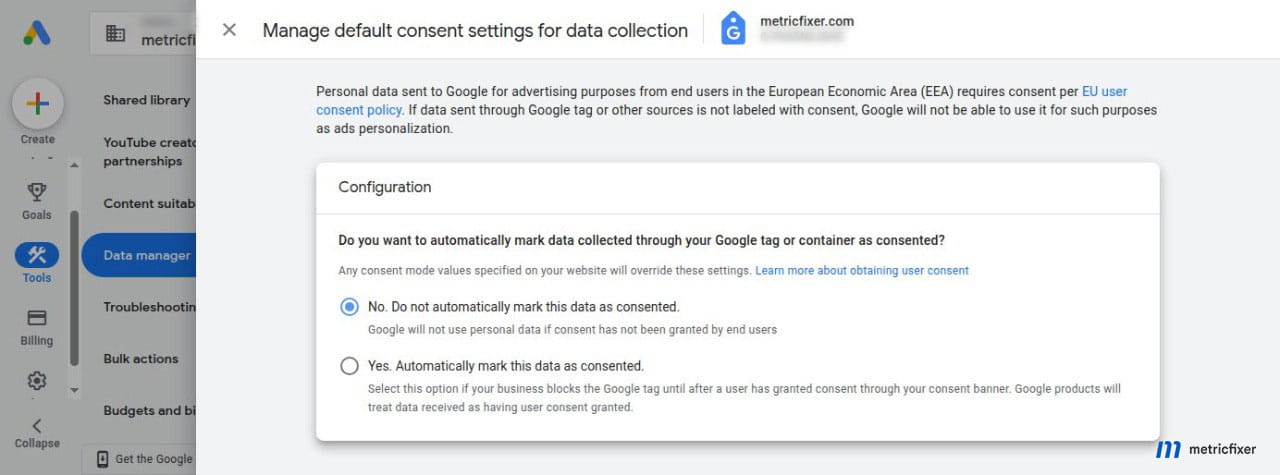
Step 6: set Google Ads Data Manager consent defaults
Open Google Ads → Tools → Data manager → Consent settings. Configure separate defaults for Website data and Imported and uploaded data. Google documents that website values and connection/import/record-level values override the account default.
| Default | Reference setting | Reason |
|---|---|---|
| Website data | Do not automatically mark missing consent as granted | The live site and CMP remain authoritative |
| Imported and uploaded data | Do not automatically mark missing consent as granted | CRM or import records must carry an approved basis or consent state |
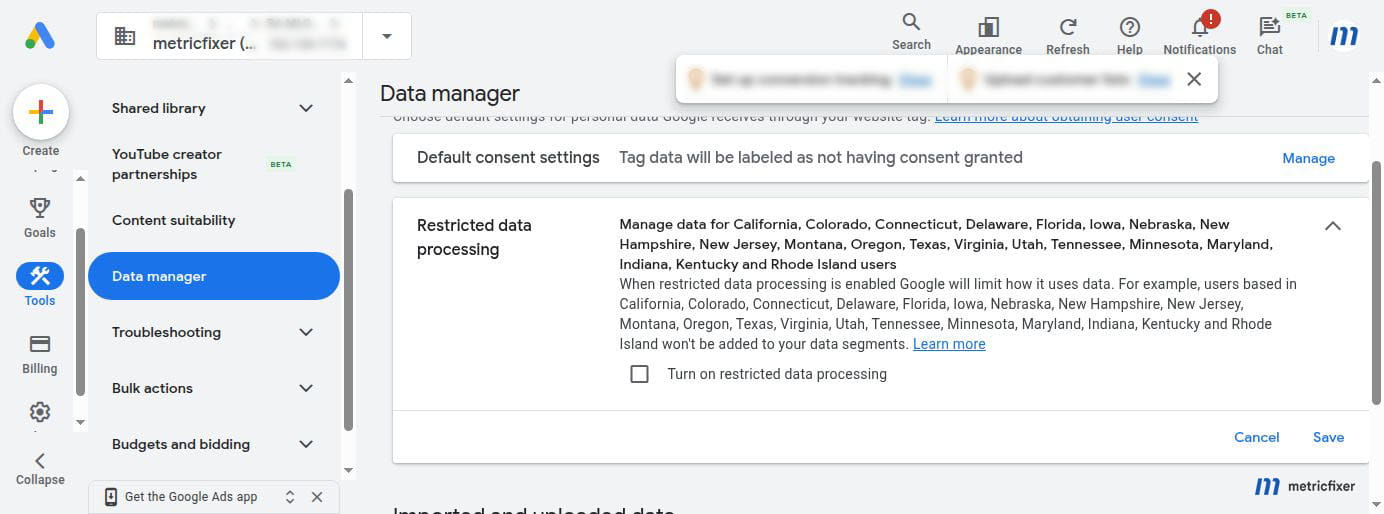
Step 7: separate U.S. Restricted Data Processing
Restricted Data Processing is a U.S. state privacy control. Google explains that it can limit use of data and prevent users from being added to remarketing lists in applicable flows while measurement may continue. It is not a GDPR switch, not a replacement for the European banner, and not a reason to enable one blanket global checkbox.
Leave a blanket account-wide RDP switch off unless the approved U.S. state policy calls for it. Prefer GPC and user/state-aware propagation where the implementation supports it.
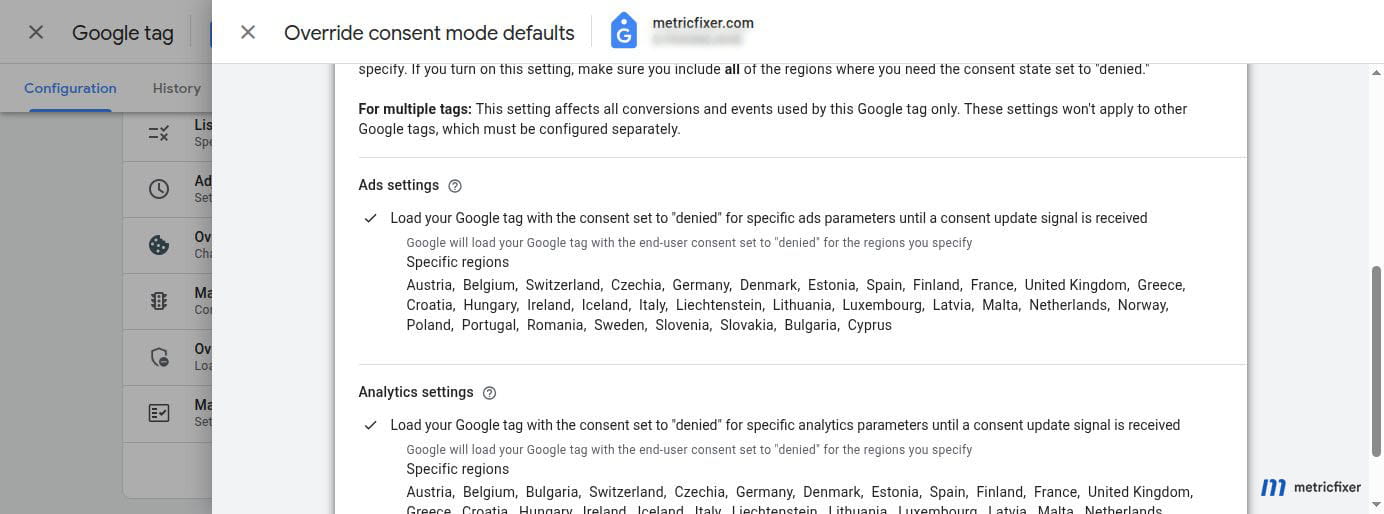
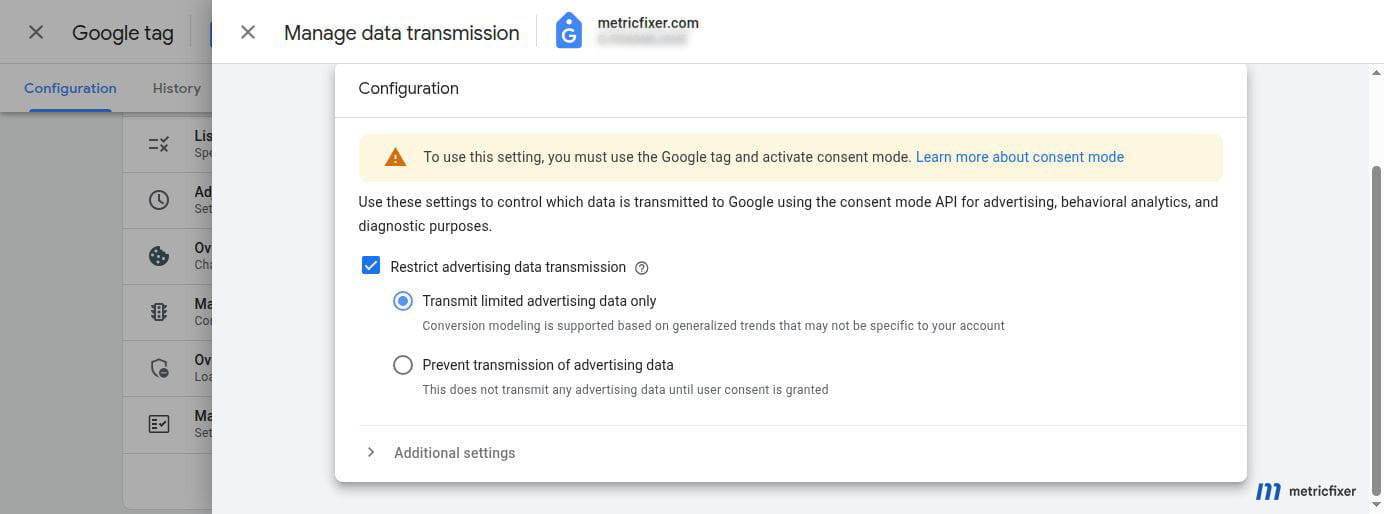
Step 7: review Google tag overrides and denied-state transmission
Google tag settings can expose a Consent Mode override and denied-state data-transmission controls. Use an override only as a documented regional fail-safe. It must not contradict Cookiebot or reset a later on-page update. Avoid a global denied override when the approved design is regional.
Review the Google tag default-consent screen. A conservative fallback should not automatically label all incoming website data as consented.
For denied-state transmission, the reference Advanced Consent Mode option may transmit limited advertising data for modeling. The stricter alternative sends no advertising data. Select the option approved for the architecture and describe it accurately in the article.
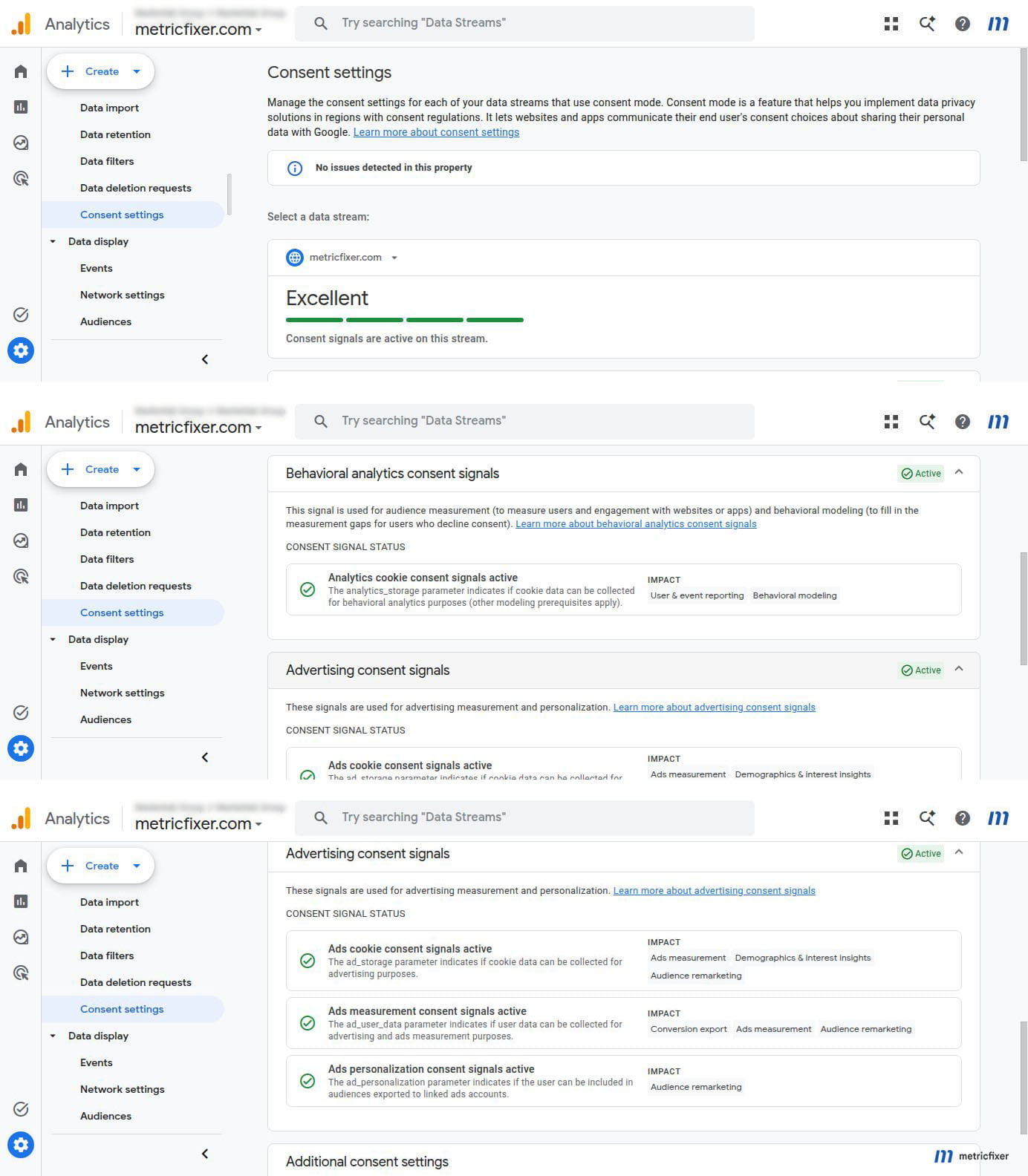
Step 8: review GA4 consent diagnostics
Open GA4 Admin → Consent settings and select the web stream. Review behavioral analytics consent, advertising-related consent, and the detected states for analytics_storage, ad_storage, ad_user_data, and ad_personalization. Treat this as a delayed diagnostic, not the live debugging tool.
Google documents that product status may take 48 hours or longer in some diagnostics. Use Tag Assistant to verify the immediate default and update sequence. Do not break a correct implementation simply to remove a warning on the same day.
Step 9: create a traceable QA audience
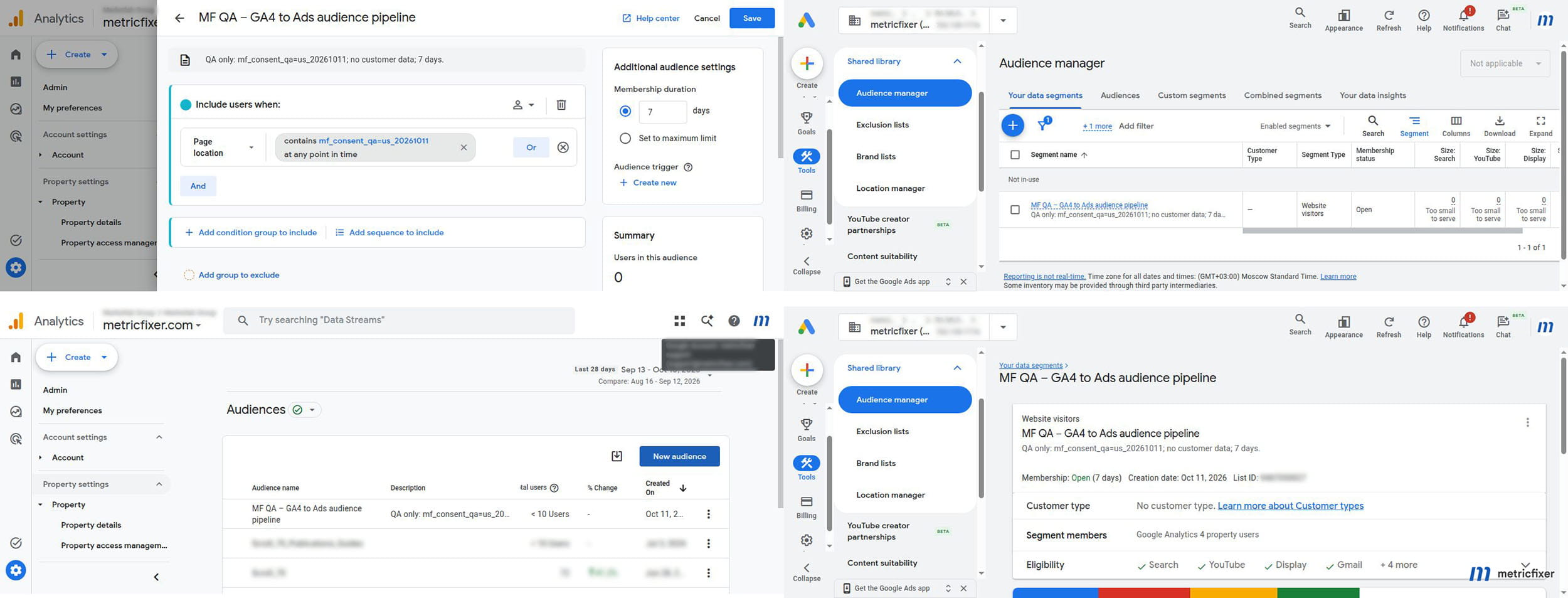
- Create or trigger a synthetic event named
qa_consent_testwith no personal data. - Create a GA4 audience named
MF QA – GA4 to Ads audience pipeline. - Use a short 7-day membership duration for the QA audience.
- Trigger the event in an approved session and record the consent state and region.
- Wait for GA4 processing, then confirm the audience appears in Google Ads Audience Manager.
- Remove or archive the QA audience after the publication screenshots and validation are complete.
Why the GA4 audience and Google Ads list do not match
The numbers are measured at different stages. A GA4 audience can include users for reporting and analysis. The advertising segment can exclude users because of consent, regional personalization, identifier availability, policy, activity windows, or product processing. Google Ads then reports network-specific list sizes and applies serving thresholds. A synchronized list may therefore be Populating or Too small without the product link being broken.
| Number | What it represents |
|---|---|
| GA4 audience size | Users satisfying the Analytics audience definition |
| GA4 advertising-eligible segment | Users still eligible for advertising use after controls |
| Google Ads list size | Members recognized in the Ads destination |
| Search / Display / YouTube size | Network-specific active population and eligibility |
| Campaign-eligible reach | Final usable reach after policy, targeting, and serving thresholds |
Permissions and continuity
The GA4–Google Ads link belongs to the property/account relationship. Revoking one user’s GA4 access normally changes what that person can manage; it does not automatically delete the link or stop audience publishing. Confirm that the link still exists, Enable Personalized Advertising remains on where intended, and Import Google Analytics audiences remains enabled. Then check consent and eligibility before blaming permissions.
Troubleshooting by symptom
| Symptom | First checks |
|---|---|
| GA4 audience exists but never appears in Ads | Product link, personalized advertising, audience-import toggle, processing delay, permissions |
| Audience appears but does not populate | Live consent signals, regional personalization, event condition, traffic, membership duration |
| Audience populates outside Europe but not in Europe | ad_user_data, ad_personalization, EEA CMP path, GA4 regional controls |
| U.S. audience unexpectedly loses members | GPC handling, RDP, state routing, source-product personalization controls |
| Uploaded data is rejected or not used | Account default, connection/record consent, field mapping, customer-data policy, source filters |
| GA4 screen still says signals inactive | Tag Assistant live test first; then allow diagnostic processing time |
| Search, Display, and YouTube sizes differ | Active window, identifier match, network threshold, list policy, source and membership status |
Final verification checklist
- [ ] CMP loads before ordinary tags and produces explicit defaults.
- [ ] Tag Assistant shows the correct update after every relevant choice.
- [ ] GA4 is linked to the intended Google Ads account.
- [ ]
Enable Personalized Advertisingis on for approved activation destinations. - [ ]
Import Google Analytics audiencesis on. - [ ] GA4 regional personalization matches the market plan.
- [ ] Website and uploaded-data defaults do not presume missing consent.
- [ ] U.S. RDP is treated as a regional control, not a global consent switch.
- [ ] Google tag overrides and transmission controls match the CMP architecture.
- [ ] A synthetic QA audience has been traced from event to GA4 to Google Ads.
- [ ] Publication screenshots contain no customer IDs, personal data, billing data, or client audience names.
Methodology and sources
This article reconstructs the original metricfixer publication package from the conversation record and validates the platform behavior against current official Google, Cookiebot, and metricfixer materials. Interface paths are based on the reference screens available during recovery and may move as Google reorganizes Admin, Google tag, and Data Manager pages.
- metricfixer recommended service: Cookiebot CMP
- Google Analytics Help: Connect Google Ads to Google Analytics
- Google Ads Help: Google Analytics linking overview
- Google Analytics Help: Verify and update consent settings
- Google Analytics Help: Updates to Google Analytics data controls
- Google Analytics Help: Advanced settings for ads personalization
- Google Ads Data Manager: Manage default consent settings
- Google Ads Data Manager overview
- Google Ads Help: U.S. state privacy laws and Restricted Data Processing
- Google Ads Help: Google Analytics audience builder
- Google Ads Help: Data segment eligibility on YouTube
- Google Ads Help: Set up consent mode
- Google Ads Help: Consent mode reference
- Google Ads Help: Verify consent mode implementation
- Cookiebot Support: Google Tag Manager deployment
This article is for technical and operational information only and is not legal advice. The correct configuration depends on the actual markets, data sources, campaign use cases, account structure, contracts, and applicable law. Google and Cookiebot interfaces and eligibility rules may change after publication.