Published Oct 26, 2026
Google Ads Security Changes: Passkeys, Business Email and Admin Approvals
A practical guide to Google Ads security for advertisers: understand passkeys, business-email requirements and admin approvals, switch access safely, and find the right route when you are the only administrator.
Category: Online advertising · By metricfixer Expert Team
You can still open Google Ads and edit a campaign, yet be unable to invite a colleague, connect an agency or approve an account change. These situations can involve different security checks, with different solutions. This guide explains business-email requirements, passkeys and administrator approvals from the advertiser's side, including what to do when you are the only person managing the account.
Start with the message, not the workaround. Check which Google Account is signed in, which advertising account is open and what action failed. If you are the only administrator, start with the single-administrator route. If a verification prompt keeps returning, use the troubleshooting table. Do not remove your remaining legitimate access or weaken security just to test a theory.
Contents
What is changing for advertisers?
Documentation checked on 24 October 2026. There is no single security update that works identically in every account. Separate a requirement announced for your account from a setting chosen by an administrator and a feature that Google is still introducing.
| Control | What the documentation establishes | Where to start |
|---|---|---|
| Confirm it's you | An action-level identity check, not simply another name for signing in. | Identify the operation that triggered the prompt. See the distinction below. |
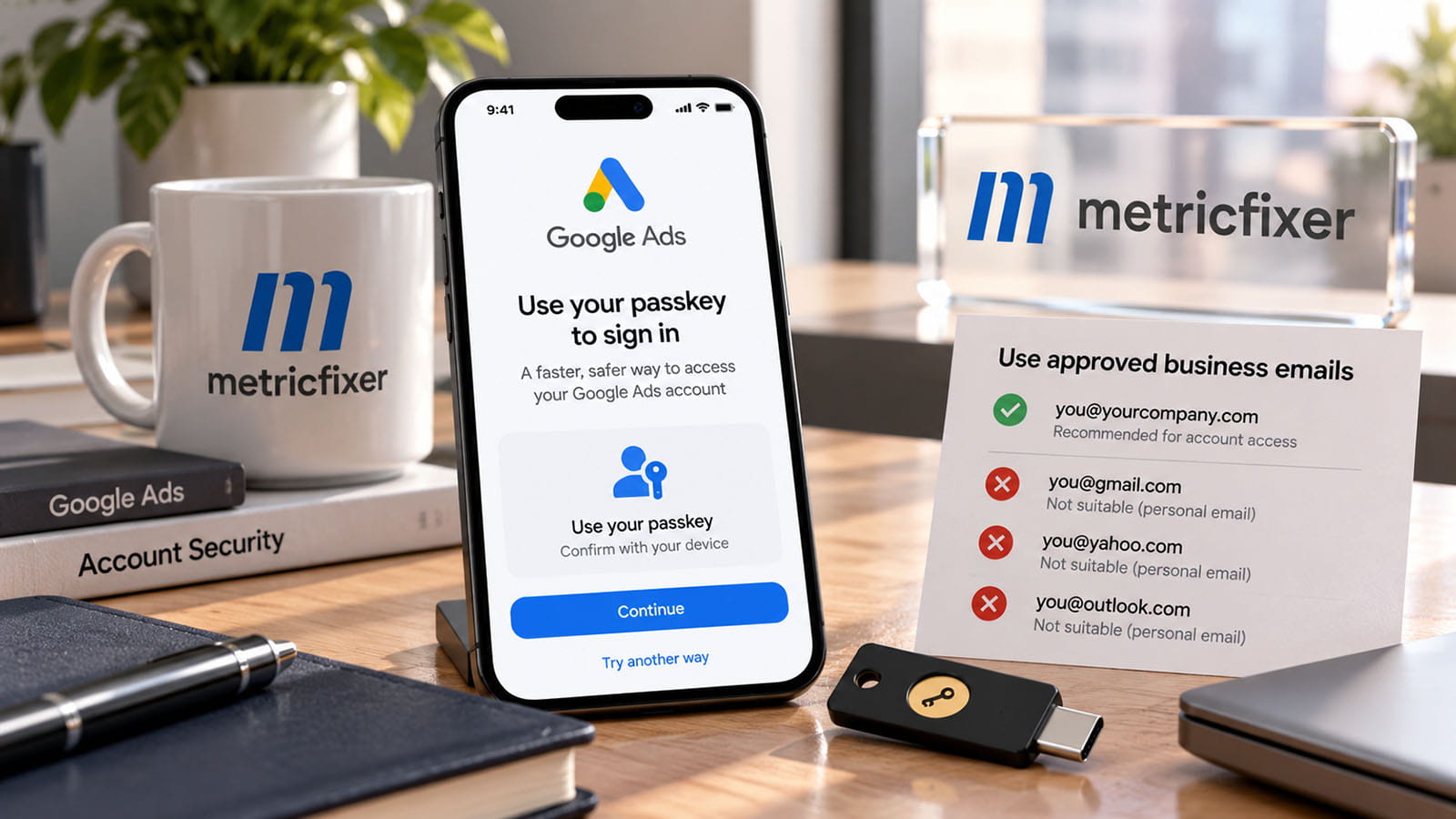
| Passkeys | Some advertisers must use them for sensitive actions; affected accounts receive notices. | Prepare the correct user's credential, then test the actual workflow. See Google's passkey overview. |
| Corporate email | A pilot restricts sensitive actions from public email domains; routine campaign work can remain available according to the user's role. | Check the account notice. This is not a universal Gmail ban. See the domain requirement. |
| Multi-party approval, or MPA | Another administrator reviews a proposed change. | Find the request rather than repeating the operation. See the approval section. |
| Rules chosen by your organization | Allowed email domains and security mandates from an owning manager can also affect access. | Ask who configured the rule. See manager security mandates. |
Google's 21 April 2026 announcement introduced additional security monitoring and passkeys. That is useful background, but it does not establish that every advertiser has the same interface or activation date.
No universal future deadline for all advertisers to adopt corporate email and passkeys was identified in the sources reviewed. Record the date in your own notice. Do not replace it with a date from someone else's screenshot, an agency's internal deadline or a general rollout announcement.
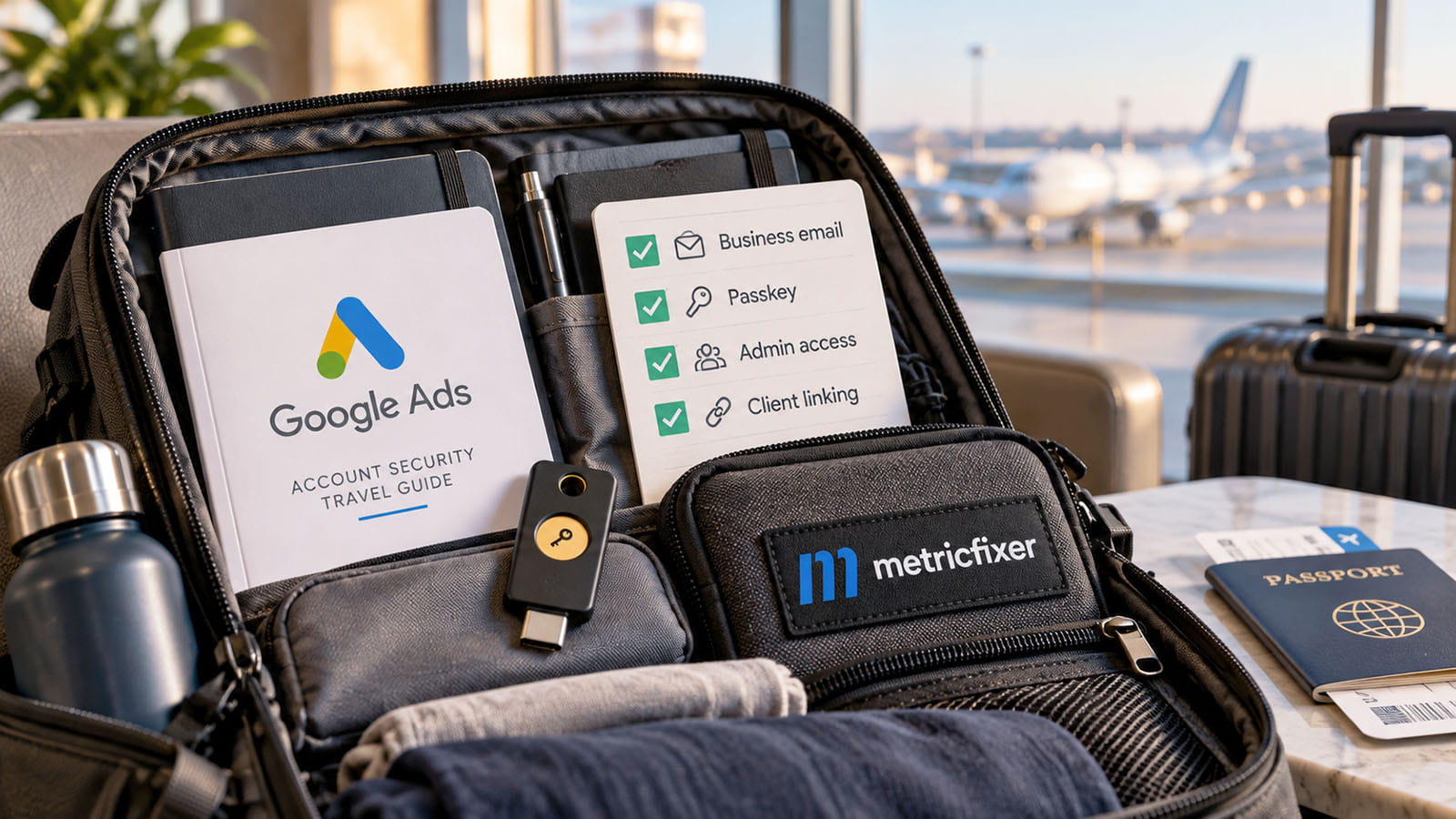
This article concerns access and administrative operations in an individual advertising account, including an account managed by an agency. A disapproved ad, an account suspension or an advertiser-verification request needs its own diagnosis; none is automatically explained by a passkey problem.
I can sign in. Why can't I complete this action?
Think of three separate questions: Can Google identify you? Does your user have permission? Has this particular change cleared its required checks? Passing one does not answer the other two.
Your Google Account is the identity you use to sign in. Your Google Ads account contains the campaigns and has its own customer ID. Several people can use different Google Accounts to work in the same advertising account. Conversely, one person may have access to several advertising accounts. Google's sign-in guide explains account switching and warns that signing into multiple Google Accounts does not merge their access.
Your role still matters. Standard access permits campaign editing, while inviting users and accepting manager-link requests require Admin access. Read-only and email-only access are not substitute administrator roles. Check the user entry in Admin > Access and security, using Google's access-level comparison when the distinction is unclear.
A permitted action can still trigger verification. Google's Confirm it's you guidance lists invitations, unusual budget or bulk changes, and ads using previously unused destination domains among its examples. These checks were rolled out to all accounts in 2022 and operate independently of ordinary two-step verification. Turning off two-step verification does not remove them.
For example, a colleague who can update keywords but cannot invite your accountant may lack the required role. A direct administrator who reaches a passkey prompt has a different problem. A request waiting for another administrator has already entered a review process. Treating all three as a browser error wastes time and can lead to unnecessary security changes.
Before retrying, write down the signed-in email, customer ID, intended action and exact message. Keep that note private. It is the simplest way to prevent you, your agency and support from troubleshooting different accounts or different stages of the same request.
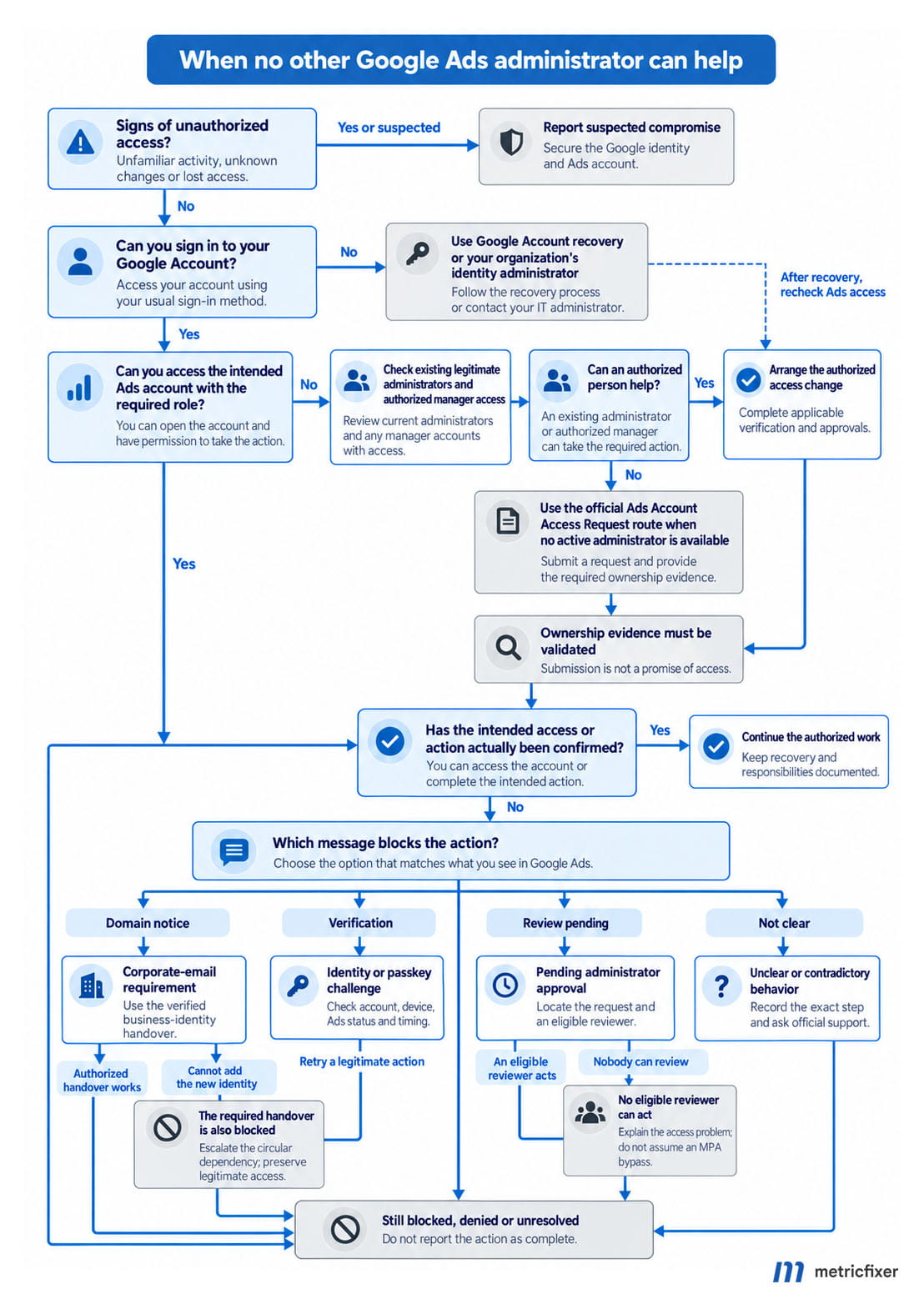
I am the only administrator. Where should I start?
Being the only person available today is not necessarily the same as being the account's only administrator. Check both the Users and Managers views, where your permissions allow it. A former employee may still be listed, or an agency may have administrative access through its manager account. Ask the agency to check its own side without sharing your login.
You can sign in and still have Admin access
First identify the failed check. A request for a corporate identity is not solved by adding a passkey to the same personal account. A missing credential is not solved by repeatedly sending a manager invitation. A pending review needs an eligible reviewer, not another attempt to sign in.
Google's MPA help page says that when an account moves from multiple administrators to one, MPA pauses and pending requests are canceled. This statement is not a complete specification of every single-admin linking situation. It also does not say that other security requirements disappear.
Our recommendation is to prepare a legitimate backup administrator when there is a suitable, accountable person in the business. For a genuinely solo business, concentrate on recoverable credentials and a documented access record; do not appoint an unknown contractor simply to satisfy an assumed two-person rule. Two logins controlled by you are not two independent human reviewers.
Your only administrative identity is already restricted
This is the difficult case: the action needed to add a compliant identity may itself be blocked. Check for an existing authorized administrator or owner-manager who can perform the change. If none can act, contact Google through its official help channels and describe that circular dependency explicitly.
The reviewed domain guidance does not provide a guaranteed self-service escape from this situation. Do not remove the old user first, manufacture another approver or create a replacement advertising account as a workaround. Ask support which legitimate access-change procedure applies, and keep the account's actual state separate from any proposed solution.
The previous administrator has left or no active administrator can be reached
Google provides an Account Access Request form for cases where contacting an administrator is not feasible. It requires validation of account ownership. Identify the advertising account that needs help, explain the access change required and provide evidence through the official process. Submission is not proof that access has been granted, nor a promise that support will override an existing MPA request.
You cannot sign in to your Google Account at all
Use Google's sign-in recovery and backup-method guidance, or your organization's identity administrator for a managed account. Recovering a Google login and restoring permission to a particular Ads account are different jobs. If there are signs of unauthorized activity, use the compromise route rather than treating the problem as ordinary staff turnover.
Do I need a business email or Google Workspace?
A business email address, a Google Account and a Google Workspace subscription are different things. The first is an address, the second is a sign-in identity, and the third is an organizational service. Do not buy a subscription merely because those terms appear together in a support conversation.
The domain pilot distinguishes a business-owned domain from a public email service such as gmail.com. Paying for additional storage on a consumer mailbox does not turn its public domain into your company's domain. The issue is the identity's domain, not whether the mailbox costs money.
Google explicitly allows you to create a Google Account using an existing non-Gmail address. In that setup, choose the existing-email option, verify the address and complete the account creation. The Ads domain guidance also describes inviting an existing corporate address. Together, these documents do not establish a universal requirement to purchase Google Workspace.
For a business with an IT administrator, check whether the address already belongs to a managed identity before creating another account. Agree who controls recovery and what happens when the employee leaves. A corporate-looking address is not, by itself, proof that the organization centrally manages the Google identity.
Two other controls are easy to confuse with the pilot. Allowed domains restricts which email domains an administrator can invite. Google's separate managed business-email migration uses verified Cloud Identity or Google Workspace domains. Neither should be described as the same process as the public-domain restriction.
Do not assume that adding an alias, forwarding mail or changing a notification address satisfies an identity requirement. Our recommended route is to establish which Google Account is actually authorized in Ads, then verify the relevant action with that identity. The public documentation reviewed does not promise that cosmetic mailbox changes resolve the pilot restriction.
Switch email without losing your existing Ads account
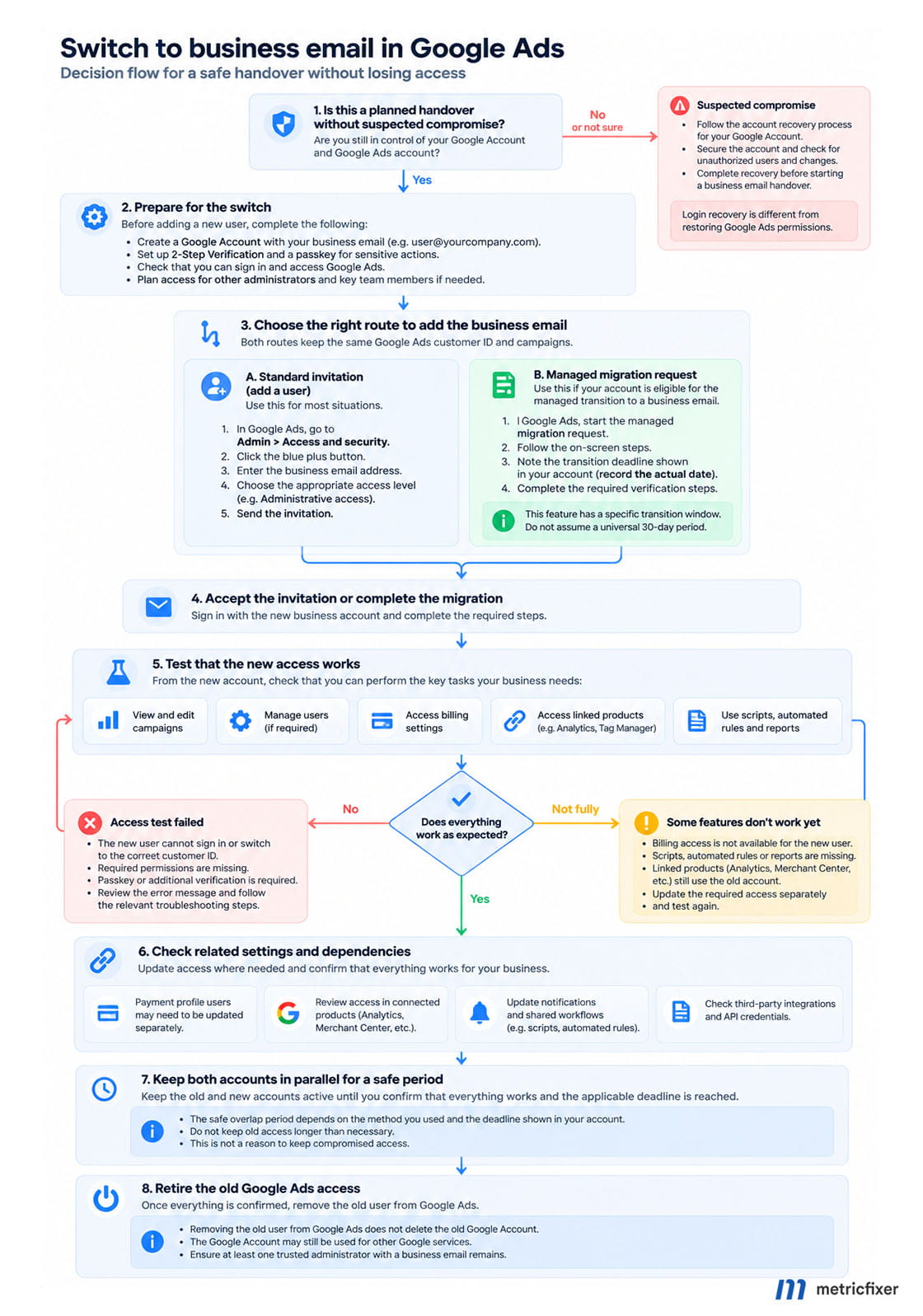
Change the people who can access the existing advertising account, not the account that holds your campaigns. Keep its customer ID in your handover note. You should be able to tell the difference between accepting access to the established account and accidentally entering a new-account setup flow.
Route A: invite the business Google Account
Google's access-management instructions provide the basic invitation process. The safety checks around that process below are our recommended handover sequence:
- Prepare the destination identity. Confirm the business address can receive mail and has the intended Google Account. Record which legitimate user currently has authority to invite it.
- Send access to the existing account. In Admin > Access and security, use the plus button, enter the address and choose the necessary role. Replacing the account's administrator requires an appropriate administrative handover, not email-only access.
- Complete any required review. An invitation waiting for administrator approval has not yet finished the process. Do not remove the previous route while assuming the new one will work.
- Accept as the intended Google Account. Check the address shown during acceptance, especially when several accounts are open in the browser. Then confirm the user appears with the expected role.
- Test the actual handover. Open the same customer ID from the new identity, confirm the required credential and test the legitimate administrative task you need. Do not make unnecessary billing or ownership changes just to test access.
- Transfer dependent work before retiring old access. Review billing, notifications, connected products and scheduled jobs. Then verify that any intended removal actually took effect.
The domain FAQ says a separate corporate Google Account needs its own passkey. A working credential for the old Google Account is not a credential for the new one.
Route B: accept a managed business-email migration
In Google's managed migration workflow, the documented overlap is 30 days, after which personal-email access is removed. This is a feature-specific transition period, not a universal grace period for every corporate-domain restriction. Record the deadline shown in the actual request and complete the handover before it.
For either route, our practical completion test is: the intended person can enter the correct account, perform the required authorized work and maintain the services that depended on the old identity. Receiving a verification email is only one milestone. Do not confuse removing Ads access with deleting the old Google Account and all the other services it may contain.
If an identity is compromised, this planned-overlap sequence is not a reason to preserve unsafe access. Follow containment and recovery instructions instead.
Set up and test your passkey
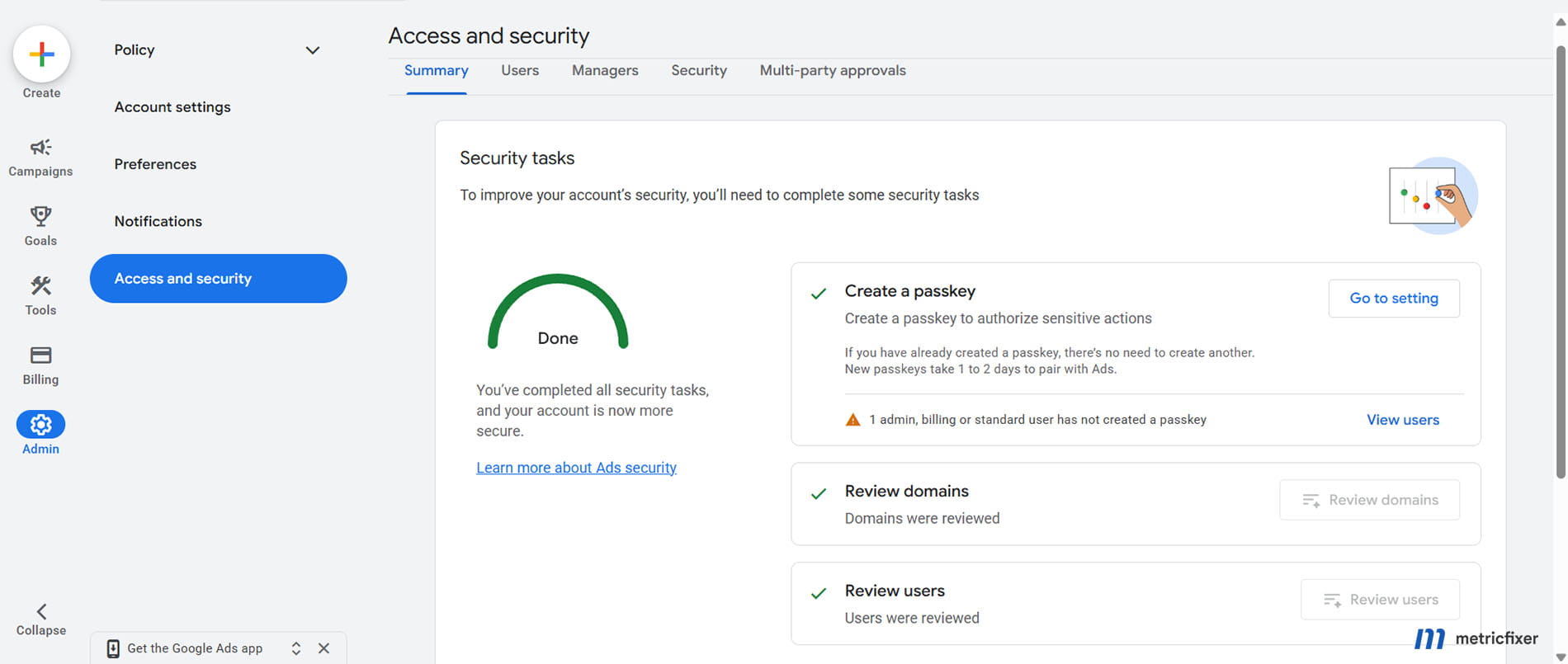
A passkey lets you prove possession of a device or security key, typically using its screen lock, fingerprint or face recognition. It is not an SMS code to send to an agency. Google's Google Account passkey guidance explains that biometric data stays on the device. Protect the device itself: someone who can unlock it may be able to use its passkey.
Create it for the right identity
Use Google's Ads setup instructions:
- Choose a trusted device. Use a supported, updated browser and operating system with screen lock enabled, not a shared computer. Avoid private browsing for setup.
- Open the correct Google Account. Go to Security & sign-in, then Passkeys and security keys. Verify the email belongs to the user whose Ads action is blocked.
- Create the passkey. Follow the device or compatible hardware-key prompts. The wording varies by platform.
- Return to Google Ads and test carefully. Check the same customer ID and attempt the necessary authorized operation. Record whether the challenge succeeds and whether the requested change actually completes.
Google's sensitive-action guide distinguishes sign-in readiness from action verification. Check the Passkey status column under Admin > Access and security; successful login alone is insufficient evidence.
Using a phone or a managed work account
When the key is on your phone, the cross-device flow uses Use another device and a QR code displayed on your own computer. Keep the devices nearby, enable Bluetooth on both and follow the on-screen prompts. A compatible hardware security key is another documented option. Never scan a sign-in QR code sent by someone claiming they need it to connect your Ads account.
Android caveat: the Ads guide excludes automatically generated Android passkeys for sensitive actions and separately restricts completing challenges in Android browsers. This does not exclude every phone-assisted desktop flow.
With a work-managed account, the ability to sign in without a password can depend on your administrator's policy. Google's Workspace note distinguishes passwordless sign-in from passkeys used as a second factor or for some sensitive actions. Ask IT which capability is restricted before requesting a broad policy change.
Why a new passkey may not work immediately
The Ads troubleshooting page describes 24-48 hours for pairing and seven days for full sensitive-action readiness. Its alternative-method advice must not be read as overriding enforced passkey-only verification.
Our recommendation is to prepare credentials before the deadline for a client connection or staff departure, record their creation date and avoid repeated deletion and recreation as a first response. Keep a working legitimate route while investigating, unless that route is compromised. A newly configured credential is not a sensible last-minute handover plan.
There is also separate Google Account guidance about sensitive-action delays, including newly associated devices and recovery factors. Do not combine those rules into a promise that every Ads restriction vanishes after seven days. A role problem, domain restriction or unreviewed request needs its own resolution.
Prepare a backup before a device goes missing
Review Google's backup sign-in options and keep recovery details current. Test any spare credential while you still have safe access. Login backup codes are not a universal replacement for an Ads passkey-only action check.
When a device is lost or stolen, use the official recovery and credential-revocation steps. Do not leave an exposed key active merely to avoid a waiting period. Conversely, do not delete your only working credential as a speculative fix for an unrelated Ads error.
Understand requests for another administrator's approval
MPA is review of a proposed change by another administrator. It is not your own passkey challenge, and it is not the invited user's acceptance. An access change can require more than one of those steps.
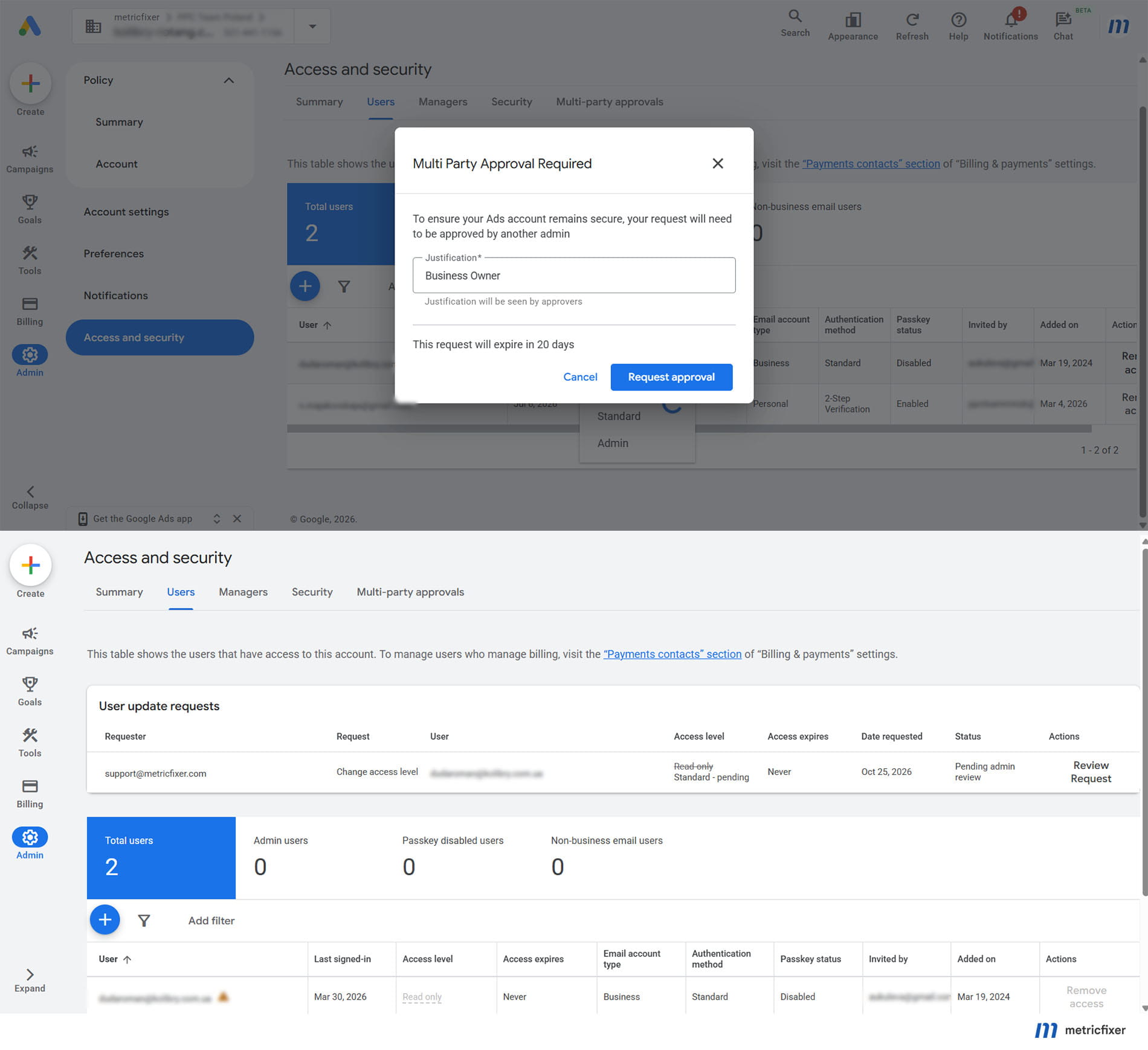
Google's approval documentation describes user additions, removals and role changes. A pending request is awaiting review; approval allows the change, rejection blocks it, and an unanswered request expires after 20 days. An initiator can revoke an undecided request. Support cannot approve or reject the request in place of the administrators.
The eligibility threshold is not consistently documented. The main MPA page says more than three administrators; the domain FAQ says three or more active administrators. Do not infer a guaranteed exemption from your headcount.
Look under Admin > Access and security for Security requests or the relevant pending-request view. Google's interface instructions describe both. The page also gives inconsistent email-notification guidance, so checking the account is safer than waiting for a particular reminder.
For a practical review, our recommendation is to confirm the affected account, requester, proposed user or manager, intended role and business reason. Agree who should decide the request through a known communication channel. Do not approve an unexpected request merely because it appears urgent or mentions a familiar agency.
When a request completes, check the resulting user or manager entry. If an invitation still needs acceptance, arrange that separately. If the request expires, confirm the action is still needed before starting again. Repeated submissions can make it harder for your colleague to identify which change is current.
If no reviewer responds, use the administrator-availability diagnosis. A genuine access-recovery case and a routine pending approval are not interchangeable. The existence of an access-request form does not establish permission to bypass the review.
Connect an agency without sharing your login
An agency normally connects through a Google Ads Manager Account, often called an MCC. Google's linking instructions separate the agency's request from acceptance by an authorized administrator of the advertiser's account.
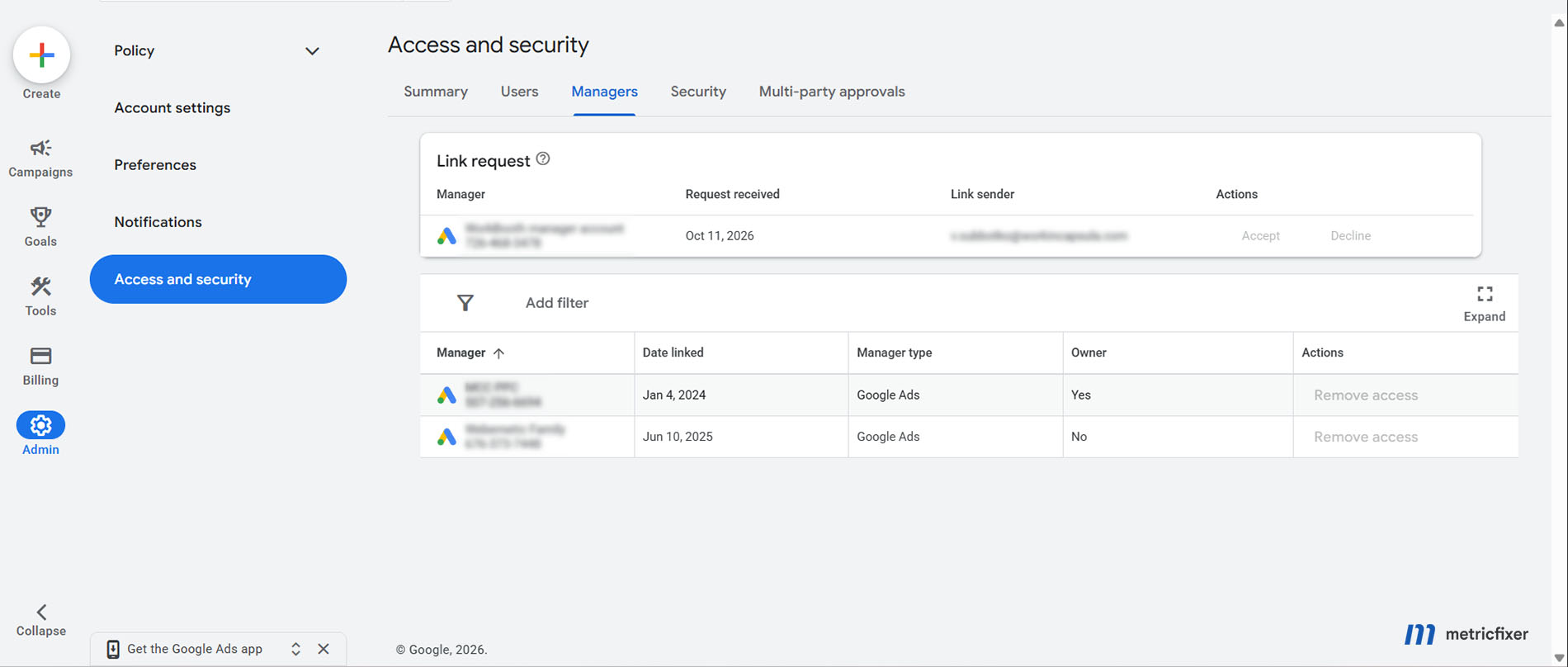
On the advertiser's side, open Admin > Access and security > Managers and review the link request. Confirm the manager's identity with your known agency contact before accepting. Follow any additional checks shown by the product; do not treat an email invitation as evidence that the connection already exists.
There may be review on the manager's side too: Google's MPA page explicitly describes approval for linking an independently created account. Ask the agency where its request is waiting rather than repeatedly changing your own credentials.
Linking does not automatically grant administrative ownership of an existing account. Google's ownership guide distinguishes those permissions and recommends granting ownership only when needed. Administrative ownership is not a transfer of ownership of your advertising data.
Our recommendation is to agree the work and permissions before connecting: campaign management, product linking and user administration are not identical responsibilities. Keep a documented advertiser-controlled route where appropriate, and agree what happens when the contract ends. Do not appoint the agency as owner just because someone believes it will make a verification error disappear.
After acceptance, check the correct manager is listed and have the agency confirm access to the intended customer ID. Avoid making unrelated changes to billing, measurement or ownership during the same diagnostic attempt. Separating changes makes any remaining problem easier to isolate.
Check billing access and connected Google products
A new Ads administrator is not automatically a complete replacement for the old identity everywhere. Google's migration checklist identifies payments, product access, reports, scripts and notifications as dependencies that may need attention.
There is an important billing nuance. Under the current Ads access rules, Admin and Billing users can edit certain organizational payments-profile details without themselves being payments-profile users. However, Ads access does not let them directly add or remove payments-profile users. Check the separate payments permissions and the support procedure applicable to the profile.
For an individual payments profile, Google says you cannot add other users or change their permissions. Do not apply an organization-profile invitation procedure to every sole trader. Confirm the profile type before deciding how the new identity will handle billing.
| Dependency | Recommended handover check | Evidence to keep privately |
|---|---|---|
| Billing | Confirm who can handle the actual billing task and who receives critical messages. Do not assume a payment-user change was included. | The relevant payments profile, responsible person and confirmed permission. |
| Analytics and other products | Check the new identity in the correct GA4 property, Merchant Center, YouTube or other relevant service. Inspect existing links before changing them. | Product identifiers and the person responsible for each service. |
| Reports and notifications | Confirm the next report and important notices reach a monitored address, not only the departing user's inbox. | Recipients, delivery schedule and a successful delivery check. |
| Scripts and integrations | Ask the responsible specialist to check authorization and scheduling. Avoid duplicate execution during the handover. | Job owner, schedule and the first successful intended run. |
| Recovery and devices | Confirm the new identity can recover access independently of an inaccessible old mailbox or device. | A record of who maintains recovery, without copying secret codes into the handover note. |
Google's notification guidance distinguishes campaign, policy, report and billing messages. Check the relevant categories rather than assuming that accepting an invitation transfers every preference.
Changing an access identity is not a reason to rebuild measurement. For a separate check of an existing European GA4-to-Ads audience setup, see metricfixer's GA4, Google Ads audiences and consent guide. Keep measurement and consent decisions separate from the login migration.
Troubleshoot common security roadblocks
Use this table to choose an investigation, not to diagnose an unseen account with certainty. A generic error can have several causes. Change one thing at a time and record the outcome.
| What you see | Check first | Next safe step |
|---|---|---|
| A new-account setup page instead of your campaigns | The signed-in Google identity and invitation acceptance. | Use account switching. Do not create another Ads account merely to find the old one. |
| A request to use corporate email | The actual Ads login and the account's notice, not just the mailbox receiving it. | Use the identity-handover route. If that route itself is blocked, document the dependency. |
| A business address cannot be invited | Allowed domains and any owning-manager restriction. | Have the responsible administrator review the domain setting; avoid broadly allowing unrelated domains. |
| No passkey option or setup failure | Correct Google Account, device support, screen lock and private-browsing mode. | Follow the supported setup, rather than deleting every existing factor. |
| A loop after creating a passkey | Creation date, Ads status and the exact action that fails. | Use the timing caveat; escalate a persistent failure with dated evidence. Do not assume the loop proves one particular cause. |
| A work-account banner restricts passwordless sign-in | Whether it concerns login policy or the action challenge. | Ask IT to distinguish the two. Do not disable an organizational security policy just to test an Ads action. |
| A request is pending or nobody received an email | The in-account request, its age and the eligible reviewer. | Use the approval process. Do not equate missing email with missing review. |
| The old administrator's phone or account is inaccessible | Whether login recovery or Ads permission recovery is needed. | Follow the matching recovery route, not repeated passkey enrollment under an unrelated identity. |
| Unknown users, manager links or budget changes | Whether the activity was authorized. | Treat it as a potential security incident, not a routine waiting period. |
What the support correspondence illustrates
In correspondence supplied for this review, metricfixer's team received advice about a client-linking loop described as REAUTH_ERROR / BULK_ACTION_UNPHISHABLE. Support recommended browser isolation, checking security factors and trying an individual linking request. Another message connected administrative access with corporate email and passkey readiness. Support also offered case-specific help with linking.
Those messages show recommendations for that case, not proof that the suggested intervention was performed or succeeded. We did not inspect the original email headers, the referenced network recording or the affected live account. The error labels alone are not a publicly established diagnosis of every similar failure.
One useful distinction concerns browser testing. A fresh browser profile can help isolate session or extension issues, but a private window is not the default environment for setting up a passkey. If support requests such a test, clarify whether you are reproducing the loop or enrolling a credential, and retain the result of each test separately.
Send a support request that identifies the blocked step
Start from the official Help Center or an existing verified support case. Google's support-security guidance says to have the associated email, customer ID and verification method available. Our suggested summary is:
Affected Google Ads customer ID: [the account that needs the change]
Signed-in Google Account: [the authorized email]
Current access level: [Admin / Standard / other / unknown]
Intended action: [the specific legitimate change]
Exact message or error: [copy the visible wording]
Last failed attempt: [date, time and timezone]
Other administrators: [who is available, or none known]
Linked manager: [relevant manager and whether ownership is confirmed]
Passkey created: [date, or not created]
Passkey status in Ads: [observed status, or not visible]
Tests already completed: [one test and its result per line]
Existing support case: [reference, if applicable]
Requested clarification: [which check is blocking this action and the authorized next step]
Only include account identifiers in the private support submission, not a public forum post. Never share a password, backup code or live verification code; Google's verification guidance explicitly warns against sharing codes.
If technical support requests a recording or HAR network file, ask for the necessary scope and approved upload channel. Chrome's sanitized HAR export omits certain sensitive headers, but that is not a guarantee that every URL or payload is safe to share. Have a technical colleague review the file, and avoid capturing passwords, recovery codes or live QR challenges.
Keep access secure and recognize a real takeover
A familiar verification prompt is not proof of a takeover. An administrator you never authorized, a manager link your business did not request or spending changes nobody recognizes is a different situation.
Google's security best practices recommend individual logins, minimum necessary access, review of unexpected changes and removal of users who no longer need access. Our practical addition is to assign someone to perform that review after staff changes and agency handovers, not only after an alarm.
For a temporary consultant, consider expiring user access. Google uses the advertising account's timezone, and an expired user must be invited again. Check the date against the handover plan so that a useful reviewer does not disappear during an unfinished transition.
Where available, Security insights offers recommendations about users, domains and access levels. Review their context before acting. A suggestion to reduce permissions should not be accepted mechanically if that person is your only tested administrative route.
When unauthorized activity is suspected
Use Google's compromised-account reporting and recovery process. Preserve the relevant timestamps, unexpected users or managers and unauthorized campaign changes. Report promptly; a protective restriction or suspension can be part of securing the account, not evidence that a normal access migration is underway.
Also secure the underlying identity using Google Account recovery guidance. Review security events, devices and recovery details. Do not wait for passkey maturity while ignoring active unauthorized access.
After recovery, check the actual state of users, managers, budgets, destinations and billing before resuming normal operations. Google's cleanup-status documentation includes outcomes requiring advertiser review or manual action. Restored login alone is not proof that everything was reverted; reimbursement is a separate process, not an automatic consequence of regaining access.
If the incident also raises questions about customer-data handling or agency responsibilities, see metricfixer's Google Ads Data Processing Terms review. That is a separate assessment, not a replacement for the access-recovery steps.
What to prepare now and what depends on a notice
Prepare continuity now; do not invent a rollout deadline. Our recommended readiness check is:
- [ ] Record the advertising customer ID, legitimate administrators, linked agency and responsible billing contact.
- [ ] Check the business-controlled sign-in route and recovery arrangements before staff or devices change.
- [ ] Prepare and test credentials for the work you actually need to perform.
- [ ] Identify a genuine backup administrator where appropriate; do not share a login or appoint a nominal approver.
- [ ] Check scheduled work and connected products before retiring an old identity.
- [ ] Review pending invitations, approvals and temporary-access end dates.
- [ ] Record each account-specific requirement and its actual effective date.
Before turning on permanent passkey enforcement
The sensitive-action guide describes a gradually introduced administrator opt-in: passkeys or hardware security keys become mandatory, with other secondary methods blocked. Its activation date can be up to 30 days ahead. Once confirmed, users cannot turn it off.
Do not use that toggle as a troubleshooting experiment. Confirm that the people who must make account changes have tested credentials, that a backup route is appropriate for the enforced policy and that everyone understands the date. A sign-in recovery method is not necessarily an acceptable method for every protected action.
Keep each clock attached to its own process: a pending review, a managed email migration and an administrator-selected enforcement date are not the same deadline. Refer back to the relevant section and the notice in your account rather than combining them into a generic grace period.
The goal is straightforward: keep the right people able to do legitimate work while making unauthorized changes harder. A good handover ends with verified access and clear responsibility, not just a new email address in the user list.
Methodology and sources
This guide is based on official Google Ads, Google Account, Google Payments and Chrome documentation reviewed on 24 October 2026, together with Google's dated product announcement. Source links appear beside the relevant explanations rather than in a duplicated reference list. The scope is advertiser-side account access, not a live audit, a test of every rollout or an analysis of Google's internal security systems.
Statements about platform behavior follow the cited documentation. Checklists, handover order, diagnostic questions and the support template are metricfixer's editorial recommendations. Supplied support screenshots are treated as case-specific correspondence, not a general policy announcement or proof of a successful fix. Private identifiers are not reproduced.
Important limitations remain: the public MPA pages disagree about the administrator threshold and notifications; credential timing and fallback advice require account-specific interpretation; and the domain pilot does not fully document a self-service route for every already-blocked sole administrator. We have preserved those limits rather than assigning a universal rule.
Recheck the linked sources and your own notices before a sensitive or irreversible change. Availability, interface labels and support procedures can differ between accounts. Neither an announced capability nor an elapsed waiting period establishes that your particular action has been authorized.
This article provides technical and operational information, not legal advice or a guarantee of account access, uninterrupted advertising, security, recovery or reimbursement. metricfixer is not affiliated with Google, Google Ads, Google Workspace, Cloud Identity or other third-party services mentioned here. Requirements and product behavior may change after publication. Use official support channels for account-specific issues, protect verification credentials, and confirm the consequences before changing access, ownership or irreversible security settings.