
Published Jul 8, 2026
Google Tag Manager’s 2026 Reset: Unified Google Tags, Container Optimization, New Interface, Diagnostics, and Visual Event Setup
A practical review of Google Tag Manager’s 2025–2026 interface and tagging updates, including the unified Google tag model, container ID behavior, container optimization, Tag Diagnostics, the refreshed navigation structure, and assisted conversion setup workflows.
Category: Analytics & Conversion Tracking · By Mikalai Sasau
Google Tag Manager is going through its most important product reset in years. The late-2025 and 2026 changes are not only a visual refresh: Google is bringing the Google tag and GTM closer together, optimizing how GTM sends data to Google destinations, simplifying the interface, exposing better account-level Google tag management, strengthening diagnostics, and introducing assisted visual setup flows for Google Ads conversions.
Practical default: treat the 2026 GTM changes as an architecture and workflow update, not just a new UI. Use the simplified interface, Tag Coverage, diagnostics, Tag Assistant, and visual setup tools for faster configuration and troubleshooting, but keep durable business-critical measurement in a structured dataLayer, review every generated change before publishing, and document every production version.
Executive summary
Google’s 2025–2026 GTM direction is clear: the Google tag, Google Tag Manager, Google Ads conversion setup, GA4, Tag Assistant, Tag Coverage, Tag Diagnostics, and Google tag settings are becoming parts of one connected measurement operations layer. GTM is still a tag manager, but it is increasingly also the place where Google tag settings, destination links, diagnostics, guided setup, debugging, and publishing governance meet.
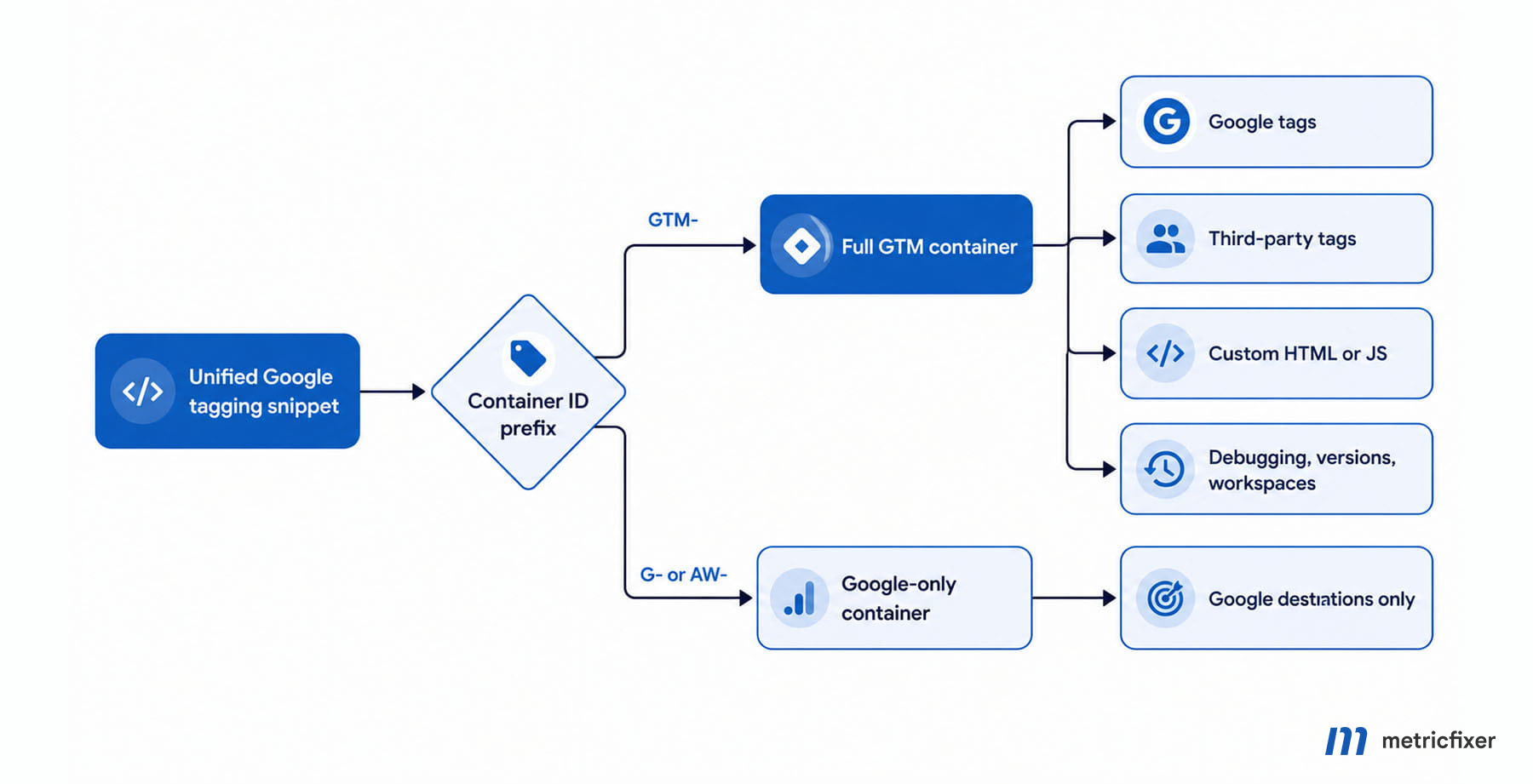
The most important technical idea is the container ID prefix. A GTM- ID enables the full GTM container model, including Google tags, third-party tags, Custom HTML, Custom JavaScript, templates, workspaces, versions, Preview mode, and permissions. Product-specific prefixes such as G- or AW- keep the implementation limited to Google destinations. This gives teams a practical architecture switch: full tag management when broader execution is needed, Google-only tagging when the organization wants a smaller execution surface.
For existing GTM users, container optimization is one of the most operationally important themes. Google’s newer model centralizes Google tag settings, preserves existing event tags, links destination accounts, and allows optimized containers to send data more directly to Google destinations. Separately, classic container-efficiency work remains essential: consolidate similar tags, remove unused items, reduce Custom HTML and Custom JavaScript, reuse variables, split overly broad containers where appropriate, and consider server-side tagging when browser-side load becomes too large.
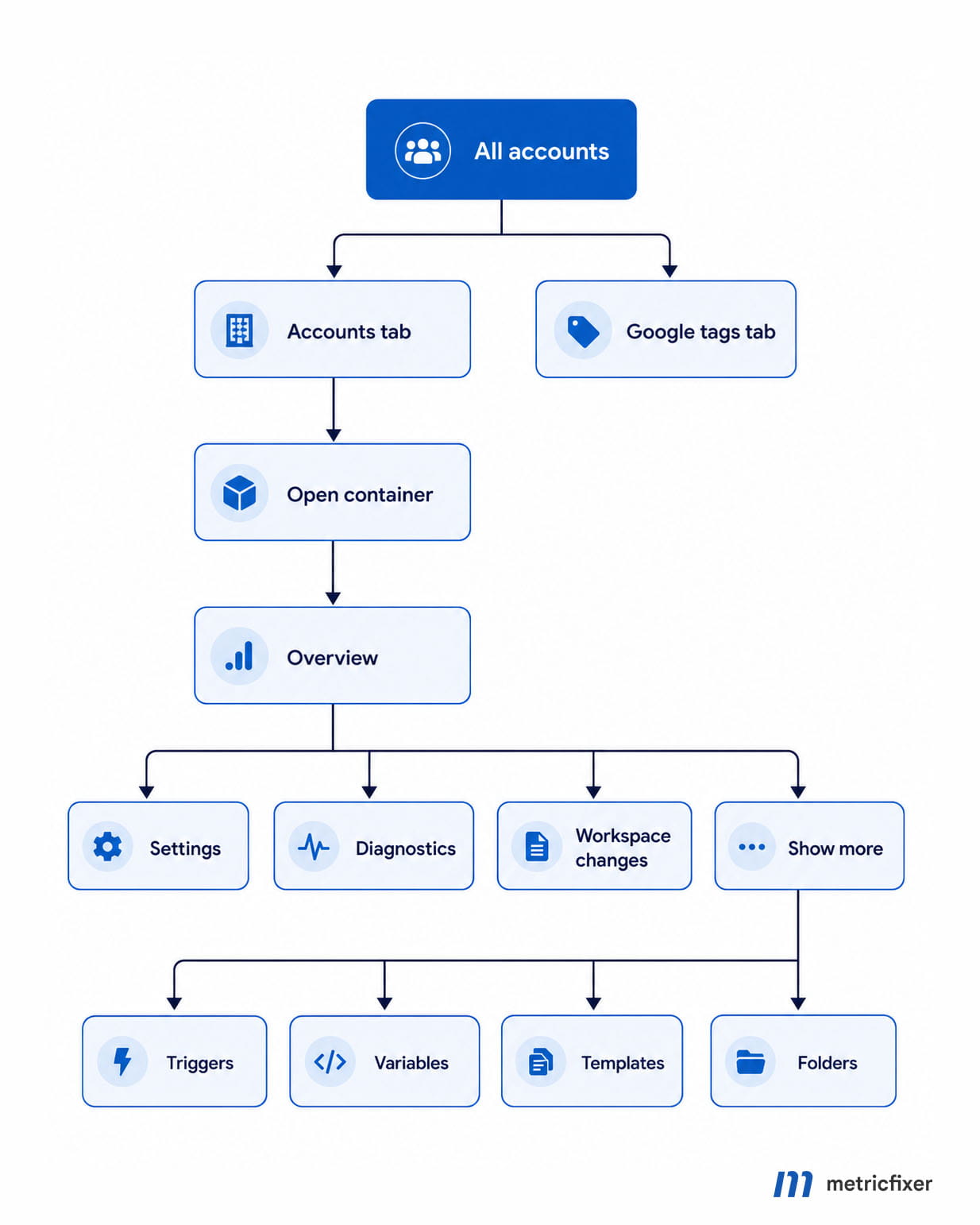
The interface changes are meaningful for both specialists and non-specialists. The All accounts page separates classic GTM account/container administration from Google tags visibility. The container Overview becomes a more useful triage surface for settings, diagnostics, destination visibility, workspace changes, and pending publication state. The side navigation hides some advanced primitives behind a Show more or Advanced pattern in newer layouts, which makes the product less intimidating while keeping expert tools available.
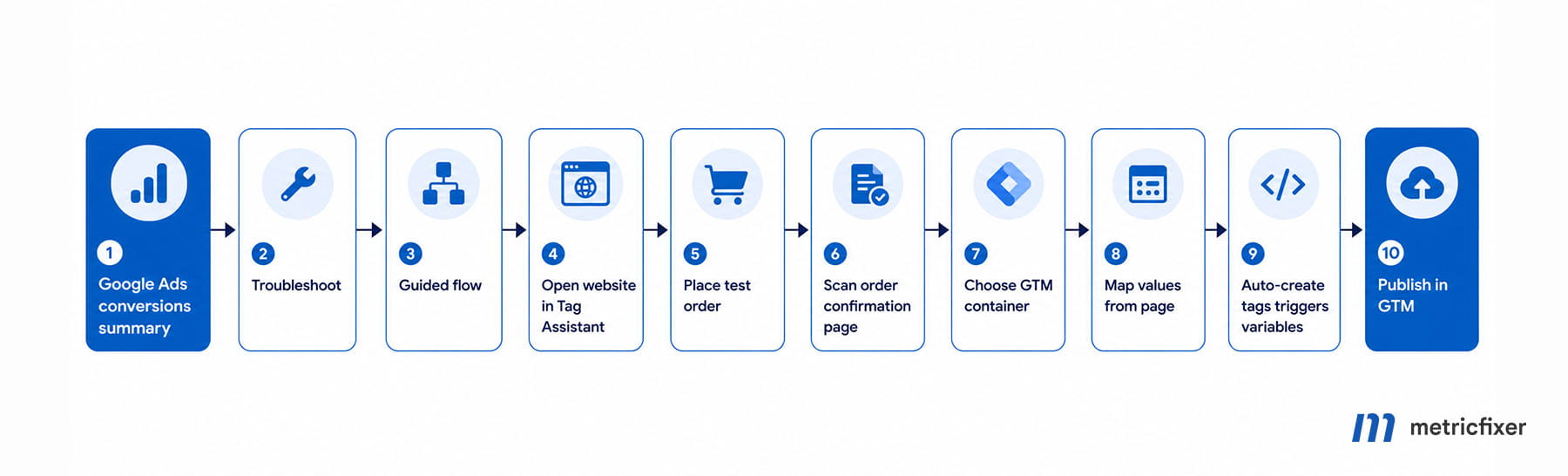
The most visible setup change is Visual tagging in Tag Assistant and related assisted conversion workflows. A user can start from Google Ads conversion troubleshooting, open the website through Tag Assistant, perform a test order or conversion action, map values from the page or data layer, choose the GTM container, and let Google create or adjust GTM assets. This is helpful for fast Google Ads purchase or enhanced conversion setup, but it should not be treated as a replacement for a stable data-layer implementation on mature ecommerce and lead-generation websites.
What changed and why it matters
The 2026 update is best understood as the endpoint of a longer product direction. Google first moved GA4 Configuration tags into the broader Google tag model, then made the Google tag more central inside GTM, then added more first-party diagnostics and coverage tooling, and then introduced a redesigned GTM interface and guided setup flows. The current generation is less about “one new button” and more about a new operating model for Google measurement.
A useful prelude came in late 2025, when GTM added built-in variables for Analytics Client ID, Session ID, and Session Number, plus a new Analytics Storage variable type. That reduced the need for brittle cookie parsing and custom workarounds. It fits the same direction: Google is giving implementers more supported ways to retrieve identifiers, configure measurement, and reduce fragile custom code.
The practical consequence for analytics, paid-media, and conversion-tracking teams is that GTM should be treated as a measurement operations layer. It is where teams choose the correct container mode, review Google tag settings, validate page coverage, debug events, manage conversion setup, test consent behavior, publish changes, and maintain version history.
Unified Google tag and GTM become one operating model
The old mental model was fragmented: Google Ads had conversion tags, GA4 had configuration and event tags, gtag.js was a direct implementation path, and GTM was a separate tag management system. The current model is more unified. Google describes the Google tag as a single tag used to measure website and ads performance and send data to Google Ads and GA4 destinations. GTM remains the operational layer for tags, triggers, variables, templates, debugging, versions, workspaces, permissions, and third-party tags.
The key technical boundary is the ID prefix. If the ID starts with GTM-, the container can load all tag types, including third-party scripts, Custom HTML, Custom JavaScript, custom templates, and Google destination tags. If the ID starts with a product-specific prefix such as G- or AW-, the tag is limited to Google services and does not execute arbitrary third-party or custom tag types.
This is useful for governance. A small website that only needs GA4 and Google Ads measurement may prefer a Google-only path. A website that needs Meta Pixel, TikTok Pixel, LinkedIn Insight Tag, call tracking, heatmaps, custom ecommerce data-layer processing, consent orchestration, server-side GTM coordination, or non-Google scripts still needs the broader GTM- container path.
For agencies and in-house teams, the shift is especially useful when an inherited implementation needs to move from hard-coded Google tags into a versioned, reviewable workflow. It gives teams a clearer path from “Google-only measurement” to “full tag management” without treating GTM as a completely separate universe.
Container optimization: architecture cleanup and Google destination delivery
Container optimization now has two related meanings. The first is Google’s newer optimization flow for Google destination delivery: centralizing Google tag settings, preserving existing event tags, linking destination accounts, and allowing optimized containers to send data more directly to Google destinations. The second is classic container maintenance: keeping tags, triggers, variables, templates, custom code, and vendor scripts under control.
For teams already using GTM, the newer optimization flow is important because it can simplify Google measurement delivery. Google describes it as opt-in: users with edit, approve, or publish permissions can start the optimization flow, preview generated changes, and publish only after review. No production implementation should treat this as a blind migration.
The management benefit is that Google tag settings move into a centralized Settings area, while existing event tags remain unchanged. The Settings view becomes a container-wide map of Google destinations and the settings that apply to them. This makes it easier to answer practical questions such as which Google destinations are connected, where settings are inherited, and which accounts are linked.
The technical benefit is that optimized containers can send data directly to Google destinations instead of relying on an additional gtag.js relay. Removing that extra hop can reduce measurement latency and make the container easier to reason about. However, the migration still requires regression testing for initialization order, consent behavior, cross-domain settings, enhanced conversions, server-side forwarding, and destination-specific configuration.
Classic container optimization remains just as important. Large containers are harder to debug, easier to break, and more likely to create performance or consent-governance problems. Similar tags should be consolidated where possible. Lookup tables, regex tables, and reusable variables should replace many almost-identical tags. Unused tags, triggers, variables, templates, and folders should be removed. Large containers that span unrelated sites or business units should be split where appropriate.
Custom code deserves special scrutiny. Custom HTML tags and Custom JavaScript variables are sometimes necessary, but they should not become a hidden application layer. If static JavaScript can live in an external file with normal code review, caching, and deployment controls, that is usually better than storing it in GTM. If a tag is business-critical, it needs an owner, purpose, trigger explanation, test notes, and rollback path.
Implementation notes for specialists
A standard Google tag deployment inside GTM still follows a familiar path: create a new tag, choose Google Tag as the tag type, enter the Tag ID, and use the Initialization – All Pages trigger so the tag loads before most other container logic. What changes in the new model is not the need for clean implementation; it is where settings, destinations, and initialization responsibility are expected to live.
The practical migration sequence is:
- Use a product-specific
G-orAW-path when the implementation should remain Google-only. - Use a
GTM-ID when the site needs full GTM capabilities, including third-party tags, custom templates, custom code, or non-Google pixels. - Run container optimization in a non-critical workspace first.
- Preview generated changes and inspect destination links, settings, initialization behavior, and permissions before publishing.
- Regression-test page views, purchase events, lead events, consent mode, enhanced conversions, cross-domain behavior, and server-side forwarding after optimization.
- Review automatically created destination links and user access after optimization, especially in agency, multi-brand, and enterprise environments.
For ecommerce and other revenue-critical workflows, guided tools do not remove the need for a clear data layer. A durable purchase event should be generated from reliable application data, not scraped from a receipt page whenever possible.
<script>
  window.dataLayer = window.dataLayer || [];
  window.dataLayer.push({
    event: 'purchase',
    transaction_id: 'ORD-12345',
    value: 149.99,
    currency: 'USD'
  });
</script>
This example is intentionally simple. In a production ecommerce setup, the same idea would normally include item data, tax, shipping, coupon, customer status, payment or delivery context where appropriate, and any other fields required by the measurement plan.
The new GTM interface
The interface redesign is not only a visual cleanup. It reflects Google’s goal of making GTM usable for a wider audience while preserving expert primitives. Google’s help documentation now uses terms such as All accounts and Container overview, while practitioners often describe the same change as a new home page and a more useful overview summary.
Home page: All accounts, Accounts, and Google tags
When users first sign in, GTM now presents an All accounts page that shows accessible accounts and the containers within them. The page separates two top-level views: the Accounts tab for Tag Manager accounts, containers, and settings; and the Google tags tab for Google tag settings associated with the user’s Google Account.
This split matters because not every Google tag setting is the same as a GTM container setting. A team can now more clearly distinguish container management from Google destination-level tag management. In agency work, this prevents a common confusion: a user may say “GTM is installed,” while they are actually looking at a Google tag associated with GA4 or Google Ads. Another user may say “the Google tag is configured,” while the site still needs a full GTM- container because third-party pixels, custom events, consent defaults, or ecommerce data-layer events must be managed through GTM.
The Accounts tab is useful for finding the correct client account and container, checking permissions, opening a workspace, and confirming whether the implementation uses a full GTM container. The Google tags tab is useful for reviewing Google tag settings across Google products, checking tag coverage and diagnostics, managing Google destinations, and supporting advertisers who only use Google Ads and GA4 measurement.
Overview: a more useful summary surface
The redesigned Overview page is more valuable than the old landing screen. It works as a state-review surface for settings, diagnostics, Google destination visibility, current workspace changes, pending edits, and publication readiness. Before creating a new conversion tag, a specialist should usually check the current workspace, search for an existing Google tag, review recent workspace changes, preview the draft, and confirm whether similar tags already exist.
This reduces duplication. A team may find that a Google Ads conversion tag already exists but the trigger is too narrow, that the conversion linker is missing, that a GA4 event exists but Google Ads import was never configured, or that a workspace already contains unpublished changes from another user. Without a workspace-level review, the team may simply create another tag and make reporting worse.
The overview also supports a more controlled publishing process. Workspace changes, versions, names, descriptions, approvals, and rollback paths matter because a wrong trigger, duplicate conversion tag, missing consent condition, or changed initialization sequence can distort bidding signals and analytics reports.
Side navigation and the Show more pattern
The new side navigation hides more advanced objects behind a Show more or Advanced pattern in newer layouts. Google describes advanced areas containing Triggers, Variables, Templates, and Folders. This is designed for onboarding: a user who only needs a simple Google tag or guided conversion setup does not have to face the full GTM object model immediately.
The simplification has a trade-off. For analysts and engineers, Triggers and Variables are not optional extras; they are the core logic of a maintainable container. Hiding them can slow expert work until the user expands the navigation. The practical advantage is that the expanded state can persist, so specialists can restore the familiar workflow after the first visit.
The side navigation is also useful for training. A tag sends data or loads a script. A trigger decides when the tag fires. A variable supplies dynamic values. A template creates a safer and more structured tag or variable configuration. A folder groups related items and helps users maintain larger containers. A well-organized container should make this model visible through consistent naming and grouping.
Tag Coverage and Diagnostics make missing tags easier to find
One of the most useful operational improvements is the closer relationship between Google tag settings, Tag Coverage, and diagnostics. Tag Coverage helps determine which pages have the Google tag installed. It can surface pages that are Not tagged, pages with No recent activity, and pages that are Tagged.
This is useful because many measurement problems are page-coverage problems, not tag-configuration problems. A conversion tag can be configured correctly, but if the landing page, checkout step, form page, thank-you page, or SPA route does not load the Google tag or GTM container, the conversion path is incomplete.
Tag Coverage and diagnostics are useful for:
- finding untagged landing pages from paid campaigns;
- checking whether important templates load the tag consistently;
- detecting pages that had tag activity in the past but not recently;
- validating improvements after a deployment;
- exporting page-level status for technical review;
- triaging whether a problem belongs to installation coverage, trigger logic, consent behavior, or event mapping.
These reports need interpretation. Low-traffic pages, redirects, trailing slash differences, capitalization differences, localization paths, test domains, and canonical variants can create misleading signals. A diagnostic warning should start an investigation; it should not automatically trigger a new tag implementation.
The best workflow is to combine diagnostics with Tag Assistant. If coverage flags a page, open it in Tag Assistant, check whether the Google tag or GTM container is present, confirm which events fire, and then decide whether the issue is a missing tag, redirect problem, low-traffic false positive, consent block, or duplicate URL variant.
Tag Assistant bridges setup, debugging, and guided troubleshooting
Tag Assistant is the main debugging surface for GTM and Google tags. In GTM Preview mode, the website connects to Tag Assistant so that users can inspect which tags fired, which tags did not fire, what event data was available, what variables resolved to, and how consent state affected tag behavior.
This is especially useful for conversion tracking. A specialist can open Preview mode, connect the website, perform the action being measured, and confirm whether the expected tag fired. If a tag did not fire, the debug interface helps identify whether the trigger condition failed, whether the event name was different than expected, whether a variable was empty, whether a data-layer push was missing, or whether consent state prevented the tag from sending data.
Tag Assistant is useful for:
- checking whether a conversion tag fires on a purchase, lead form, click, phone action, or custom event;
- validating conversion value, currency, transaction ID, order ID, or user-provided data mapping;
- checking the order in which tags fire;
- testing consent mode behavior;
- sharing debug sessions with another specialist or client-side developer;
- checking iframe, popup, redirect, and multi-window flows with the Chrome extension where needed.
Visual tagging in Tag Assistant and assisted conversion setup
Google’s official name for the new guided setup workflow is Visual tagging in Tag Assistant. The feature lets users configure tags directly on the website with guided instructions. In current public documentation, the workflow is focused on transaction-specific Google Ads purchase conversions and related assisted conversion setup scenarios.
The flow can start from Google Ads conversion troubleshooting. The user clicks Troubleshoot in the conversions summary, chooses the guided flow, opens the website through Tag Assistant, places a test order, reaches the order confirmation page, and lets the tool scan the page for GTM containers. The user then chooses the container and maps order information such as Transaction ID, Order Subtotal, Currency, Customer name, Customer email, and Customer phone from visible page elements or available data. After confirmation, Google can create the required GTM tags, triggers, and variables automatically.
Related assisted workflows also help with enhanced conversions. Depending on the setup path, users may rely on automatic detection, CSS selector mapping, JavaScript variables, data-layer values, or code-based implementation. The guided experience reduces the amount of blank-screen GTM configuration required for common conversion fixes.
This is useful when a paid-media team needs a purchase conversion working quickly, engineering access is slow, the confirmation page is stable, and the immediate goal is to repair or bootstrap Google Ads conversion tracking. It can also help agencies show clients exactly where the measurement flow breaks: missing container, missing access, workspace limit, existing purchase conversion, missing customer data, or double-counting risk.
The limitation is reliability. Page-element selection and CSS selectors are fragile on dynamic checkouts, localized templates, single-page applications, experimentation tools, and receipt pages whose markup changes without notice. For mature ecommerce and lead-generation measurement, visual tagging should be treated as a bootstrap, repair, or diagnostic tool, not as the final source of truth.
Where the new GTM features are useful
| Feature or workflow | Useful when | How it simplifies setup | Main caution |
|---|---|---|---|
| Unified Google tag with container ID behavior | A team needs to decide between Google-only measurement and full GTM capabilities. | Creates a clearer architecture choice: GTM- for full containers, G-/AW- for Google-only destinations. |
Using a Google-only prefix when third-party tags or custom logic are needed will limit the setup. |
| Container optimization flow | A GTM container needs cleaner Google destination delivery and centralized Google tag settings. | Centralizes settings, can reduce extra delivery hops, and clarifies destination links. | Review generated changes, initialization behavior, destination links, and permissions before publishing. |
| Classic container efficiency work | A container is large, slow, duplicated, or difficult to debug. | Encourages consolidation, reusable variables, less custom code, and clearer ownership. | Cleanup should be tested carefully to avoid removing active business-critical tags. |
| All accounts page | Agency audits, multi-brand management, and identifying the right account or container before editing. | Separates account/container administration from Google tag settings discovery. | It improves navigation but does not replace a permissions audit. |
| Google tags tab | The user needs to manage Google tag settings across Google products. | Separates Google tag settings from full container administration. | Do not assume Google tag settings replace GTM workspace review. |
| Container Overview | Workspace review, diagnostics, destination visibility, and quick state checks before publishing. | Turns the landing page into a practical triage surface. | Advanced users still need to inspect tags, triggers, variables, templates, and versions directly. |
| Tag Coverage and Diagnostics | Conversion reporting is missing, low, or inconsistent across landing pages. | Highlights untagged or inactive pages and supports post-deployment validation. | Low traffic, redirects, trailing slashes, and capitalization can create misleading signals. |
| Tag Assistant and Preview mode | A user needs to confirm whether tags fire and what data they pass. | Shows tag firing behavior, event data, variables, and debug sessions before publication. | Some flows require the Chrome extension, and blockers, CSP, iframes, or consent tools can interfere. |
| Visual tagging and assisted conversion setup | Google Ads or enhanced conversions need to be configured quickly from page data. | Guides the user through test actions, value mapping, and GTM asset creation or adjustment. | CSS selectors and automatic detection are less durable than a well-designed data layer. |
| Built-in Analytics ID variables | Retrieving Client ID, Session ID, and Session Number without custom cookie parsing. | Provides product-supported variables for common analytics identifiers. | Use them only where appropriate and avoid exposing identifiers unnecessarily. |
Recommended adoption workflow
- Audit the current tagging model. Identify whether each site is using a
GTM-,G-, orAW-ID, which destinations receive data, and whether third-party or custom tags are actually required. - Decide whether full GTM capability is needed. Use
GTM-when the site needs full tag management. Keep a Google-only prefix when the goal is a controlled Google-only implementation. - Open the correct operational layer. Use the Accounts tab for containers and the Google tags tab for Google tag settings.
- Review the current state before adding anything. Check existing tags, triggers, variables, workspace changes, versions, diagnostics, and tag coverage.
- Run container optimization deliberately. Use a non-critical workspace, preview generated changes, and verify destination links, settings, initialization, and permissions before publishing.
- Choose the most stable data source. Prefer a data layer or backend-provided values for ecommerce and lead tracking. Use CSS selectors or automatic detection mainly when they are sufficient and stable.
- Use Tag Assistant for real-user-path testing. Perform the actual purchase, lead, click, or signup action and verify that the right tag fires with the right values.
- Use visual tagging for fast starts and repairs. It is appropriate for bootstrapping Google Ads purchase conversions or diagnosing broken flows, especially when developer access is slow.
- Publish with a useful version name. The version name should explain the business change, not only say “fix” or “update.”
- Monitor after publication. Check tag coverage, diagnostics, Google Ads conversion status, GA4 events, consent behavior, and any server-side forwarding after the change goes live.
What should not be automated blindly
Assisted GTM workflows are useful, but some implementation areas still need expert review. Ecommerce purchase tracking should normally use a well-structured data layer with stable fields for transaction_id, value, currency, items, discounts, tax, shipping, and customer status. Lead generation tracking should define when a lead is counted and how duplicates are handled. Consent Mode should be configured before tags send data, not patched after tags are already firing.
Custom HTML and custom JavaScript should be treated as controlled code. If a tag is business-critical, it should have an owner, a purpose, a trigger explanation, test notes, and a rollback path. If a tag is old and no one can explain why it exists, it should be investigated before it is kept or removed.
The current interface makes these tasks easier to perform. It does not remove the need for measurement governance.
Editorial verdict
The biggest GTM story in 2026 is not the redesigned sidebar or even the visual event editor. It is the architectural sentence behind the update: Google tags and GTM are moving into one operating model. Everything else follows from that decision: the centralized Settings model, destination visibility, container optimization, account-level Google tag management, diagnostics, coverage, and Tag Assistant-guided setup.
The right response is neither resistance nor blind enthusiasm. The UI changes are helpful, especially for mixed-skill teams. Container optimization is worth adopting when it simplifies Google destination delivery and governance. The All accounts and Google tags split makes account-level audits easier. Tag Coverage and diagnostics make missing or inactive tags easier to investigate. Visual tagging can reduce setup friction for Google Ads purchase and enhanced conversion workflows.
At the same time, these tools should be used with discipline. A visual editor that scrapes values from page elements is not a substitute for a measurement plan. A simplified navigation does not remove the need to understand triggers and variables. An optimized container still needs consent testing, event validation, access review, and post-publish monitoring.
The best adoption strategy is straightforward: use Google’s new GTM workflows to reduce plumbing friction, but keep the durable parts of measurement design in stable data structures, documented container versions, and well-tested publication processes.
Implementation checklist
- [ ] Confirm whether the website uses a
GTM-,G-, orAW-identifier in the installed snippet. - [ ] Confirm whether the tracking requirement needs third-party tags, Custom HTML, Custom JavaScript, custom templates, or only Google destinations.
- [ ] Review the All accounts page and make sure the correct account and container are being edited.
- [ ] Use the Google tags tab to review Google tag settings where relevant.
- [ ] Run Tag Coverage and diagnostics before assuming that conversion tracking is broken at the tag level.
- [ ] Open GTM Preview mode and Tag Assistant before publishing any tracking change.
- [ ] Use stable data layer variables where possible; use CSS selectors and automatic detection only when they are reliable enough for the use case.
- [ ] Consolidate duplicate tags and remove unused tags, triggers, variables, templates, and folders as part of routine container optimization.
- [ ] Avoid unnecessary Custom HTML and Custom JavaScript when a built-in or template-based option is available.
- [ ] Review automatically created destination links and permissions after optimization flows.
- [ ] Test consent behavior, enhanced conversions, purchase values, transaction IDs, and server-side forwarding after publishing.
- [ ] Publish with a clear version name and description, then monitor Google Ads, GA4, diagnostics, and tag coverage after deployment.
Methodology and sources
This article is based on two uploaded metricfixer drafts about Google Tag Manager’s 2025–2026 interface and tagging updates. The consolidated version combines the stronger architectural “2026 reset” framing with the more operational discussion of Tag Coverage, diagnostics, Tag Assistant, container efficiency, assisted conversion setup, and practical team workflow. The article focuses on operational consequences for analytics, paid-media, and conversion-tracking teams rather than product marketing language.
- Google Tag Manager Help: Updates to Google tag and Google Tag Manager
- Google Tag Manager Help: Manage tagging behavior using the container ID
- Google Tag Manager Help: Google Tag Manager vs. gtag.js
- Google Tag Manager Help: Find your way around Tag Manager
- Google Tag Manager Help: Manage container size and efficiency
- Google Tag Manager Help: About the Tag coverage summary
- Google Tag Manager Help: Troubleshoot with Tag Assistant
- Google Tag Manager Help: Preview and debug containers
- Google Tag Manager Help: Publishing, versions, and approvals
- Google Tag Manager Help: Visual tagging in Tag Assistant
- Google Tag Manager Help: Tag Assistant Chrome extension
- Google Tag Manager Help: Add the Google tag in Google Tag Manager
- Google Tag Manager Help: Google tag management
- Google Developers: The data layer
- Google Developers: Google Tag Manager API overview
- Google Ads Help: About conversion measurement
- Google Ads Help: Set up enhanced conversions for web using Google Tag Manager
- Google Ads Help: Configure Google Tag Manager for enhanced conversions for leads
- Google Ads Help: About the enhanced conversions assist tool
- Google Blog: Google Marketing Live 2026
- Simo Ahava: Google Tag Manager UI Updates
This publication is for technical and operational information only. Google Tag Manager, Google Ads, GA4, Tag Assistant, Tag Coverage, diagnostics, enhanced conversions, consent-related interfaces, and related Google tagging features change over time, and availability may depend on account type, rollout status, permissions, region, product configuration, and consent settings. Before changing a production tracking setup, test the implementation in Preview mode, review generated workspace changes, confirm consent behavior, and validate conversion reporting after publication. metricfixer does not provide legal advice through this article.