
Published Nov 3, 2026
Google Tag Manager's October 2026 Update: New Code, New Interface and Legacy Support
Google Tag Manager has a shorter installation snippet and a redesigned interface, but existing sites need to check more than appearances. This review explains October 2026 initialization changes, old-code compatibility, destination tags and a safe audit workflow.
Category: Analytics & Conversion Tracking · By metricfixer Expert Team
Google Tag Manager now looks different, offers a shorter installation snippet and brings Google tag settings closer to container management. But the most important changes are not visual: October 2026 updates affect initialization, configuration commands and delivery to Google destinations. This review explains what changed, what remains compatible and what owners of existing websites should check before replacing code or optimizing a container.
Practical default: do not replace a working GTM installation simply because its installation dialog now shows different code. First identify the loader, container ID, configuration dependencies and consent sequence. Prioritize broken or unsupported combinations; treat optional optimization as a tested deployment, not routine interface housekeeping. Documentation and screenshots reviewed on 3 November 2026.
Contents
Executive summary
The changes visible in the supplied screenshots are real, but they should not be described as a single worldwide launch on 1 November. They combine an interface redesign, Google tag migration, a new installation presentation and separately documented technical changes.
The key distinction for an existing site is old code versus an unsupported dependency. A traditional GTM snippet is not automatically defective because it is long. A setup that loads a container through /gtm.js and expects a separate gtag('config') command to initialize it is a different matter. Google's installation correction guidance specifically addresses that problem.
Our recommendation is to review the implementation before changing it: identify who installs each tag, check broad custom-event triggers, verify consent and event timing, and measure each destination separately. A refreshed dashboard is not evidence of duplicate tracking, completed optimization or a need to reinstall everything.
This article follows metricfixer's summer review of GTM's 2026 redesign. The focus here is the autumn compatibility question and the practical checks it creates for established websites.

What changed and when
The chronology below separates dated documentation from account-level observation. The technical entries come from Google's GTM release notes; the broader unification announcement currently carries the date 20 August 2026.
| Date | Documented development | How to interpret it |
|---|---|---|
| 1 July 2026 | Redesigned GTM Overview. | The interface transition predates autumn. |
| 9 July 2026 | Container-ID-based execution restrictions for unsupported loading paths. | The ID matters, not just the script URL. |
| 20 August 2026 | Dated overview of Google tag unification, simplified navigation and visual tagging. | This page describes the broader direction; it is not a per-account activation log. |
| 17 September 2026 | AI-suggested version names and descriptions. | A publishing aid, not automatic validation. |
| 8 October 2026 | Standardized initialization for gtm.js and visible gtag.config events. | Check configuration dependencies and broad triggers. |
| 12 October 2026 | Container optimization and direct delivery to Google destinations. | Review the migration separately from installation code. |
| 3 November 2026 | metricfixer's supplied screenshots show the shorter snippet, combined account listing and redesigned workspace. | Confirmed observation in the reviewed account, not a universal rollout date. |
Finding the changes today does not establish when an individual account received them. Equally, a release-note date does not prove that every account displayed the same navigation or installation dialog that day.
What the new interface actually shows
Google tags appear alongside traditional containers
The supplied All accounts screenshot contains entries with both GTM- and G- identifiers. The selected Google-tag entry opens a configuration screen with Analytics and Google Ads destinations. The screen also displays a banner about upgrading Google tags to Tag Manager containers.
It is tempting to describe this as moving GA4 data streams into GTM, but that is imprecise. A destination can be a GA4 web data stream, a Google Ads account, a Floodlight configuration or a Merchant Center conversion source. The Google tag and its connected destination are related objects, not interchangeable names for the same thing.
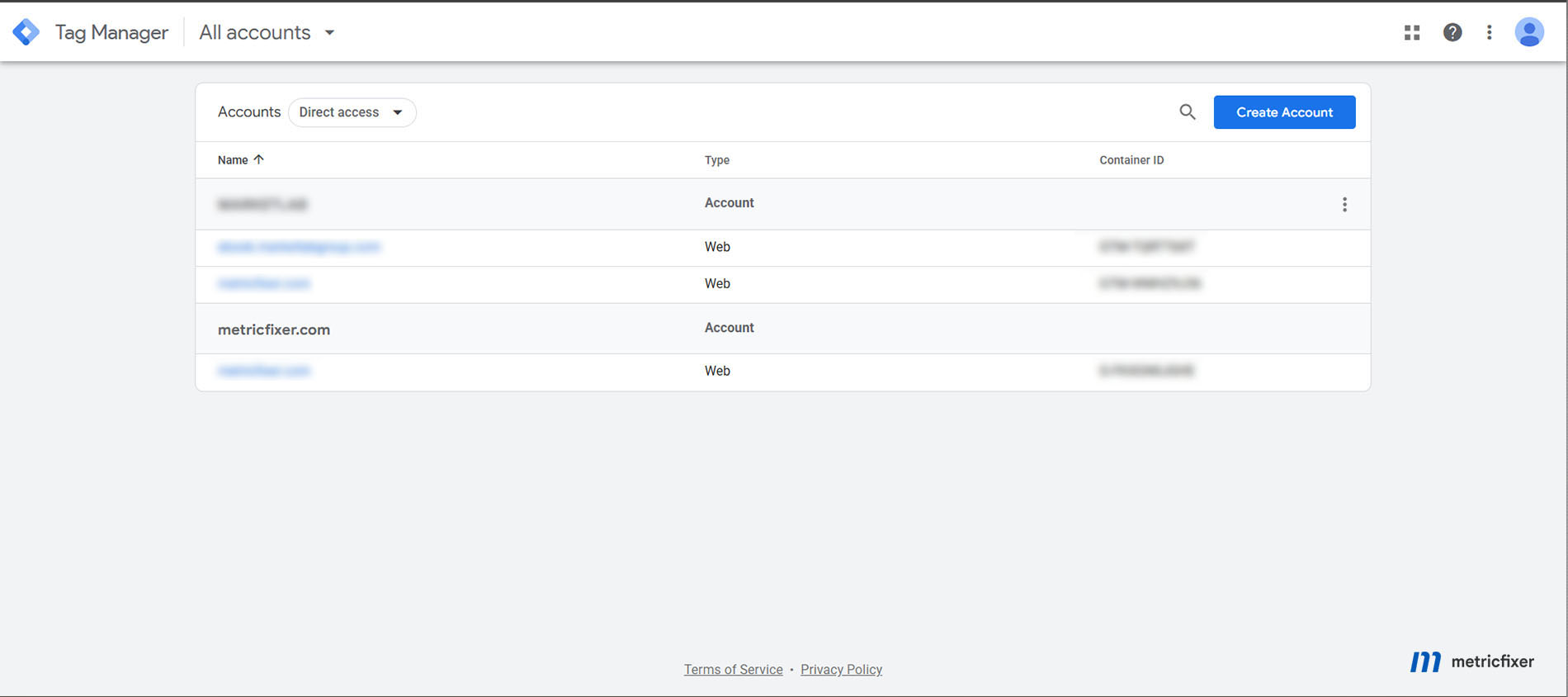
Two similarly named entries therefore justify an inventory, not deletion. Determine which IDs the website actually loads and which destinations receive events. The same display name is not enough to decide that one object is redundant.
There is also a permissions and functionality boundary. Google's container-ID guidance distinguishes full execution under a GTM- ID from Google-only execution under product-specific IDs such as G- and AW-. Access to a GTM-style interface does not mean a Google-only installation can run arbitrary third-party tags. Do not manufacture an ID by changing its prefix; use the actual identifier issued for the intended container.
Overview is more useful, while specialist tools are less prominent
The workspace screenshot puts setup cards, container quality and a container-to-tag-to-destination map near the top. Its sidebar emphasizes Overview, Settings and Tags, with additional tools behind Show more. Google's announcement calls the expandable group Advanced and includes triggers, variables, templates and folders. The naming difference is a reason to describe both labels, not evidence that these tools have disappeared.
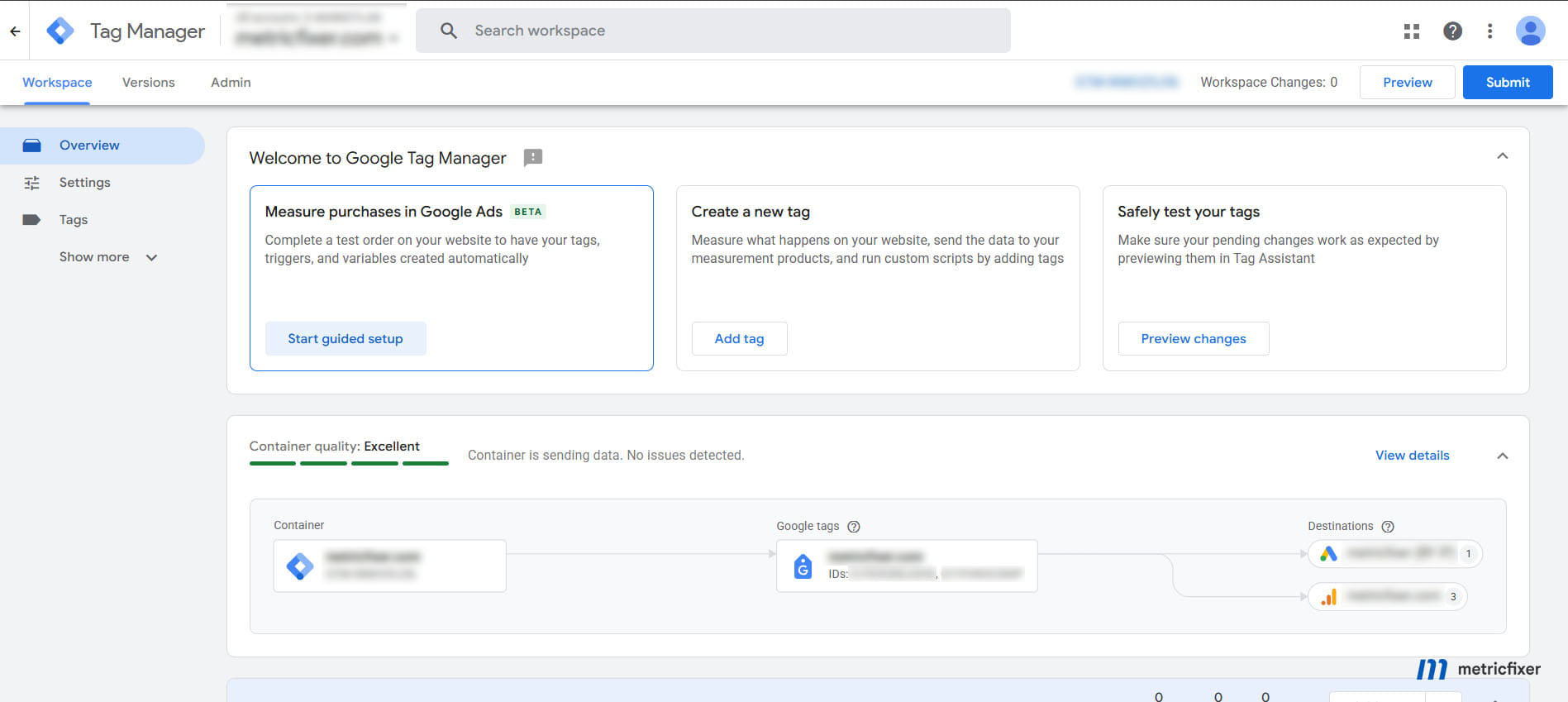
For teams maintaining internal instructions, update navigation screenshots and explain where expert controls moved. Do not rewrite the tracking specification simply to match the new menu.
Google tag settings are easier to reach, but their scope still matters
The supplied configuration screenshot shows familiar controls such as automatic event detection and domain configuration, alongside more than one destination. Before editing a shared setting, identify everything it can affect. A domain rule intended for one customer journey should not be applied to unrelated sites merely because their tags are visible together.
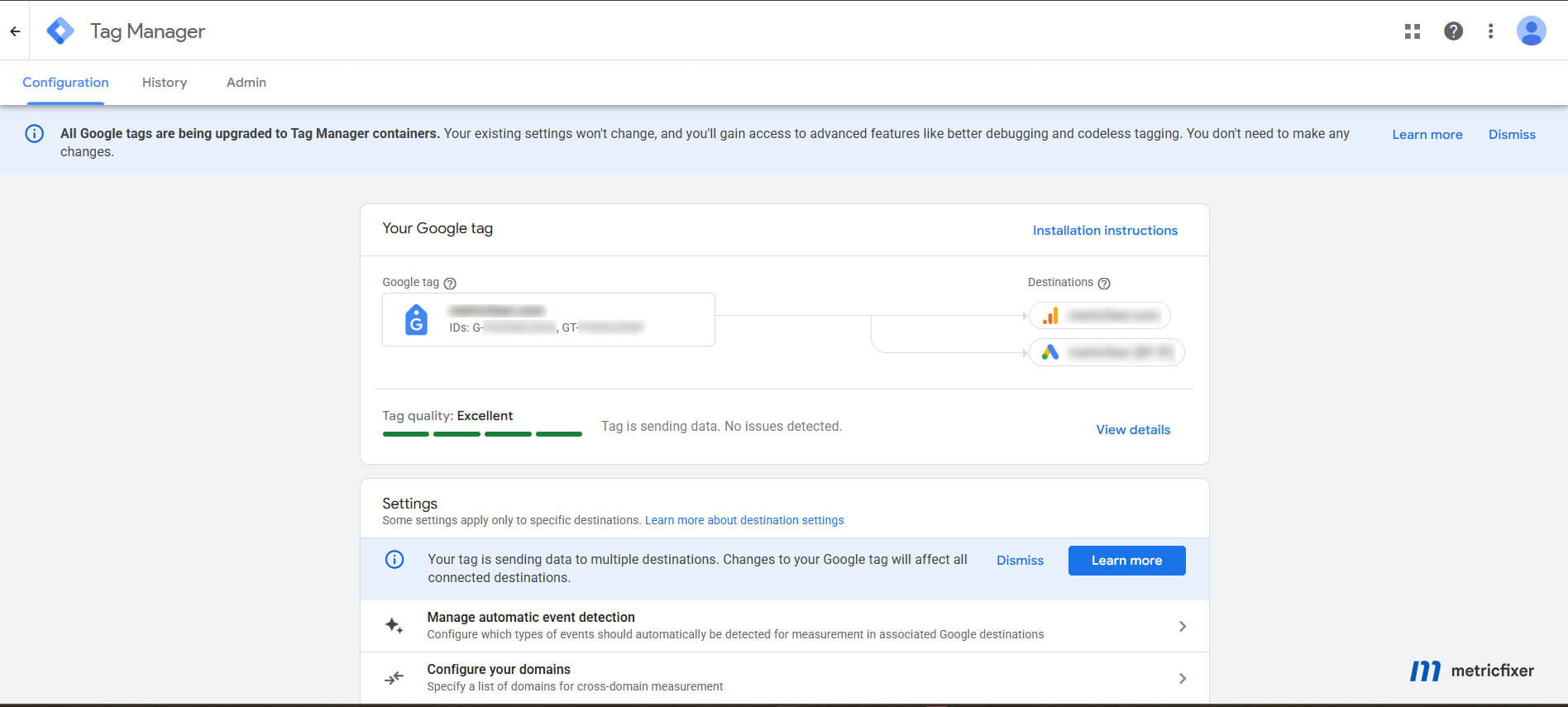
Keep the distinction between destination routing and product linking explicit. Our guide to Google tag destinations versus GA4-Google Ads links explains why these connections should not be treated as substitutes.
The new installation snippet: shorter code, different responsibilities
The installation dialog supplied for this review shows the following structure. The real container ID has been replaced with a placeholder:
<script async src="https://www.googletagmanager.com/gtm.js?id=GTM-EXAMPLE"></script>
<script>
  window.dataLayer = window.dataLayer || [];
  function gtag(){dataLayer.push(arguments);}
  gtag('js', new Date());
</script>
This is an illustration of the observed dialog, not a universal replacement template. Copy installation instructions from the correct container or use the supported integration that owns the installation. A site with a renamed data layer, a custom environment, a first-party loading route or a nonce-based security policy needs those requirements preserved.
The visible differences are straightforward: an explicit asynchronous script element loads gtm.js; a small queue wrapper defines gtag(); there is no visible gtag('config') call; and the dialog does not present a second body-level snippet. This is consistent with Google's stated direction toward unified deployment snippets and initialization configured in the interface.
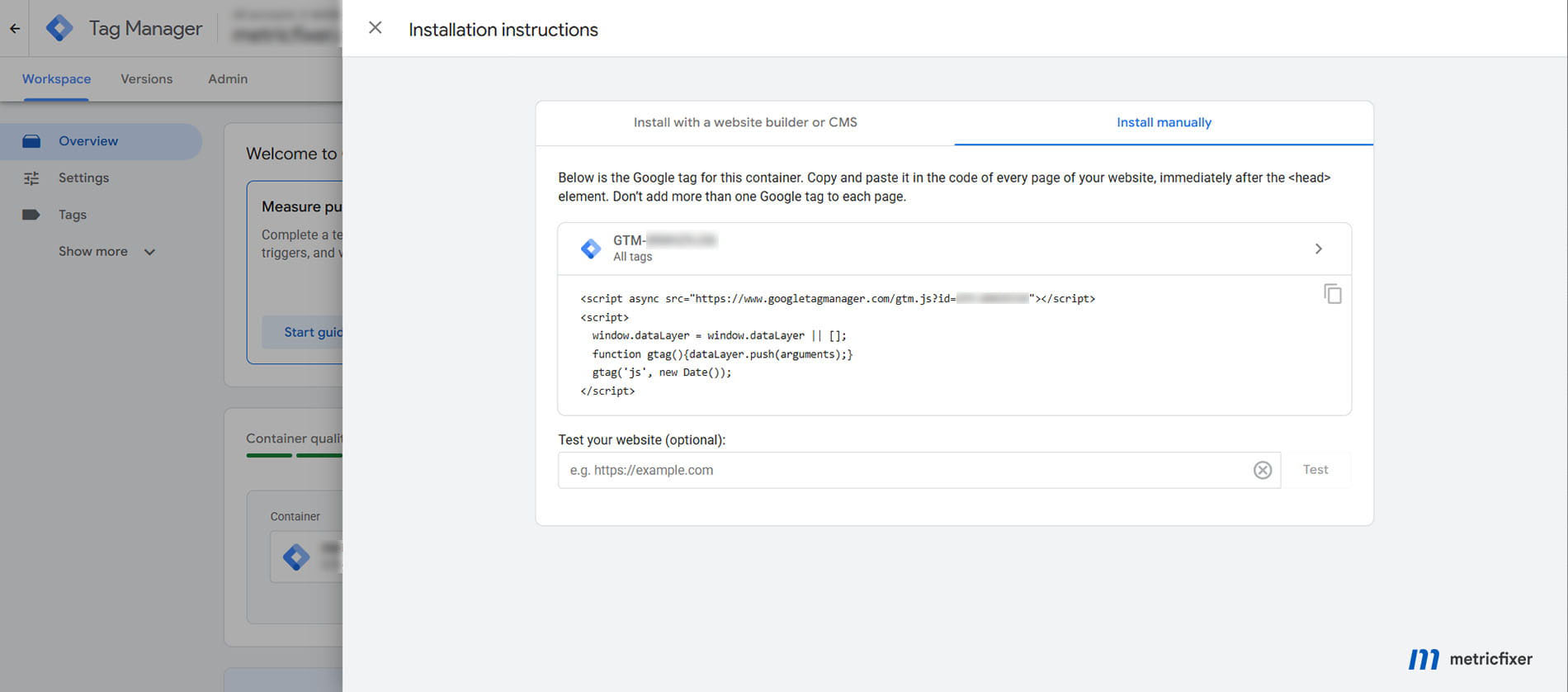
Do not infer from a shorter bootstrap that GTM's lifecycle events or business events are obsolete. Nor should a developer add manual initialization events to make the snippet resemble the old one. Test the actual sequence in Tag Assistant and preserve the site's documented data contract.
The wrapper's name is also not enough to identify the deployment. In this example, gtag() is present but the requested resource is still /gtm.js. Read the script path, the ID and the configuration together.
Does the old snippet have an expiry date?
No general shutdown date for the traditional, correctly installed GTM snippet was found in the official documentation reviewed on 3 November 2026. Google's current web-container installation guide still publishes the familiar JavaScript bootstrap and body-level <noscript> example. That is not a promise of permanent support, but it does not support an emergency, sitewide replacement deadline either.
The correct compatibility question is which installation pattern the site uses:
| Existing pattern | Recommended response |
|---|---|
Traditional GTM bootstrap with a valid GTM- ID and container-managed configuration | Check delivery and initialization. Do not replace it solely because the dialog changed. |
/gtm.js with a dependency on in-page gtag('config') | Investigate promptly and move to a supported configuration path. |
| Migrated Google tag retaining legacy initialization | Review its specific compatibility setting before removing configuration commands. |
| CMS, plugin, CDN or custom-environment installation | Identify its owner and supported deployment method before editing generated code. |
The missing noscript block needs a separate decision
<noscript> is not specifically an old-browser feature. It provides an alternative when scripting is unavailable or disabled, as defined in the HTML element documentation. It is not a general fallback for an individual script blocked by an extension, a network error or a content security policy while JavaScript remains enabled.
There is a less obvious dependency: Google's Search Console ownership-verification instructions still require the GTM <noscript> section immediately after the opening <body> when using that verification method. Search Console also periodically rechecks verification tokens.
Before removing an existing block, check ownership verification and any intentional non-JavaScript measurement. Establish and verify an alternative ownership method where appropriate. The observed installation dialog and the published guides are not fully aligned; that is a documentation limitation to account for, not permission to silently discard a dependency.
The October change that deserves immediate attention
The 8 October release note documents two related changes: containers loaded through gtm.js initialize without waiting for gtag('config'), and configuration commands can appear as visible gtag.config events. Google warns that wildcard custom-event triggers may consequently fire.
Audit broad event matching
Start with tags attached to a custom-event regular expression such as .*. Ask what each tag is supposed to represent. A rule intended to forward business events should not casually forward initialization or configuration activity as if it were a purchase, lead or user interaction.
Google's custom-event trigger documentation describes event-name matching and regular-expression support. Our recommendation is to use an explicit allowlist of intended events where practical, then test its coverage. An exclusion for gtag.config may be appropriate, but do not apply it blindly to tags intentionally using a legacy configuration event.
Repair the deployment pattern, not just the symptom
Google's correction guide distinguishes direct Google-tag configuration from GTM-managed configuration. A direct setup that depends on in-page configuration should use its supported gtag.js installation. A site that needs GTM for third-party tags should retain its actual GTM- container and configure the Google tag in the interface.
Do not interpret this as an instruction to remove every GTM container or add a second loader alongside an existing implementation. Map the current ownership first, move the required settings deliberately, and remove only what has been replaced and verified. A new loader plus the old plugin is not a migration plan.
The legacy initialization setting is not a universal compatibility switch
Google documents Support gtag('config') initialization events for web containers migrated from Google tag. It is not offered for ordinary GTM containers that never went through that migration.
| Loading path | Legacy setting | Initialization |
|---|---|---|
/gtm.js | Does not affect this path. | Initializes on load, after Consent Initialization. |
/gtag/js | Enabled on an eligible migrated container. | Waits for configuration matching an allowed container ID. |
/gtag/js | Disabled. | Initializes on load rather than waiting. |
Google says existing migrated installations remain supported with legacy behavior retained. However, deleting the in-page configuration while leaving this setting enabled can prevent destination tags from firing. Where both sources define the same parameter, the interface configuration takes precedence.
Before disabling legacy behavior, move the required initialization parameters into the relevant tag configuration and test event timing, page views and values. The setting changes measurement behavior; it is not a cosmetic cleanup.
Practical decision: a missing checkbox is not, by itself, a fault. Do not try to recreate it with custom code or assume it can restore configuration-dependent behavior for a /gtm.js installation.
Container optimization, destination tags and permissions
Installation-code replacement and container optimization are separate operations. Google's unification announcement describes optimization as optional rather than an automatic rewrite of existing GTM configurations.
The optimization guide describes a workspace migration that consolidates settings, preserves existing event tags and triggers, and allows delivery without loading an additional gtag.js layer. When Google tags have conflicting settings, the flow requires a choice rather than silently treating them as identical. Review the changes, add them to the workspace, test and publish separately.
Our operational recommendation is to compare settings before accepting consolidation. Check domain rules, cookie settings, automatic-event behavior, user-provided-data controls and consent-related configuration. Similar names do not prove that two tags were intended to share the same settings.
Direct destination tags change what to inspect
A destination tag connects the container directly to a Google destination, with container-level settings and destination-specific overrides. Google also documents automatic page-view sending when a destination tag is added. That makes existing manual or platform-generated page views an important test case, not a reason to assume every additional request is duplication.
The container-and-destinations guide says central settings apply to directly connected destination tags; a Google tag loaded inside the container retains its own configuration. It also notes that adding an event tag can provision a missing destination tag automatically. Inspect the complete workspace change set, not just the one tag you intended to edit.
The map in the supplied screenshot still includes a Google tag between the container and its destinations. To establish optimization status, inspect the destination's Optimized indicator and configuration. Neither a shorter installation snippet nor an Excellent status proves that this migration has happened.
Permissions need their own rollback plan
External account links can expose container access through destination products. Google's guidance describes an administrator-controlled link, with Read access as the default option; setting it up through the optimization flow requires administration rights on both sides.
Most importantly, the optimization guide states that permissions are not versioned. Rolling back a container version does not automatically reverse access changes. Record external links and granted access before migration, then review them separately during rollback.
Google presents reduced JavaScript loading as a performance benefit. This review does not provide a before-and-after benchmark. Measure the result on representative pages rather than promising a fixed speed improvement or conversion uplift.
What to check on an existing website
The following is metricfixer's operational test plan, not a claim that the update breaks every listed feature. Use it to compare the intended implementation with what a real browser and the receiving products actually do.
1. Establish who installs what
Inventory the page template, CMS integration, marketing plugins, consent platform, CDN rules and hard-coded scripts. Record which component owns each loader and destination. Test a landing page, an ordinary content page, a lead form and the checkout or confirmation flow where applicable.
Keep a distinction between an ID shown in an account list and an ID loaded on a page. Likewise, two Google requests do not automatically mean two installations. Record the event, destination and initiator before deciding something is duplicated.
For first-party delivery, preserve the approved routing rather than replacing it with the public-host example above. Google's gateway setup guide has its own installation instructions and separately notes that its measurement path does not support the GTM <noscript> route.
2. Check readiness, not just firing order
The data-layer documentation explains that GTM processes queued messages in order and warns against overwriting the existing data layer. Values required by a tag must be available when it runs; a later push is not a reliable substitute for an earlier value.
Our test question is simple: does the first relevant event contain the correct page context, consent state and business data? Inspect the first page view, a route transition and the conversion event. Pay special attention to values produced asynchronously after the initial HTML arrives.
Google's page-load trigger guidance distinguishes Consent Initialization, Initialization, Page View, DOM Ready and Window Loaded. Moving a DOM-reading tag earlier can make its inputs unavailable. Do not move every tag to Initialization merely because the new platform uses that stage for destination setup.
3. Re-test consent from a fresh visit
Verify default consent before measurement, then rejection, acceptance, granular choices and withdrawal. Compare a fresh browser state with a returning visitor. Where regional behavior is intentional, test those variants too.
Google's consent implementation guide requires defaults and subsequent updates in the appropriate order. For GTM templates, it specifies consent APIs rather than substituting queued gtag() updates. The four relevant signals include analytics_storage, ad_storage, ad_user_data and ad_personalization.
Our acceptance criterion is the site's intended Basic or Advanced behavior, not simply whether a tag is marked as fired. Do not turn a Basic setup into Advanced as an incidental consequence of moving initialization. See our Consent Mode diagnostic guide for the wider evidence chain.
4. Count business events per destination
Choose one repeatable action and write down the expected result first. For a purchase, record the order ID, value, currency and intended receiving destinations. Check reloads, back navigation and a second visit to the confirmation page. For a single-page application, test route changes as well as the initial load.
Count logical events, not just network rows: a request can serve a different destination, and transport behavior is not the same as the business definition of a purchase. Investigate both missing events and unexpected extras.
For multi-domain journeys, repeat the actual landing-to-checkout-to-return path. Our cross-domain identifier guide provides a broader checklist; here, the migration question is whether the approved journey still behaves as it did before the change.

5. Preserve security and deployment constraints
Google's Content Security Policy guidance recommends nonce-based authorization and discourages casually permitting inline execution. A replacement snippet changes the script elements the policy must authorize; an existing hash or nonce arrangement should not be assumed to transfer automatically.
Test the relevant policy in the browser and inspect violations. Do not weaken security simply to obtain a green debugger result. The same caution applies to custom data-layer names, environment parameters, script-delay tools and page caching: preserve the intended deployment and confirm which version ordinary visitors receive.
6. Separate diagnostics from proof
Google defines Excellent tag quality as no detected issues. Treat that as useful diagnostic evidence, not a certificate that your purchase definition, attribution, consent choices and CRM reconciliation are correct.
A strong acceptance record contains a test action, the relevant tag execution, the outgoing event and evidence at the intended destination. The absence of a warning is weaker than that complete chain.
| Check | Evidence to save | Reason to stop and investigate |
|---|---|---|
| Loader and ownership | Deployed IDs, script paths and installation owners. | Unknown loader, unexplained additional installation or wrong environment. |
| Initialization and triggers | Event sequence and intended matches. | A configuration event triggers business-event tags, or required values arrive too late. |
| Consent | Fresh-visit and choice-change observations. | Collection or storage differs from the approved consent design. |
| Business events | Event name, destination, order or lead reference and relevant values. | Missing, duplicated or incorrectly valued events. |
| Security and routing | CSP results, first-party endpoints and live-version confirmation. | Blocked requests, lost routing or a draft mistaken for production. |
| Access and ownership verification | External links, permissions and Search Console verification method. | Unapproved access changes or removal of the only working verification token. |
Visual purchase setup and suggested version summaries
The reviewed workspace advertises guided Google Ads purchase measurement with a Beta label. Google's visual-tagging instructions describe placing a test order, selecting order information and publishing generated tags, triggers and variables. The workflow requires an appropriate confirmation page and container access. It explicitly warns about double-counting when an existing purchase conversion is detected.
Use this as an assisted implementation tool, not proof that a checkout is correctly measured. Review selected values, generated selectors, consent behavior and reload handling. Customer information shown on a confirmation page also needs an approved collection purpose and technical configuration; its visibility is not authorization to send it everywhere.
For an established store, our default is to preserve a reliable application-provided purchase event rather than replace it with page scraping just because the guided flow is available. A visual shortcut should solve a specific gap, not create a second source of purchase truth.
The September release-note feature for suggested version names and descriptions can make publishing records easier to prepare. Review the suggestion against the actual changes. Add the business reason, validation evidence and rollback reference: a generated summary does not know that the finance team defines revenue differently or that a permission change needs separate reversal.
A safe change and rollback workflow
Recommended workflow: record the current installation and baseline → identify any active fault or unsupported dependency → decide whether a change is necessary → prepare one reviewable change → validate consent, event delivery and access → publish to the intended environment → repeat production tests → retain the change only when the evidence supports it.
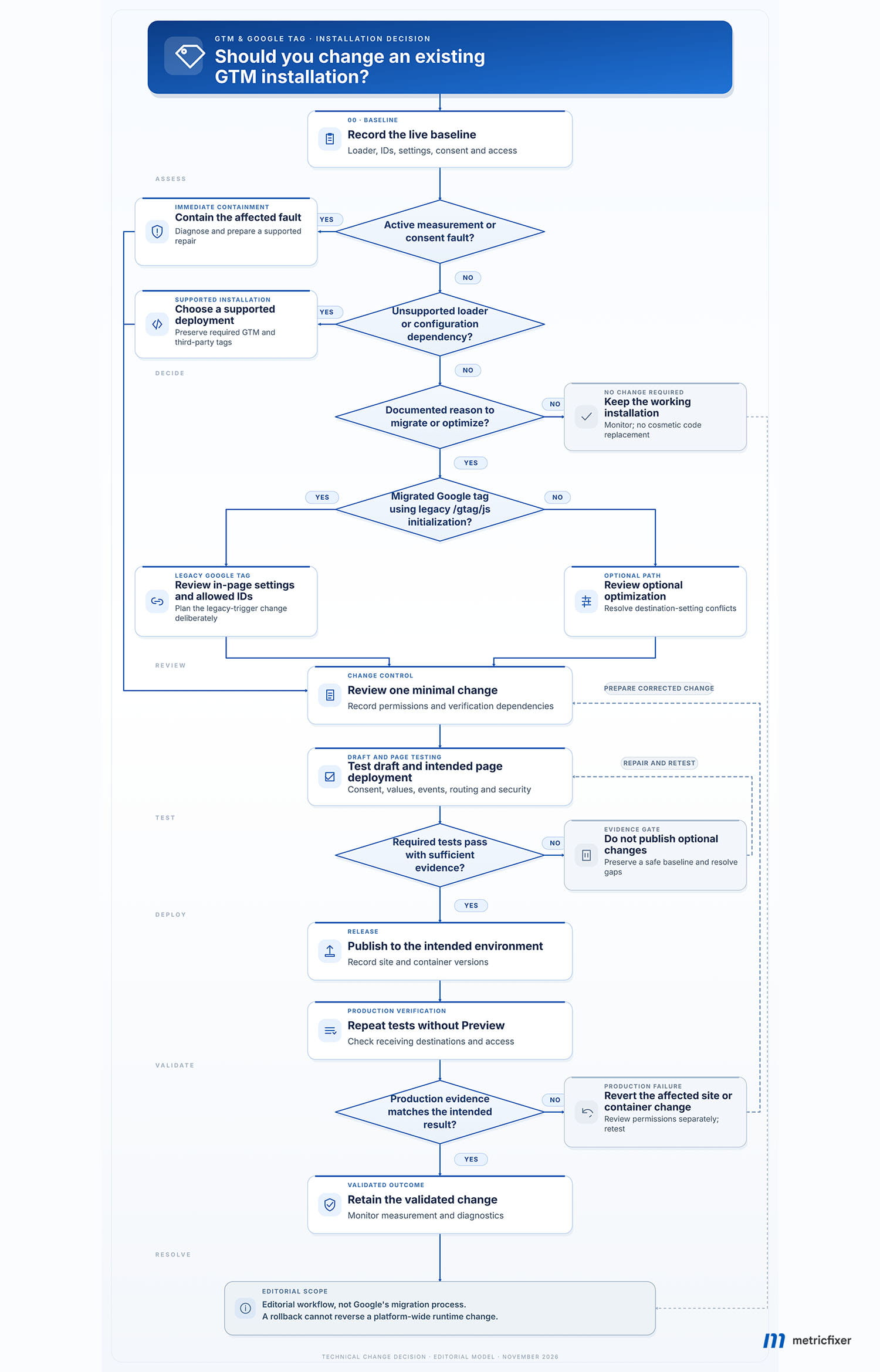
Google's Preview documentation explains that the connected browser can load the current draft as though it were deployed. Publishing and the selected environment remain separate decisions, covered by its versioning guidance. Therefore, repeat the acceptance tests without Preview after publication.
Use the following release checklist:
- Before changing anything: save the current container version, page or plugin configuration, relevant tag settings, external links and verification dependencies.
- Before publishing: resolve configuration conflicts, inspect generated changes, and test the important page templates and consent states. Do not approve an untested change just to complete a wizard.
- After publishing: verify ordinary visitor behavior, destination receipt and representative business events. Record the deployment time for later comparison.
- If validation fails: restore the affected container or website change, correct permissions separately where needed, and retest. A container rollback cannot repair an unrelated CMS edit or reverse Google's platform-wide runtime update.
For a reporting discrepancy, first distinguish an event-delivery fault from processing delay or a different reporting definition. Our guide to tags that work in Preview but fail for real visitors explains the production-debugging sequence.
The practical conclusion: this is a reason to audit initialization and configuration ownership, not to schedule an indiscriminate reinstall. Correct unsupported combinations promptly. Preserve a working standard installation when there is no demonstrated reason to change it. Adopt optimization through the same review, testing and rollback discipline used for other measurement changes.

Methodology and sources
This review was prepared on 3 November 2026 using Google's public Tag Manager release notes, Help Center documentation and developer guidance, alongside four screenshots supplied by metricfixer from its own account review. Existing metricfixer publications were checked for continuity and relevant internal links.
Evidence boundaries: dated release notes establish documented product changes; Help Center pages describe supported behavior and workflows; screenshots establish what the reviewed account displayed. None of these establishes a worldwide activation date for every interface variant. The exact first appearance in the reviewed account was not independently reconstructed.
The source links are attached to the relevant claims throughout the article rather than repeated as a technical link dump. The installation guide still showing the traditional snippet and the new dialog showing shorter code are reported as a documentation mismatch. Wording such as "soon" on individual help pages is not treated as a later deadline than a dated release note.
Limitations: this was a documentation and screenshot review, not an authenticated audit of the container, a controlled old-versus-new runtime experiment or a performance benchmark. No live configuration was changed, no production network capture was supplied, and no universal improvement in speed, coverage or conversion volume is claimed. The absence of a published general retirement date is a finding about the reviewed sources, not a lifetime-support guarantee.
The diagnostic checklist and decision workflow are metricfixer's editorial recommendations derived from those documented behaviors. They are not Google's internal migration process or a guarantee that a particular account is eligible for every illustrated feature.
This article is for technical and operational information only and is not legal advice. metricfixer is not affiliated with Google, Google Tag Manager, Google Analytics or Google Ads. Interfaces, rollout availability, documentation and supported installation methods may change after publication. Validate changes against your own website, consent requirements, security controls and destination configuration before applying them to production.